

Having trouble hearing or being heard on FastTrack calls? Follow these steps to get your audio working smoothly.
Step 1 | General Audio Checks (Start Here!)
These quick checks can resolve most common audio issues.
-
Is Your Headset / Microphone Plugged In Securely?
-
Action: Unplug and re-plug your headset, microphone, or speakers.
-
Confirm: Do you hear a connection sound, or does the device light up?
-
-
Is Your Audio Device Muted or Volume Too Low?
-
Action:
-
Check for a physical mute button on your headset cable or microphone. Make sure it's not engaged.
-
Turn up the volume knob on your headset/speakers.
-
Check your computer's system volume. Make sure it's turned up and not muted (look for the speaker icon in your taskbar or menu bar).
-
-
Confirm: Is the volume icon on your computer showing sound output?
-
-
Are Other Programs Using Your Microphone?
-
Action: Close any other applications that might be using your microphone (e.g., Zoom, Microsoft Teams, another softphone).
-
Confirm: The microphone is now free for FastTrack to use.
-
Step 2 | Confirm Browser & Internet Requirements
FastTrack works best with recommended settings.
-
Are You Using a Supported Browser?
-
Action: Ensure you're using Chrome or Edge browser.
-
Confirm: If not, please switch to one of these supported browsers and try your call again.
-
-
Is Your Internet Connection Strong and Stable?
-
Action: Take an internet speed test here.
-
Confirm: Are you achieving at least 10 Mbps download speed and 5 Mbps upload speed?
-
Next Steps:
-
If your speeds are consistently below recommended levels, please reach out to your IT administrator (if you work in an office) or FastTrack Support (if you work from home).
-
-
Step 3 | Check FastTrack Softphone Audio Settings
Let's make sure FastTrack is using the right devices.
-
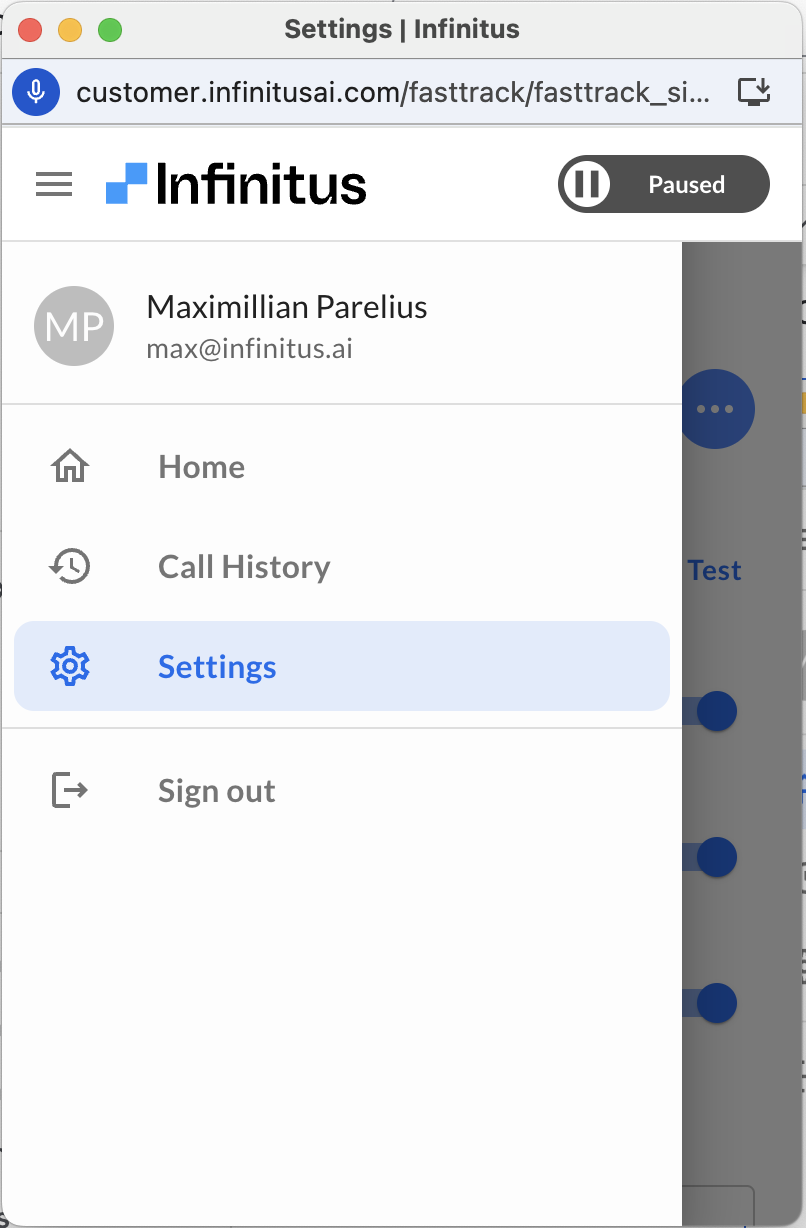
Access Your Sound Settings:
-
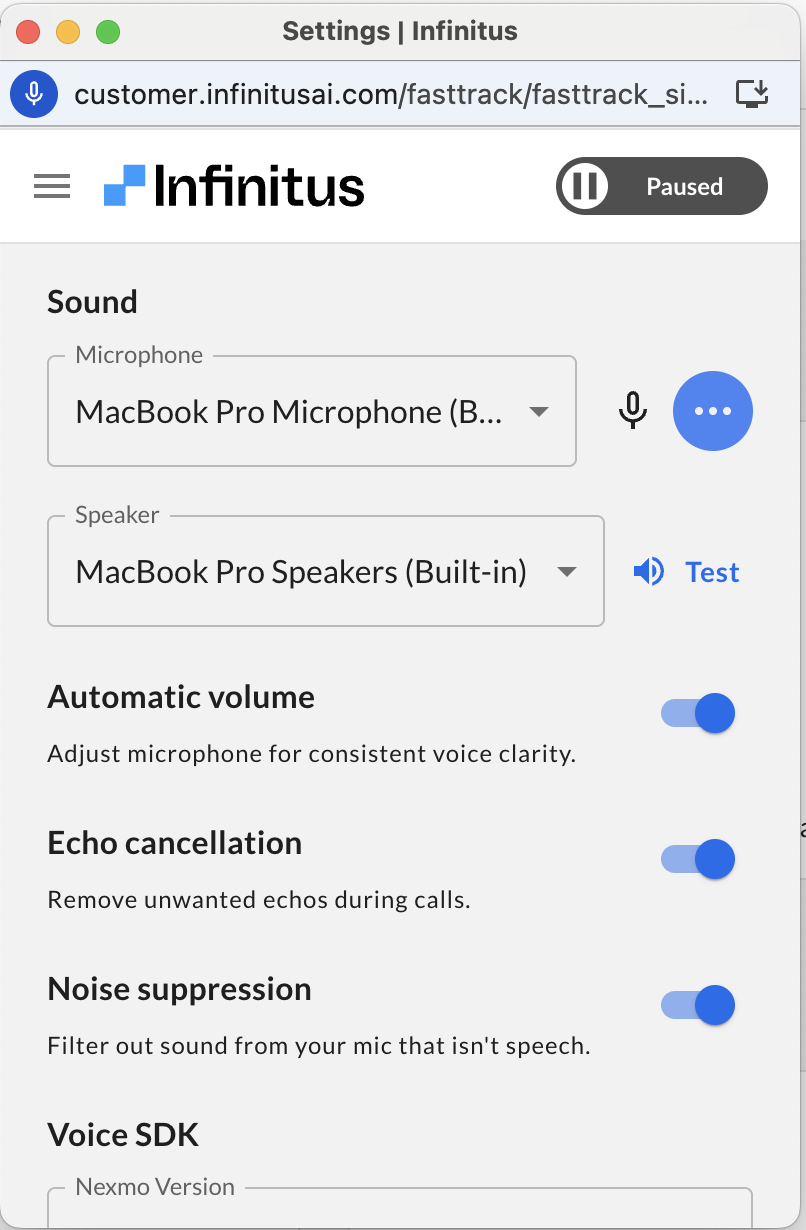
Action: Go to your Sound Settings within the FastTrack softphone.
-
-
Select the Correct Microphone and Speaker:
-
Action: In the dropdown menus for Microphone and Speaker, ensure the correct device (e.g., your headset) is selected. If not, change the selection.
-
Confirm: Do you see your preferred device listed?
-
-
Test Your Microphone:
-
Action: Speak into your microphone.
-
Confirm: Does the blue audio wave next to the microphone selection show movement? This indicates FastTrack is picking up your voice.
-
-
Test Your Speaker:
-
Action: Click the speaker sound test button.
-
Confirm: Can you hear the test audio?
-
-
Run a Guided Test Call:
-
Action: Create a test call within the FastTrack softphone and follow the on-screen instructions for the guided call. This helps verify your full audio setup.
-
Confirm: Are you able to successfully complete the guided call and hear your own voice played back?
-
Step 4 | Resolve Choppy or Poor Quality Audio During a Call
If you're already on a call and experiencing poor audio quality.
-
Try Reconnecting to Audio:
-
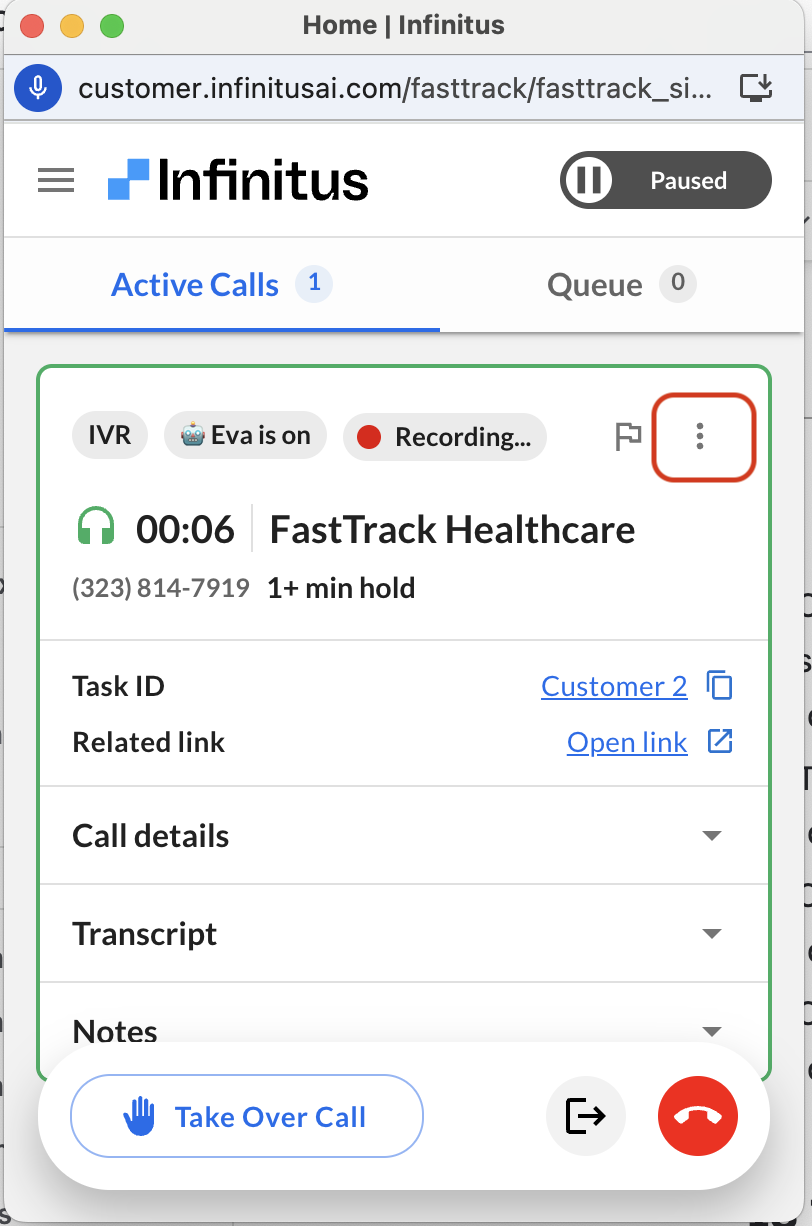
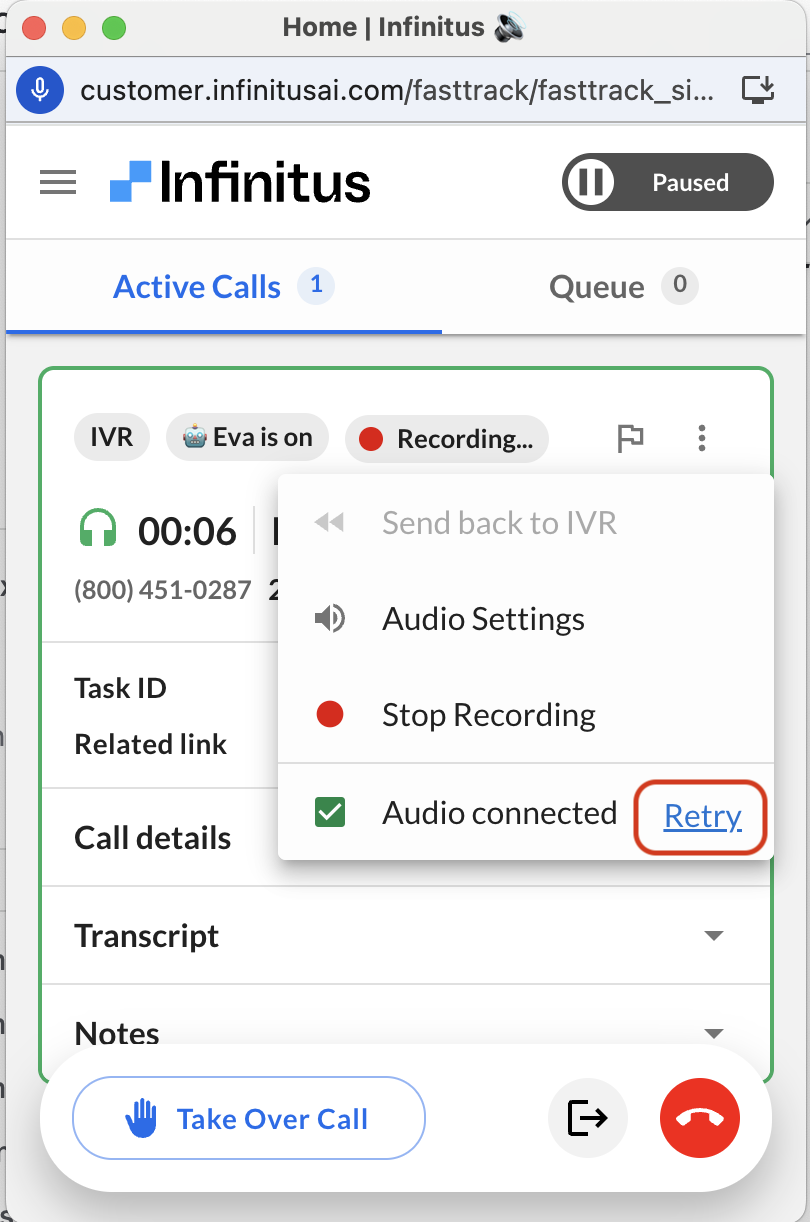
Action: While on the call, open the call menu.
-
-
Action: Click the "Retry" button to re-establish your audio connection.
-
Confirm: Has the audio quality improved?
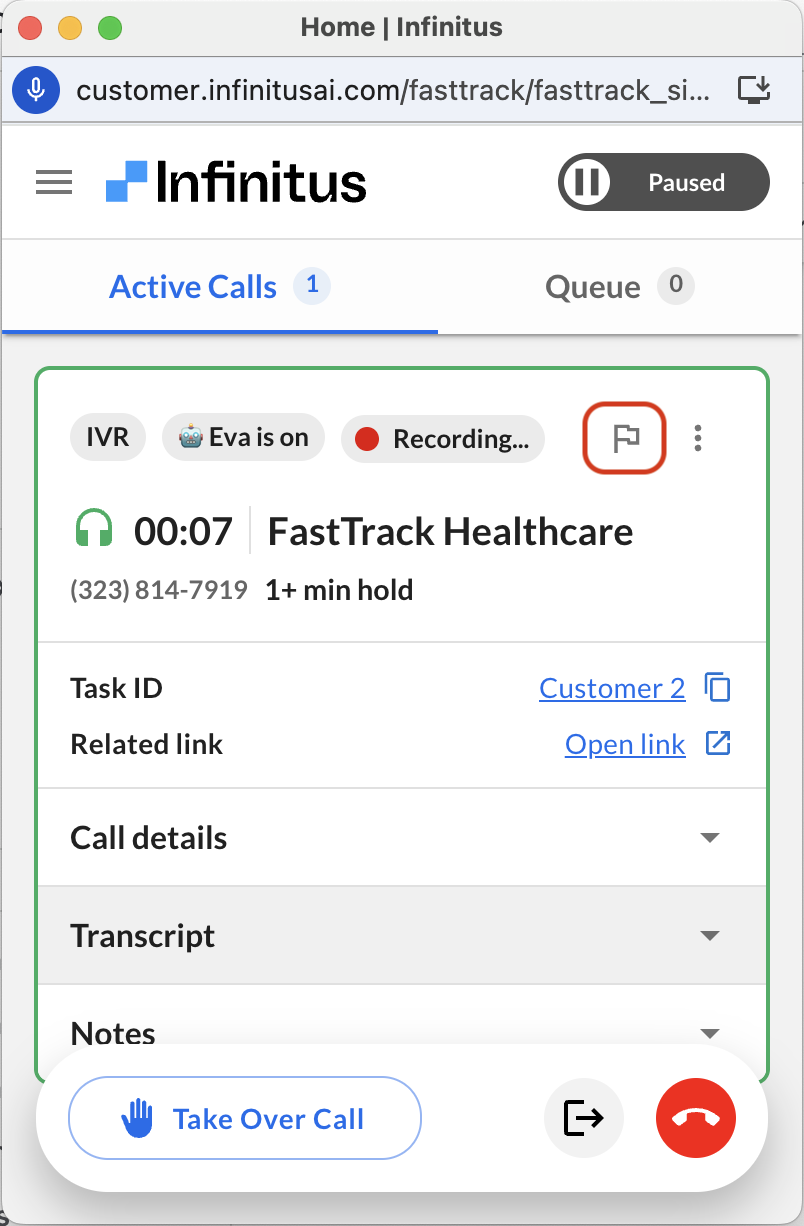
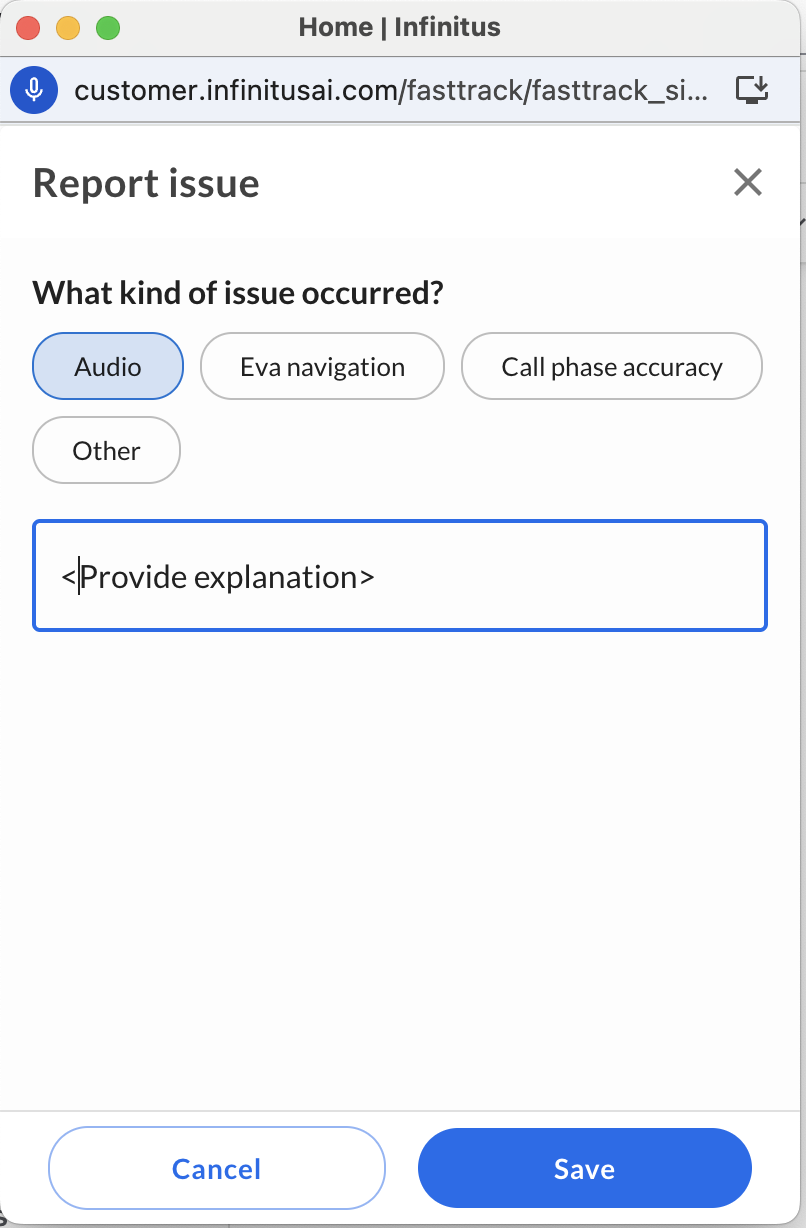
Report the Call:
-
Action: If you are still experiencing audio quality issues after retrying, please report the call through the FastTrack interface. This sends diagnostic information to our team for investigation.
Still Having Trouble?
If you've followed all these steps and are still experiencing audio issues:
-
If your device isn't showing in the dropdowns, your audio isn't being picked up in the mic test, or you can't hear the speaker test: Your issue might be external to FastTrack. Please contact FastTrack Support with details of the tests you've run.
-
For persistent choppy audio or call quality issues after reporting: Our team will review the reported call. If the issue continues on subsequent calls, please contact FastTrack Support.