
Follow this FQA guide to learn how to use FastTrack team queue.
How do I start calls in FastTrack team queue?
How do I start calls in FastTrack team queue?
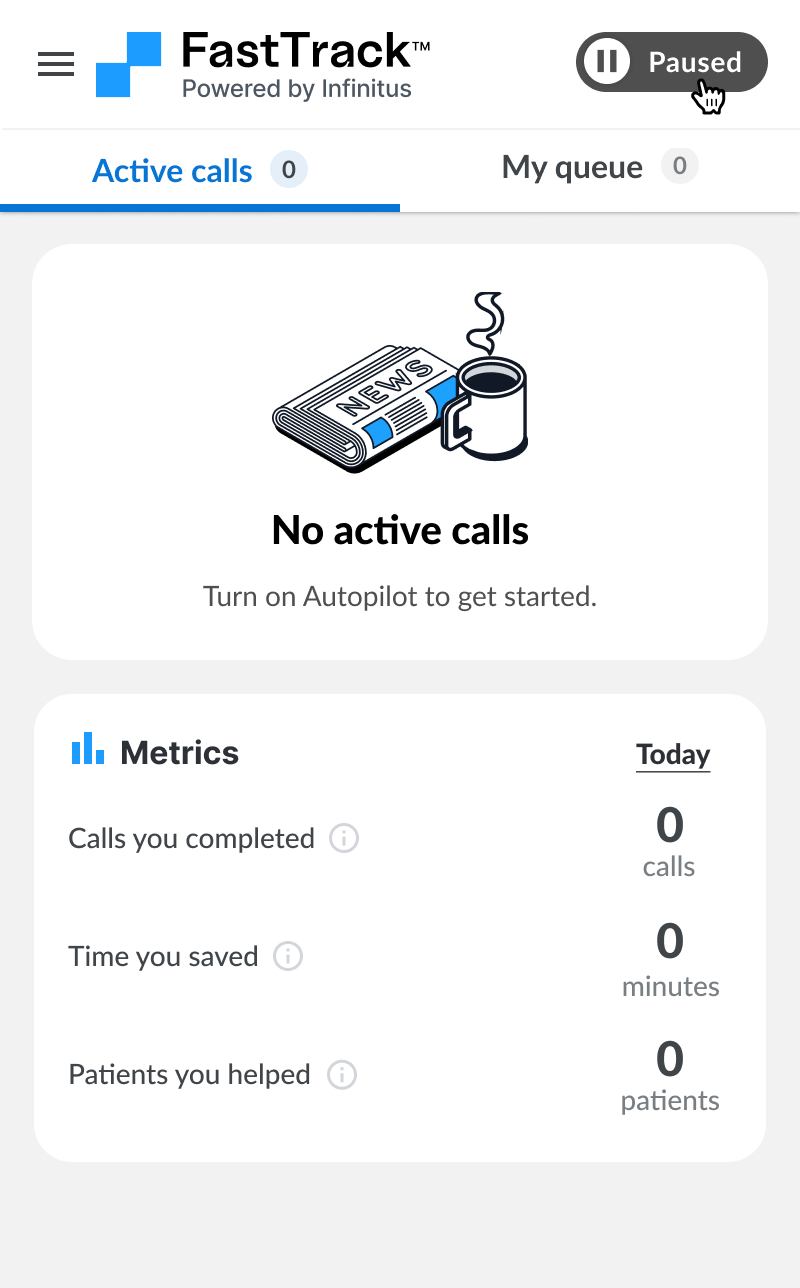
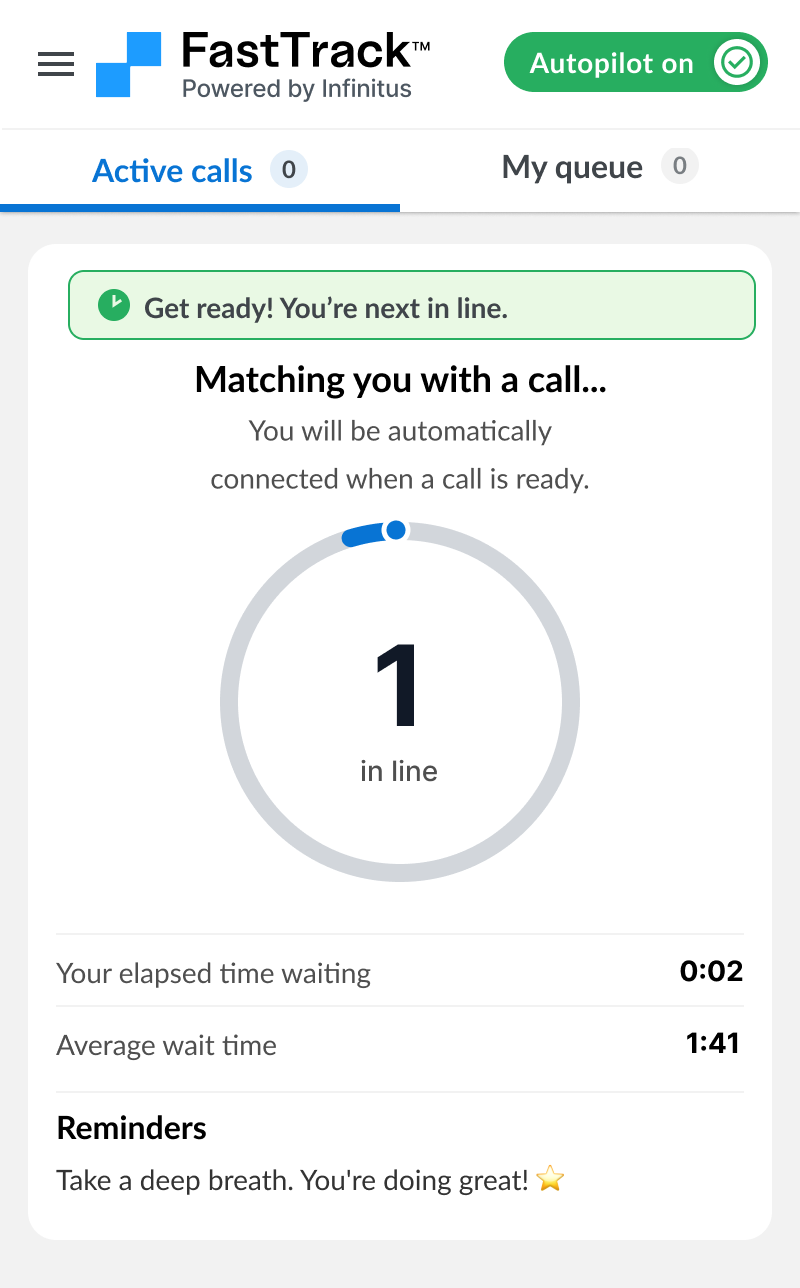
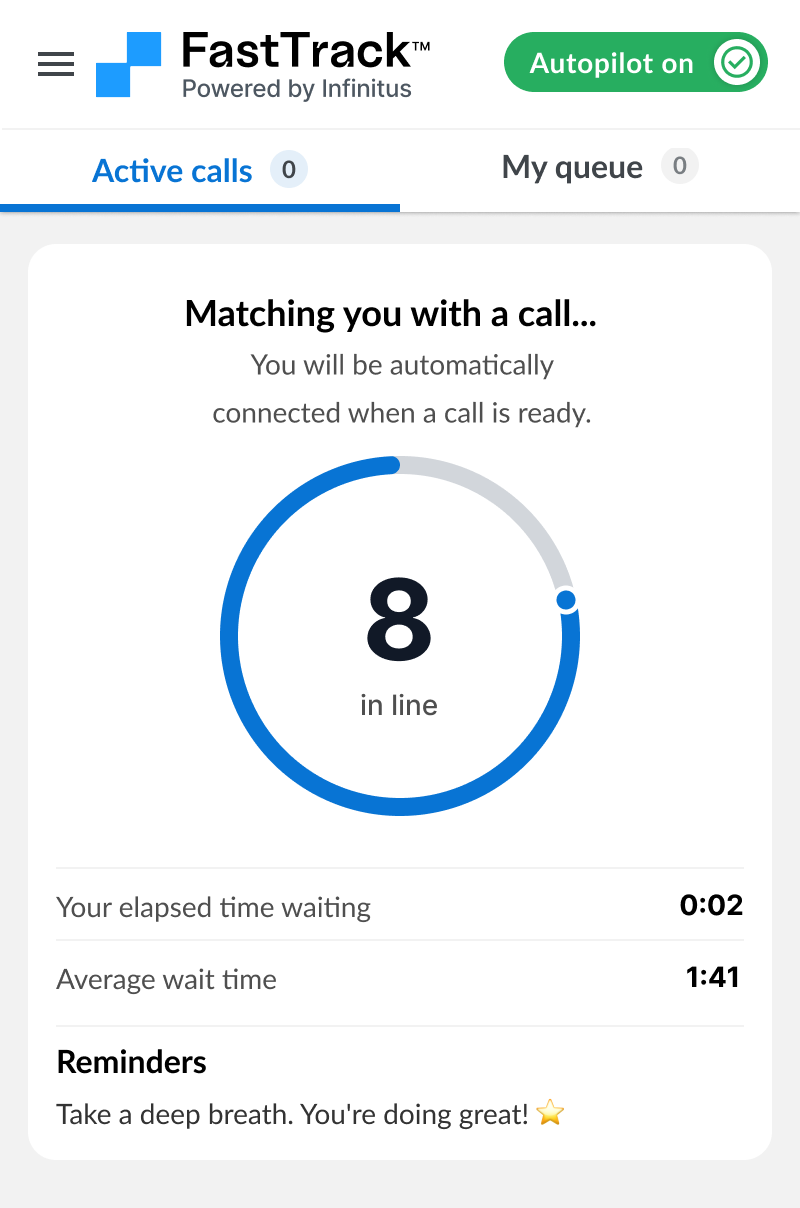
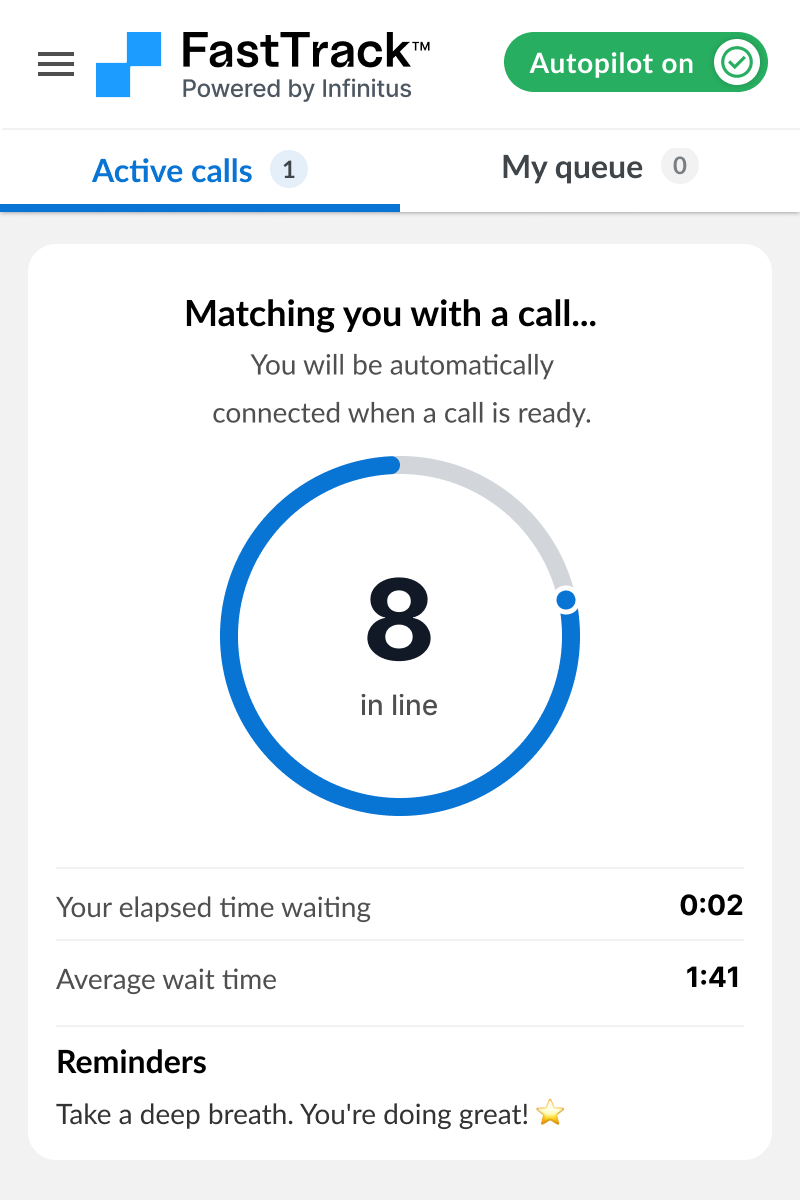
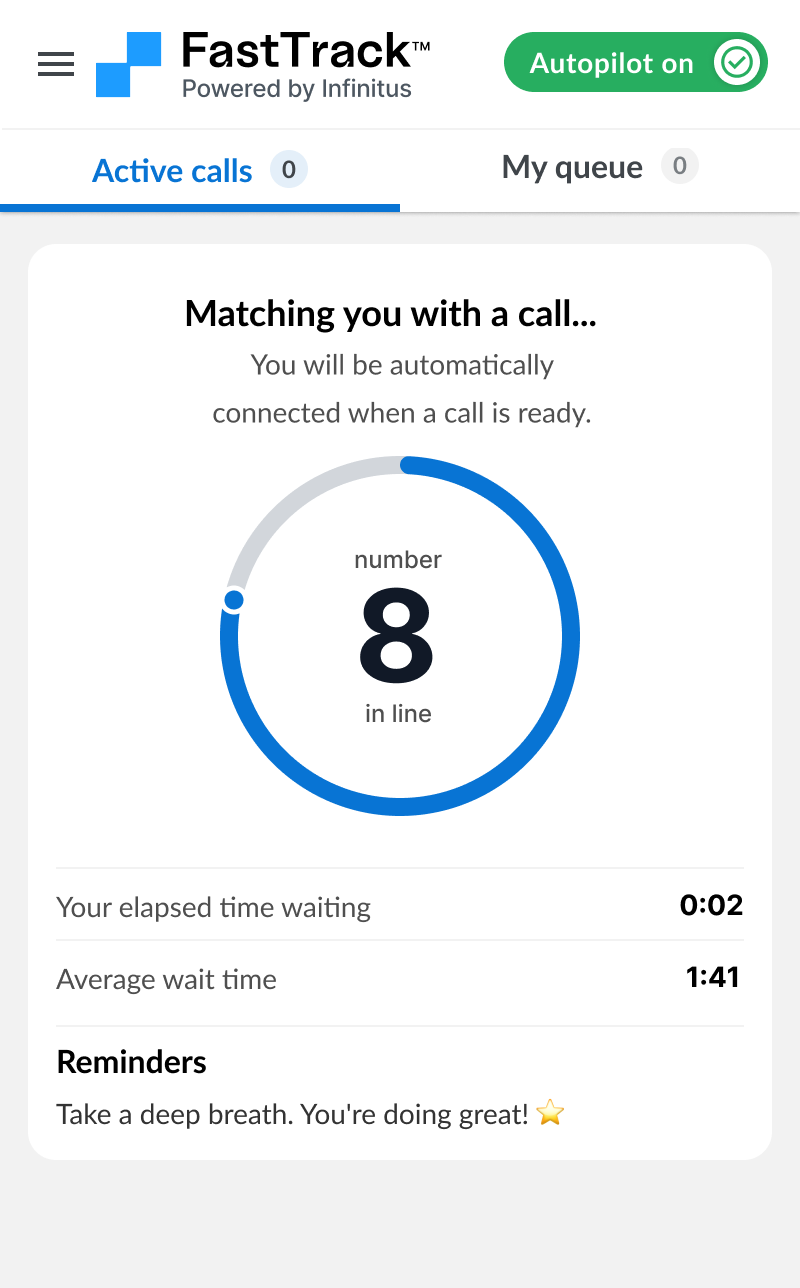
When you first sign into FastTrack your queue will be empty. Turn on Autopilot to join the waiting room and get a call assigned to you. You can track your place in line in the waiting room and will receive a notification when its your turn for a call.
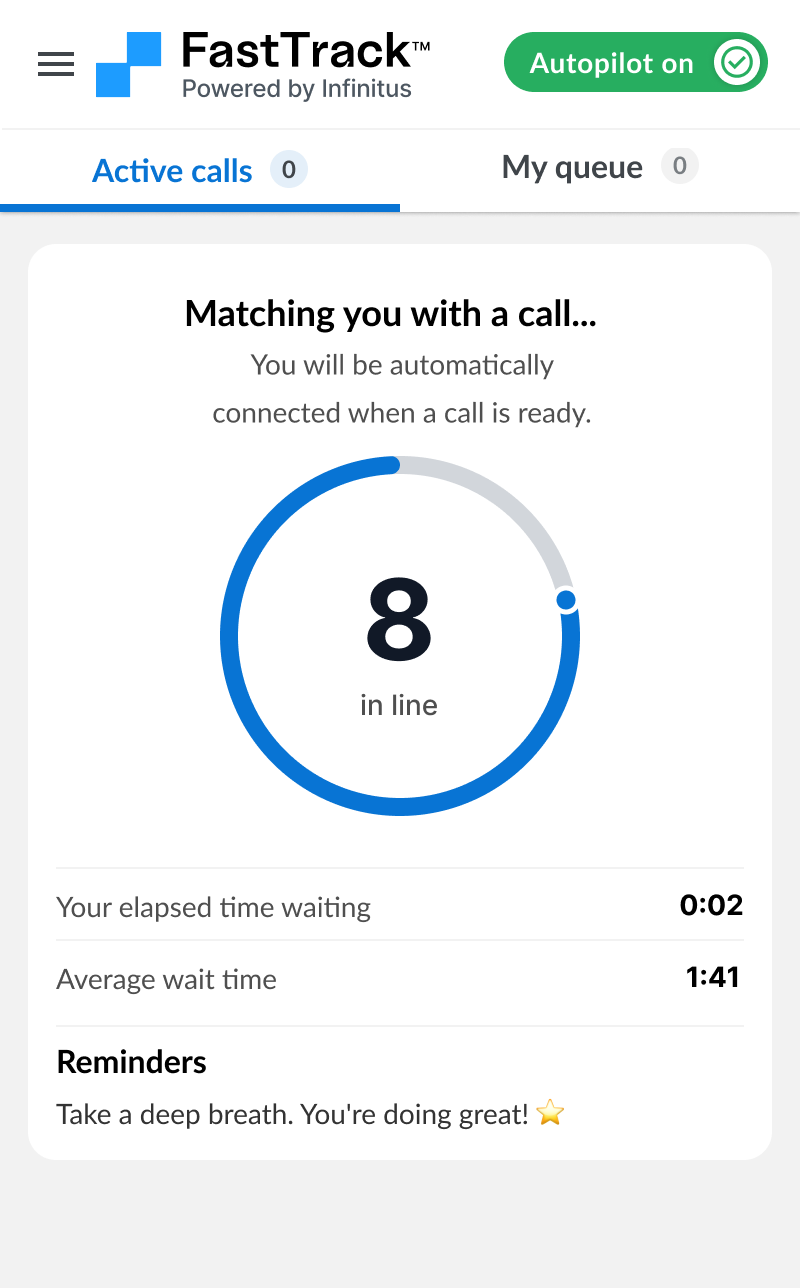
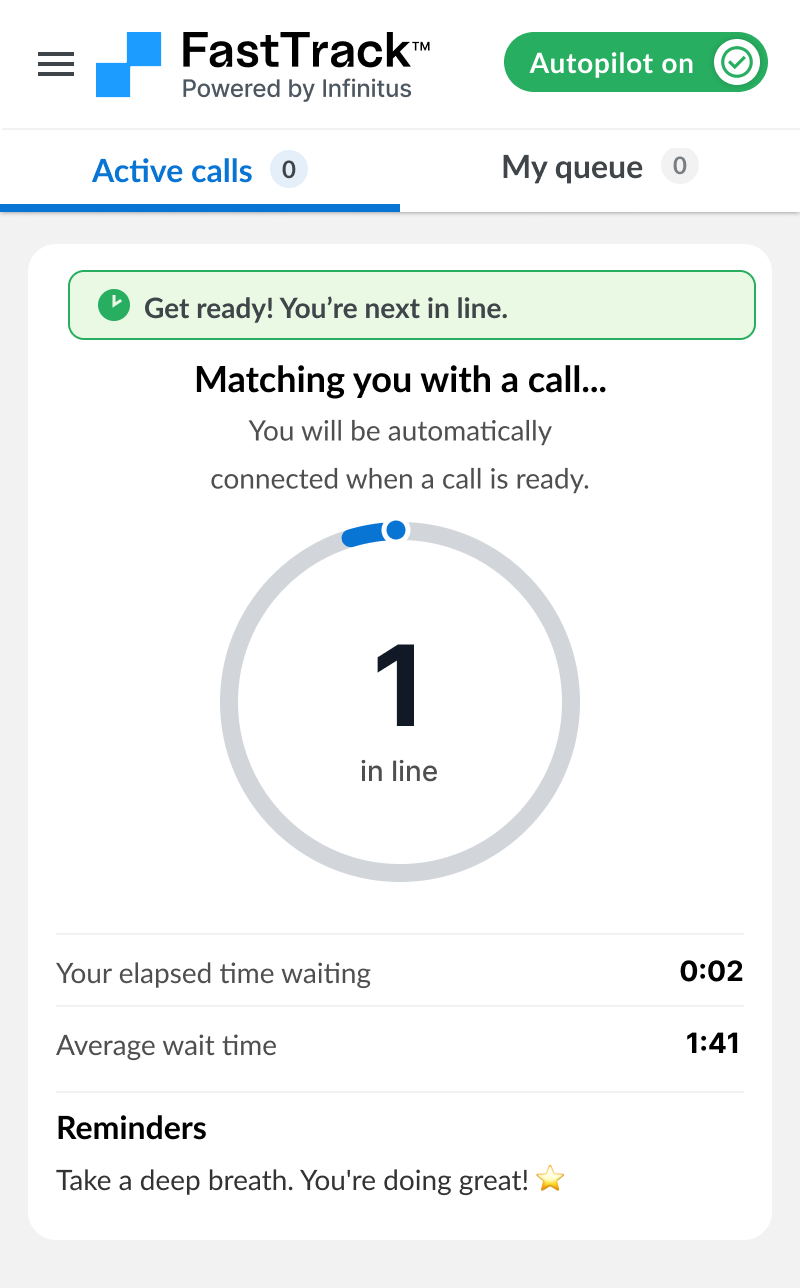
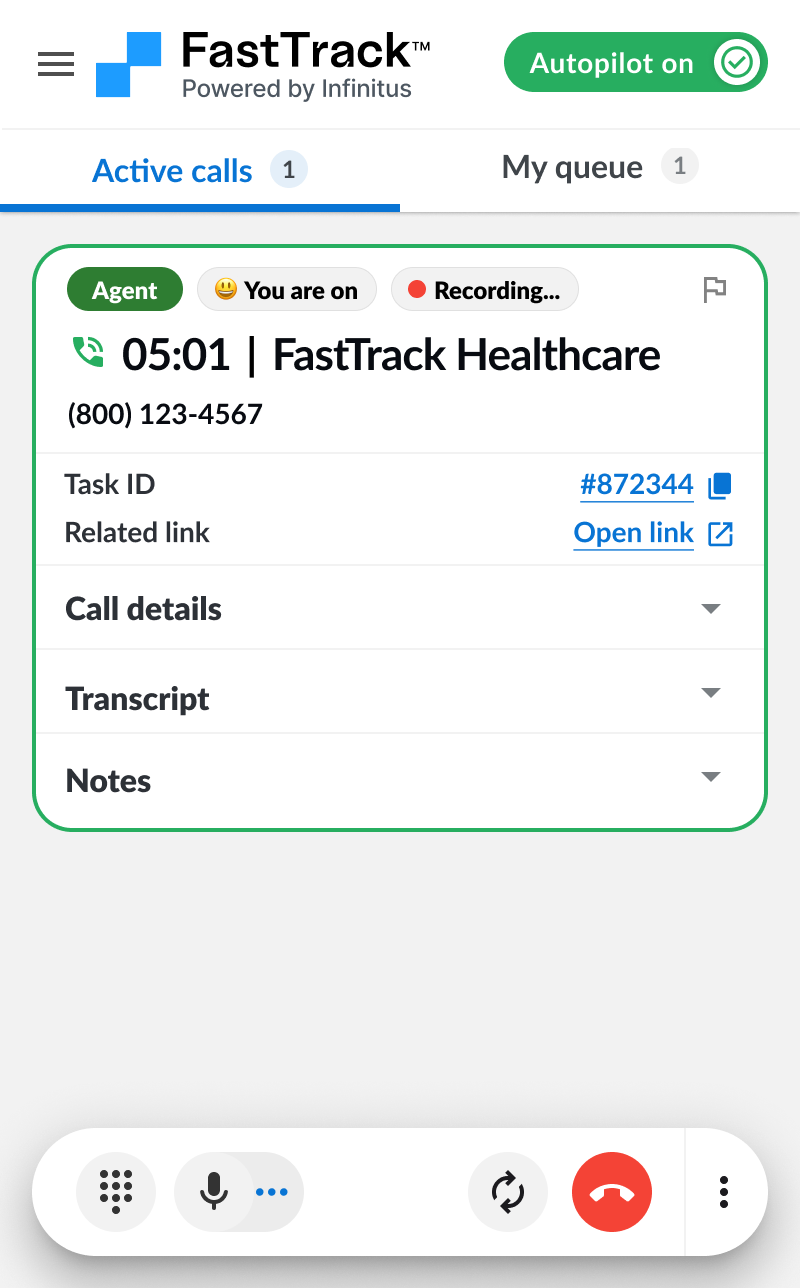
Once we have found a call with an available payer agent on the line we will connect you and unmute your mic. You will be able to complete the call from there.
How do I stop team queue (e.g. going on break or done for the day)?
How do I stop team queue (e.g. going on break or done for the day)?
If you need to take a break or are finished with calls for the day, turn off Autopilot. When Autopilot is off you will exit the waiting room if you are in the waiting room.
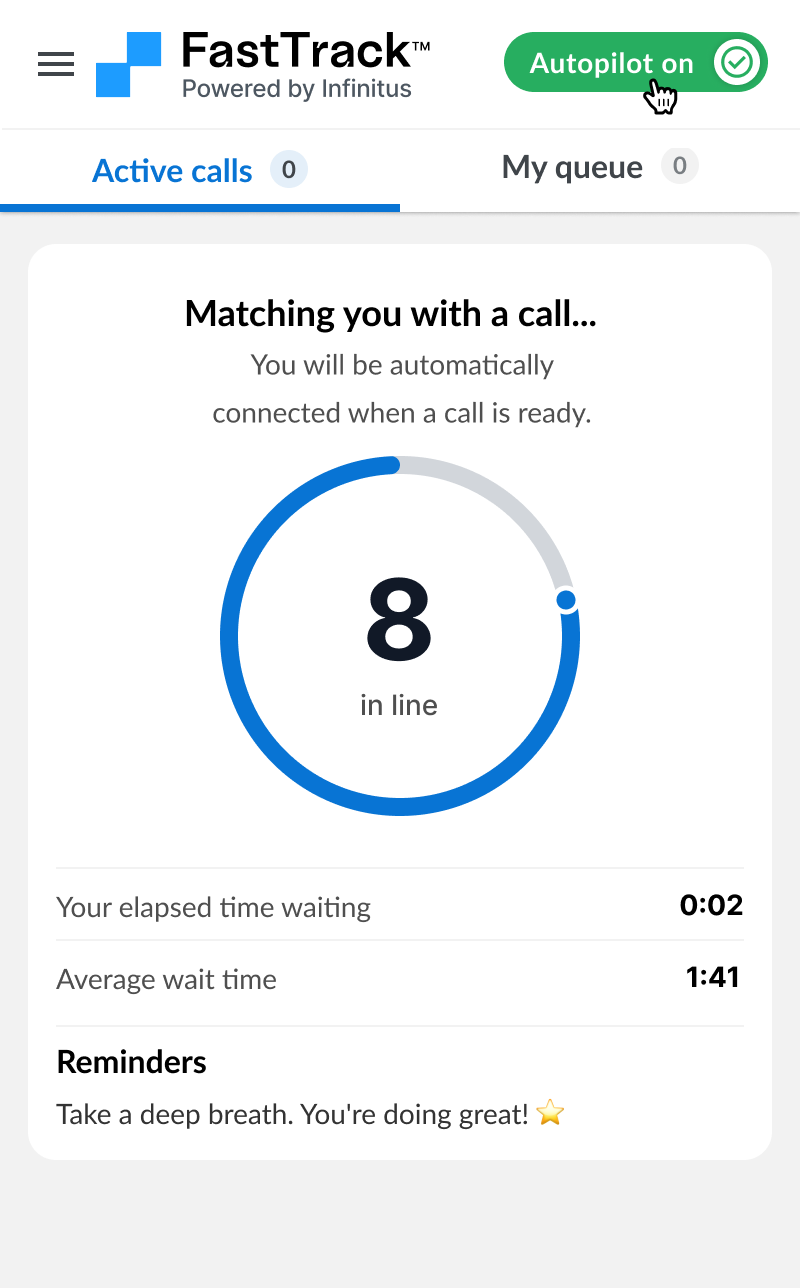
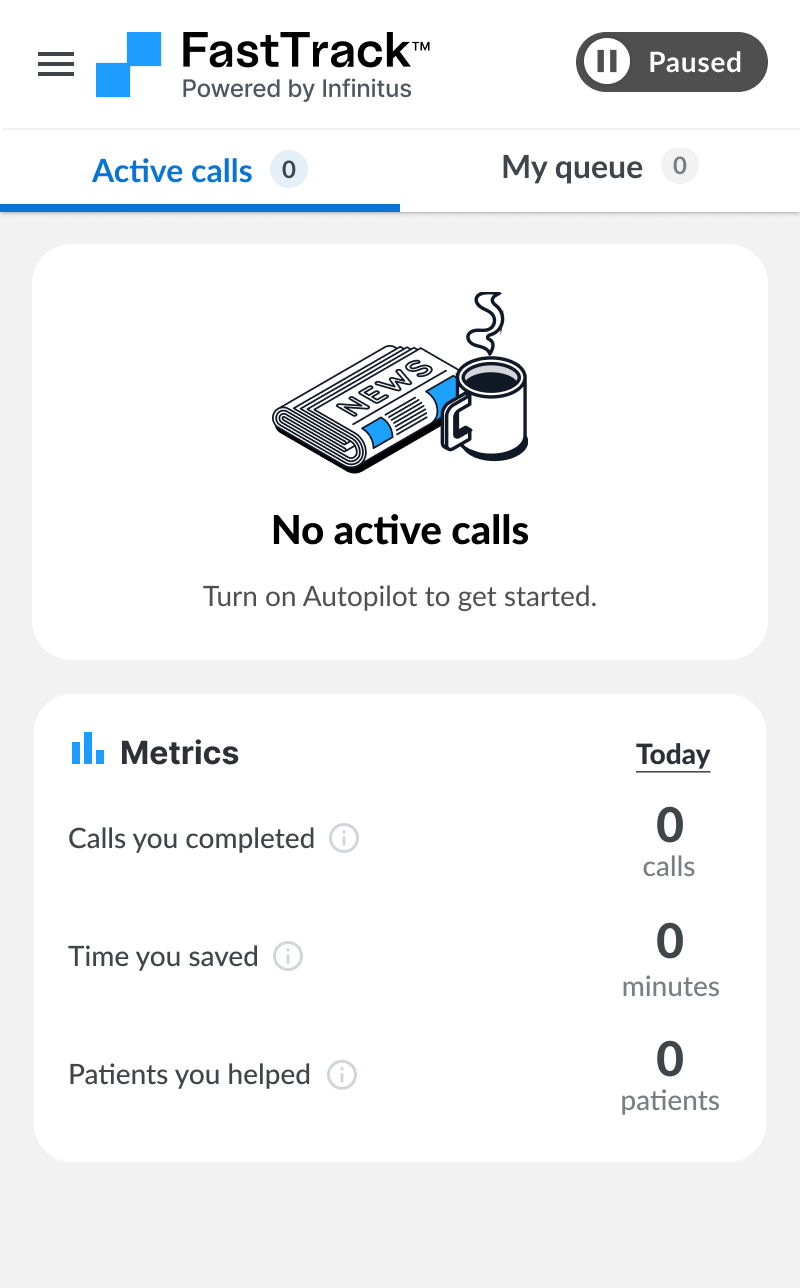
It is recommended to turn off Autopilot right after a call ends if you do not plan to do anymore calls. If you are on the review screen and you do not plan to take another call, turn off Autopilot here before clicking “Redial” or “Done”.
What happens if I get a low confidence call assigned?
What happens if I get a low confidence call assigned?
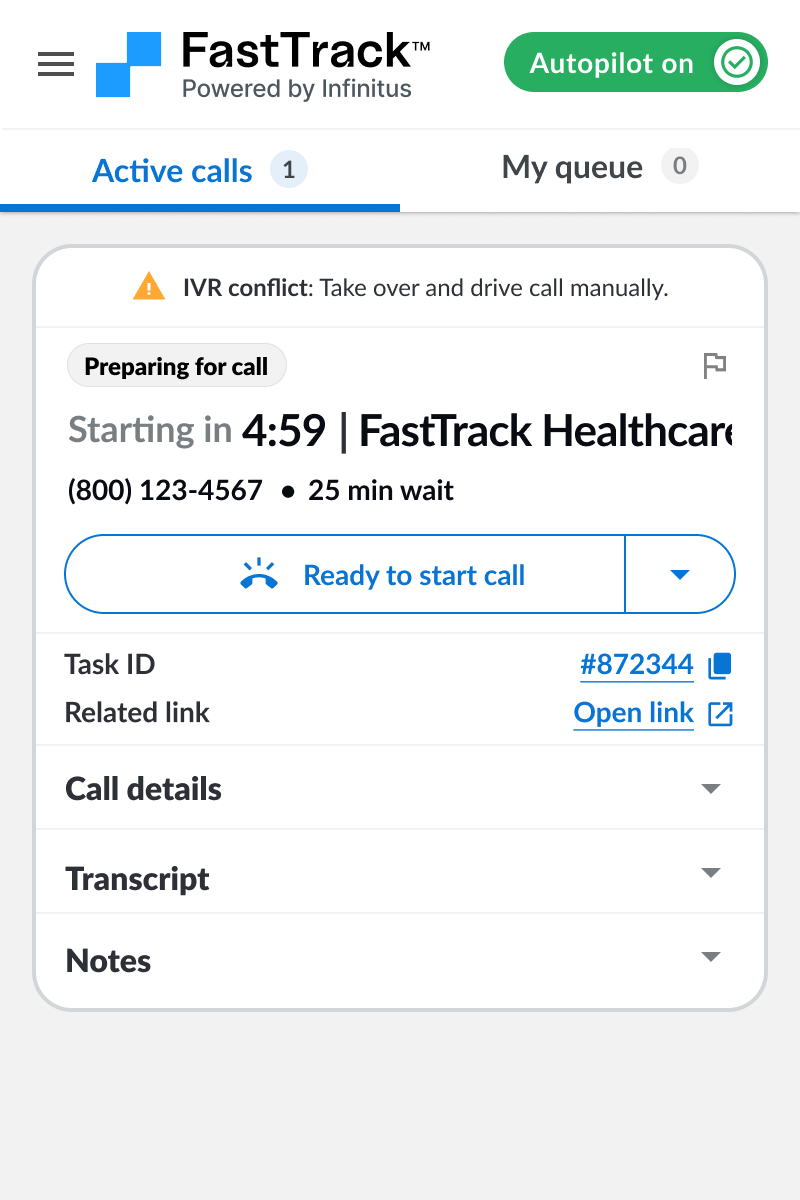
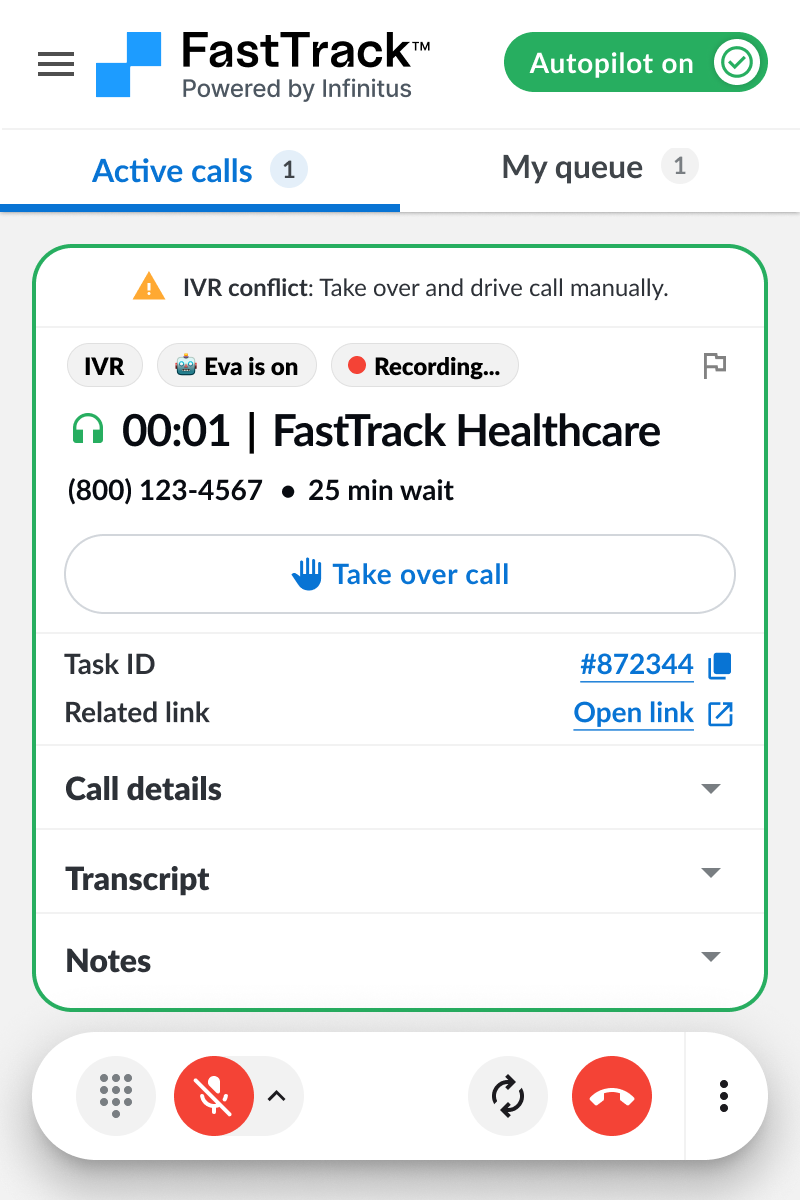
You may be assigned a call that requires manually driving the IVR. If this happens you will see a call assigned to you in “Preparing for call” state. You will have time to prepare for the call and then start the call and drive IVR yourself manually.
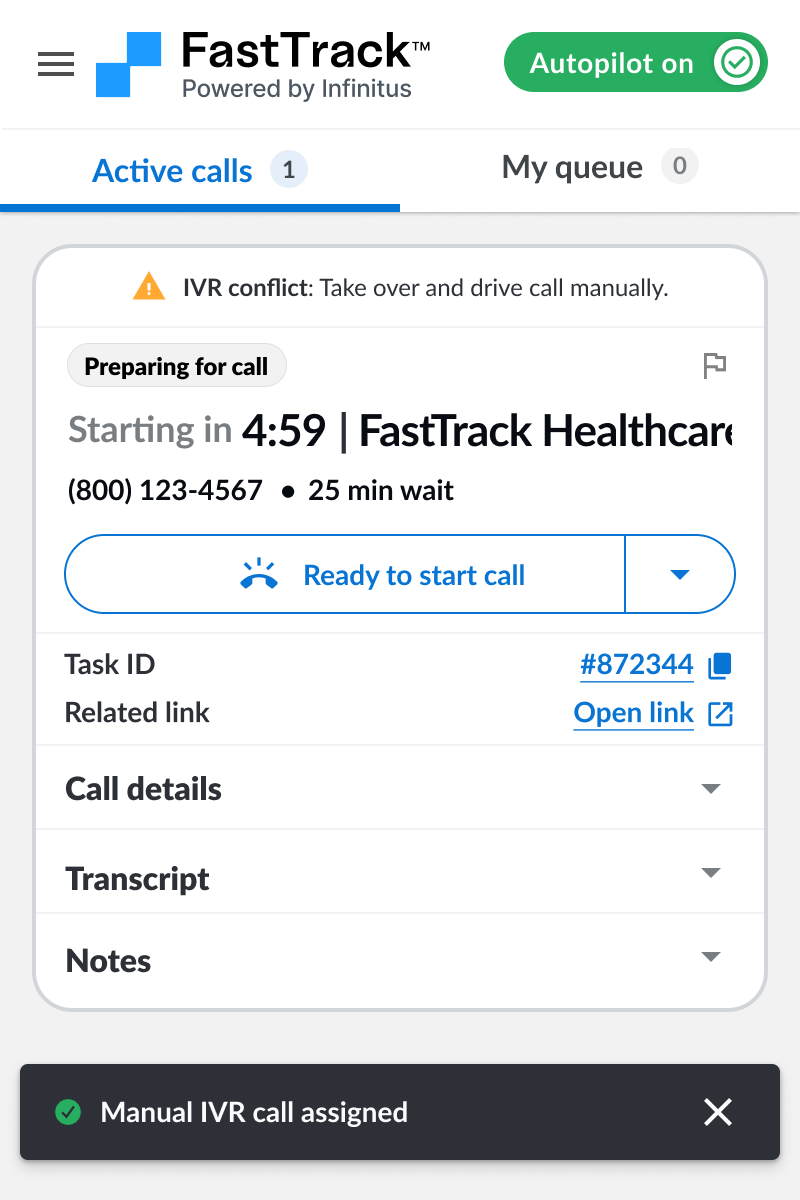
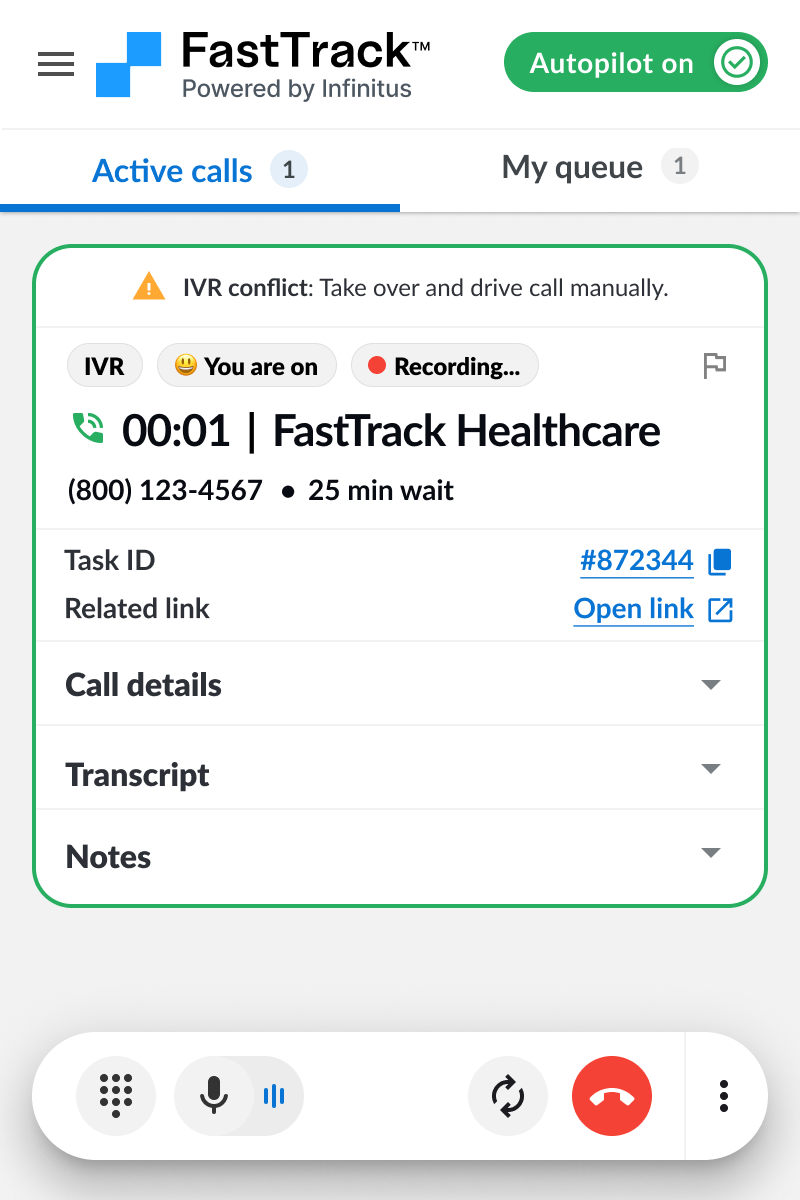
You will be given some time to prepare for the call (aka the prep timer). After you finish prepping for the call you can click “Ready to start call” to start the call. You should then click “Take over call” to manually drive the IVR since its a low confidence IVR call and requires your assistance.
What if I get through IVR on a low confidence call and the hold time is long?
What if I get through IVR on a low confidence call and the hold time is long?
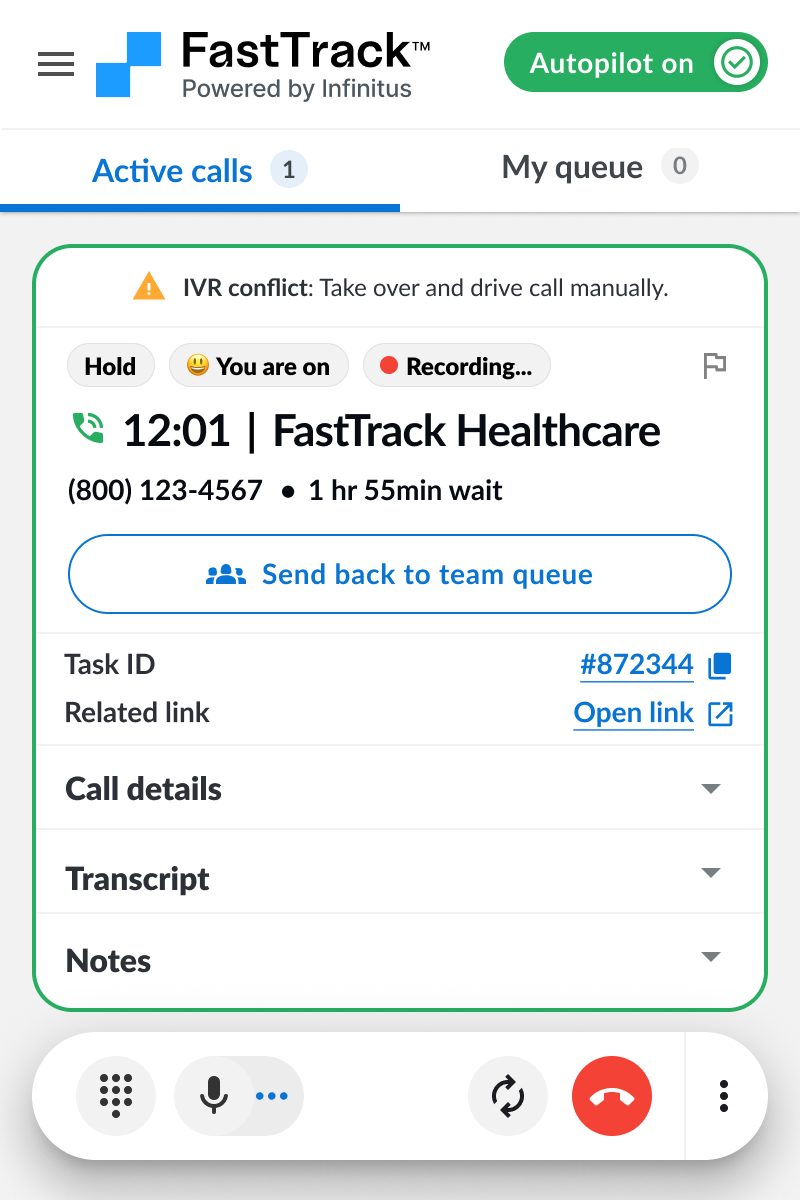
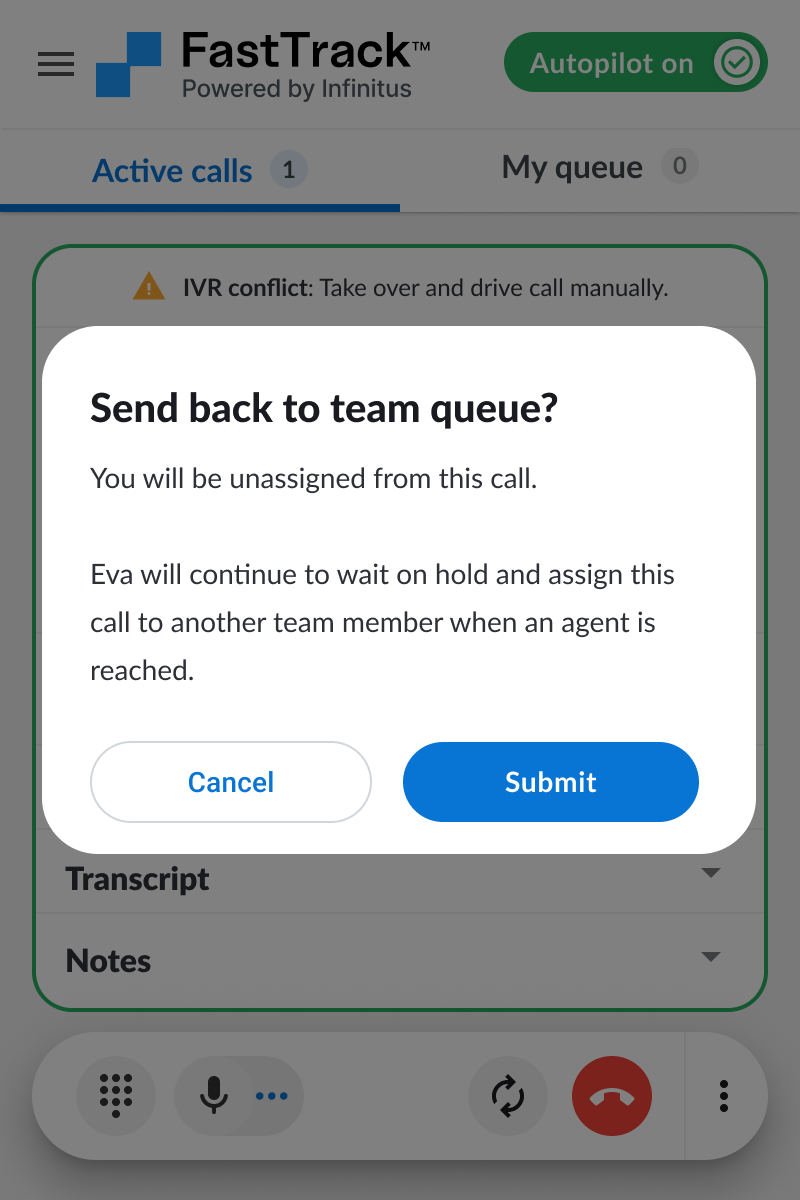
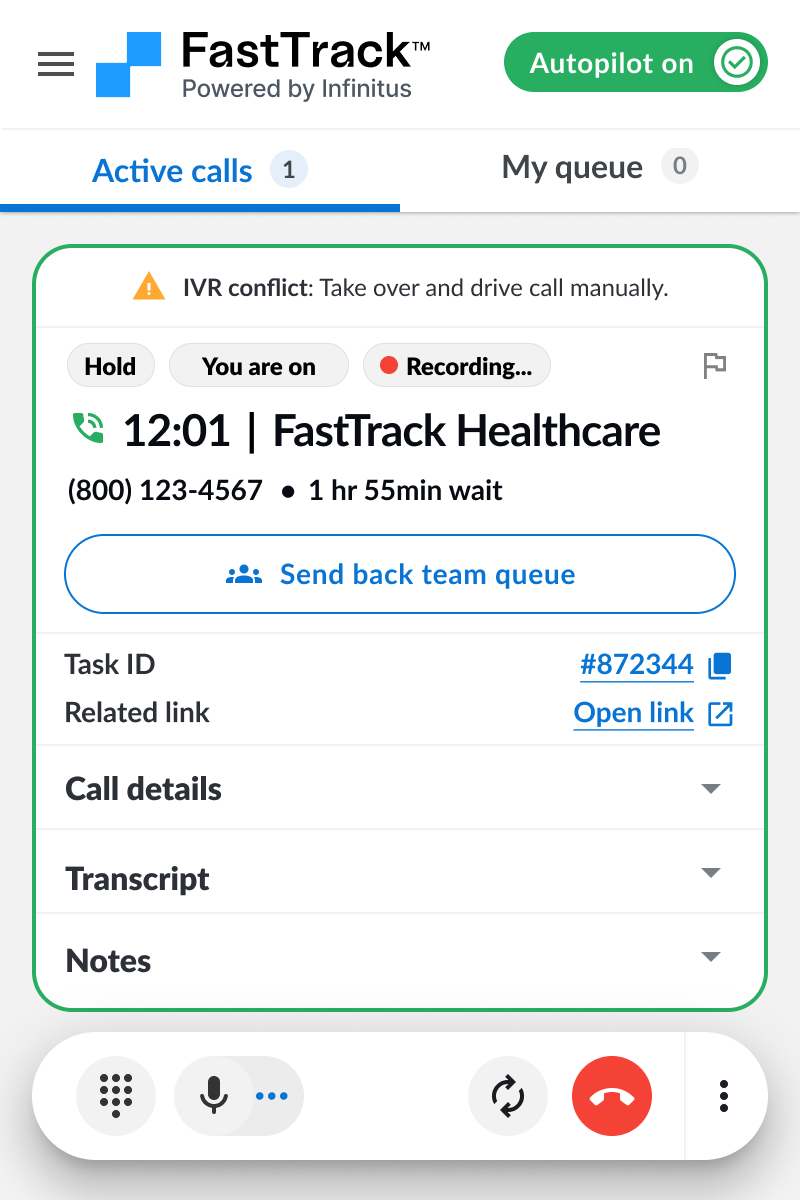
If you get assigned a low confidence call through IVR on a manually assigned call and the wait time is expected to be long you will see an option to “Send back to team queue”. This will unassign the call from you and send it back to the team queue where Eva will continue to wait on hold for you. The call will get assigned to another user when it reaches a payer agent.
What happens after I end a call in team queue?
What happens after I end a call in team queue?
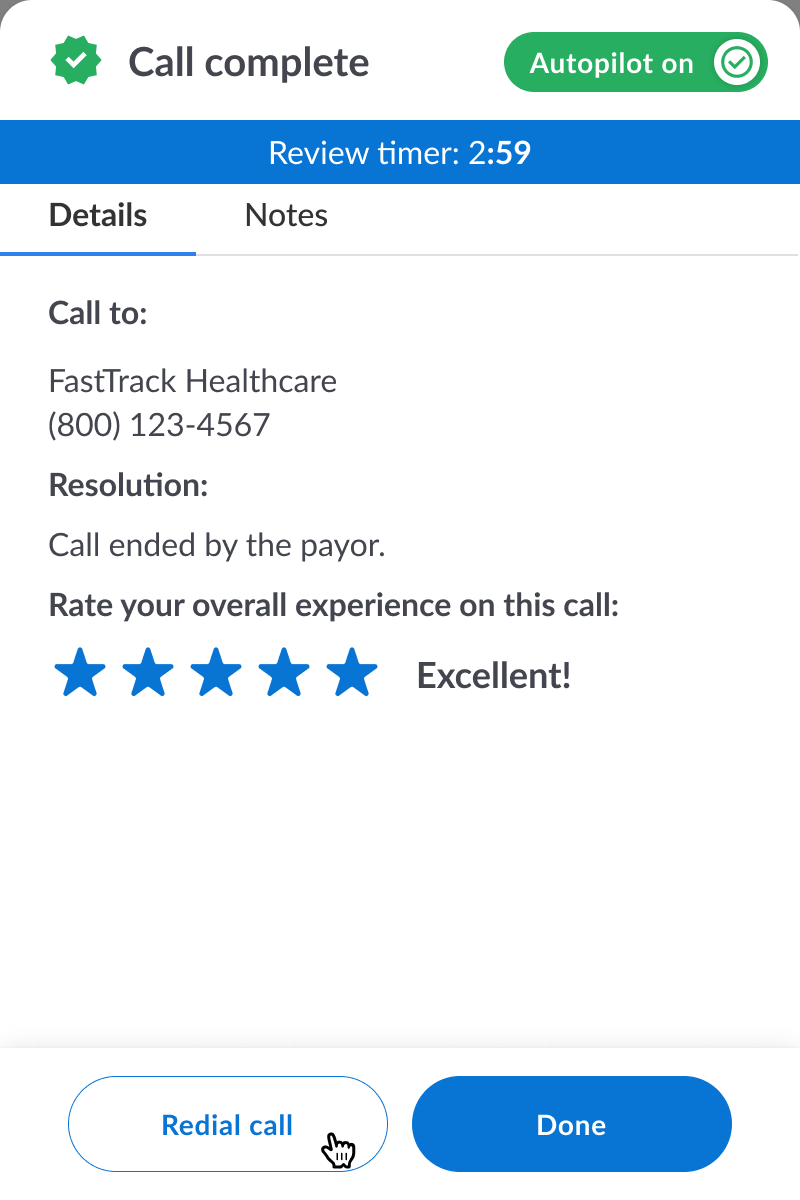
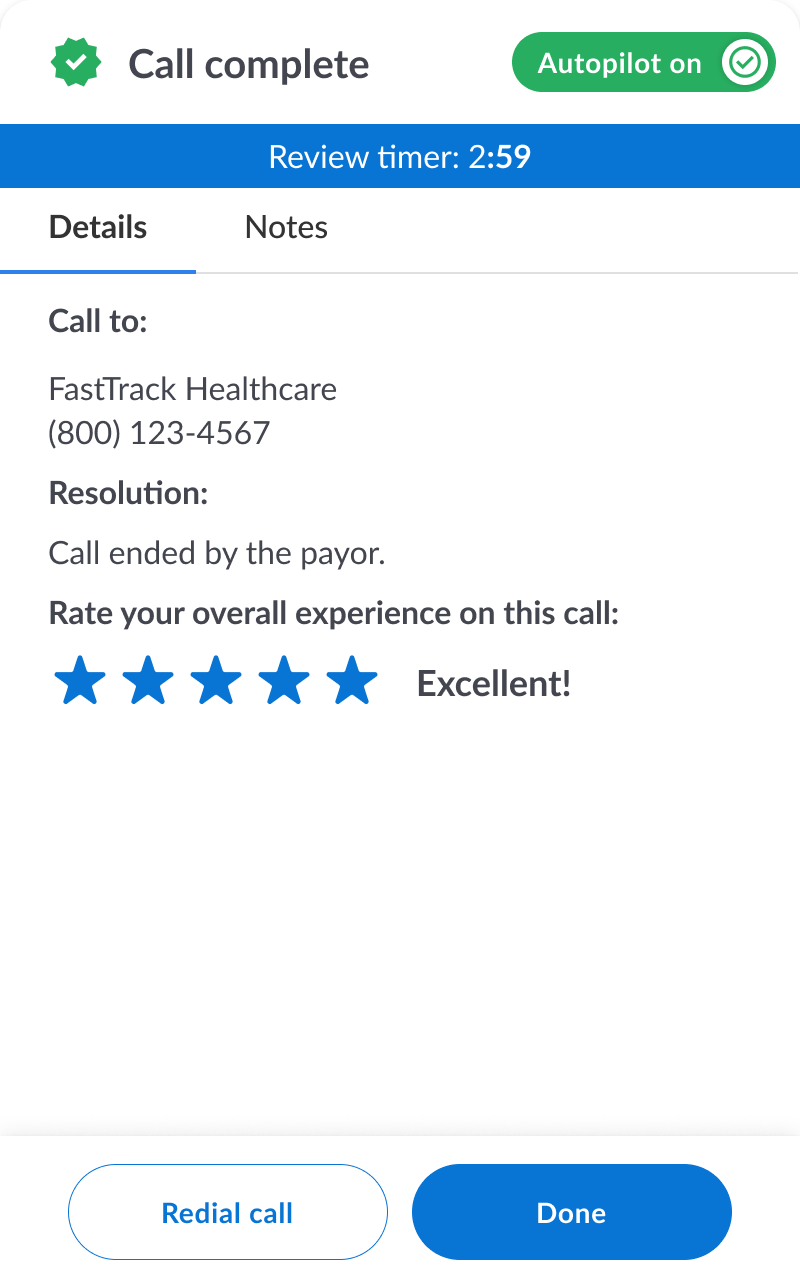
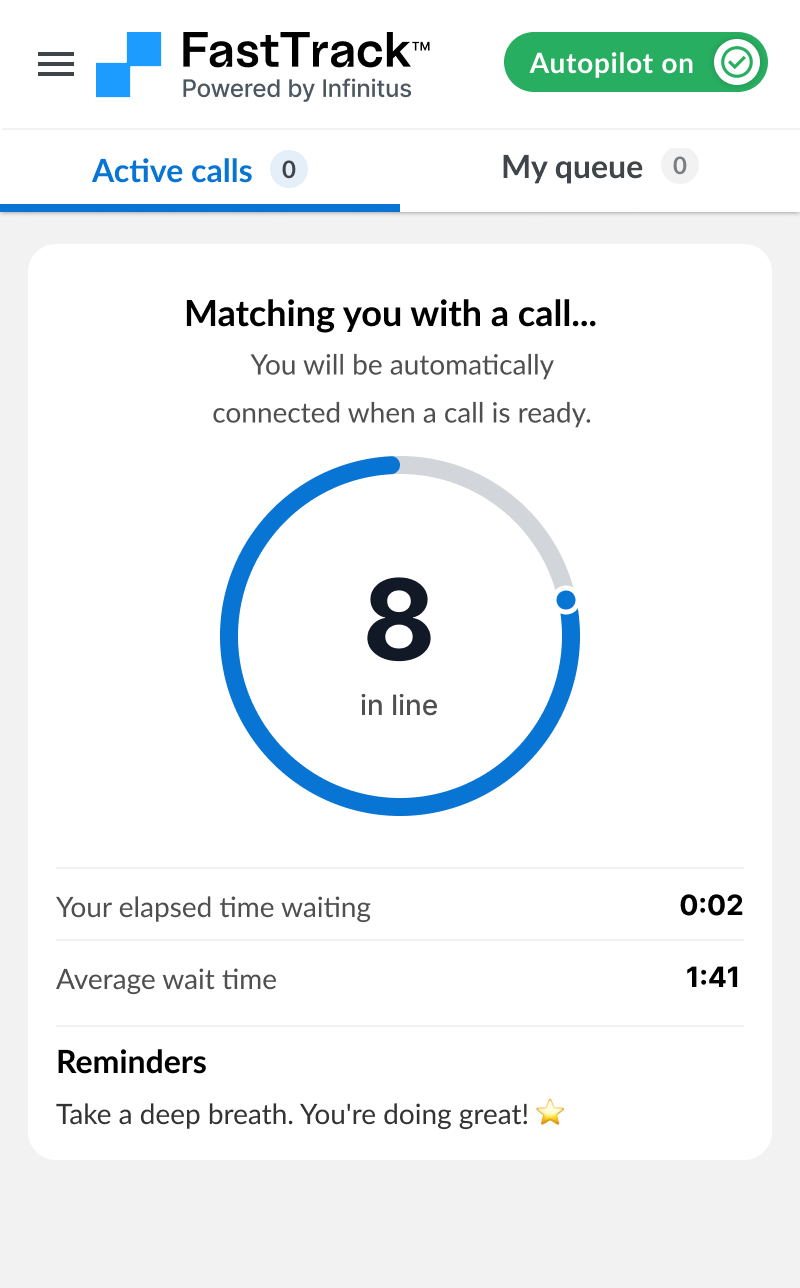
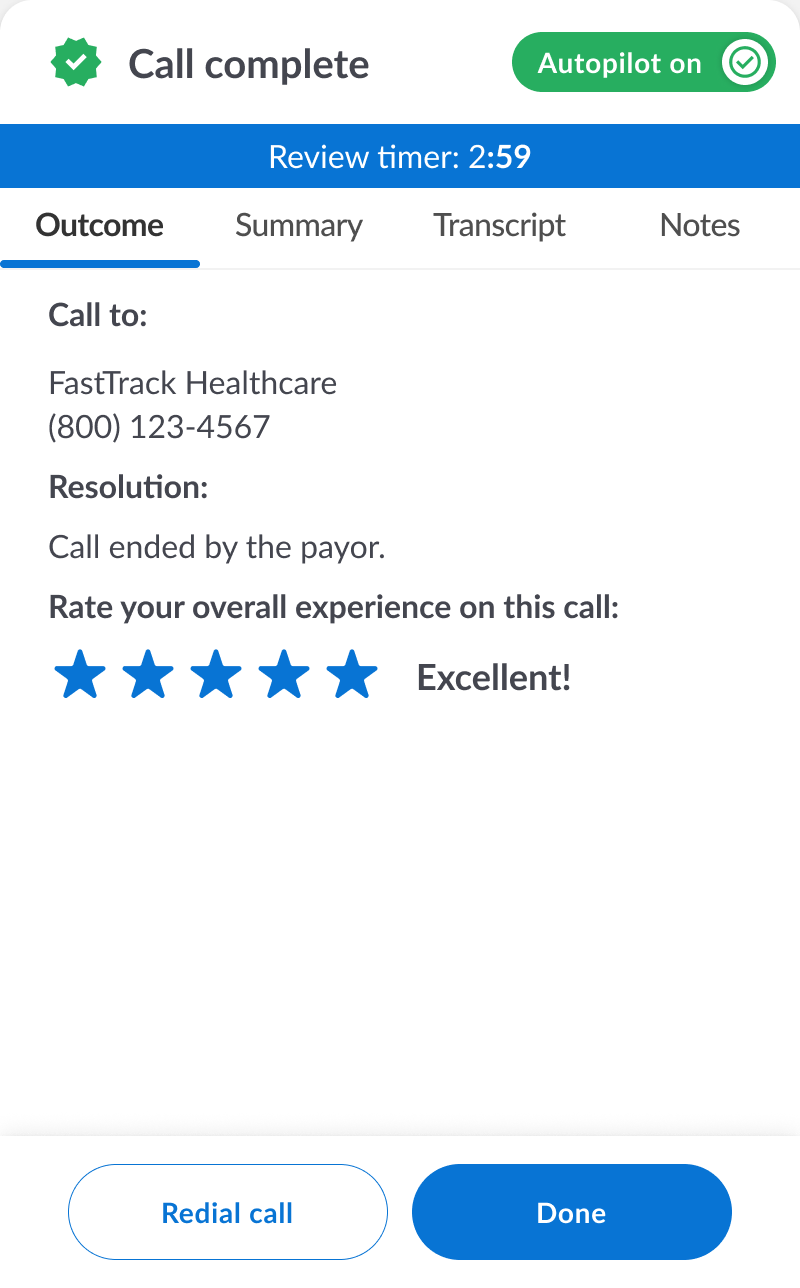
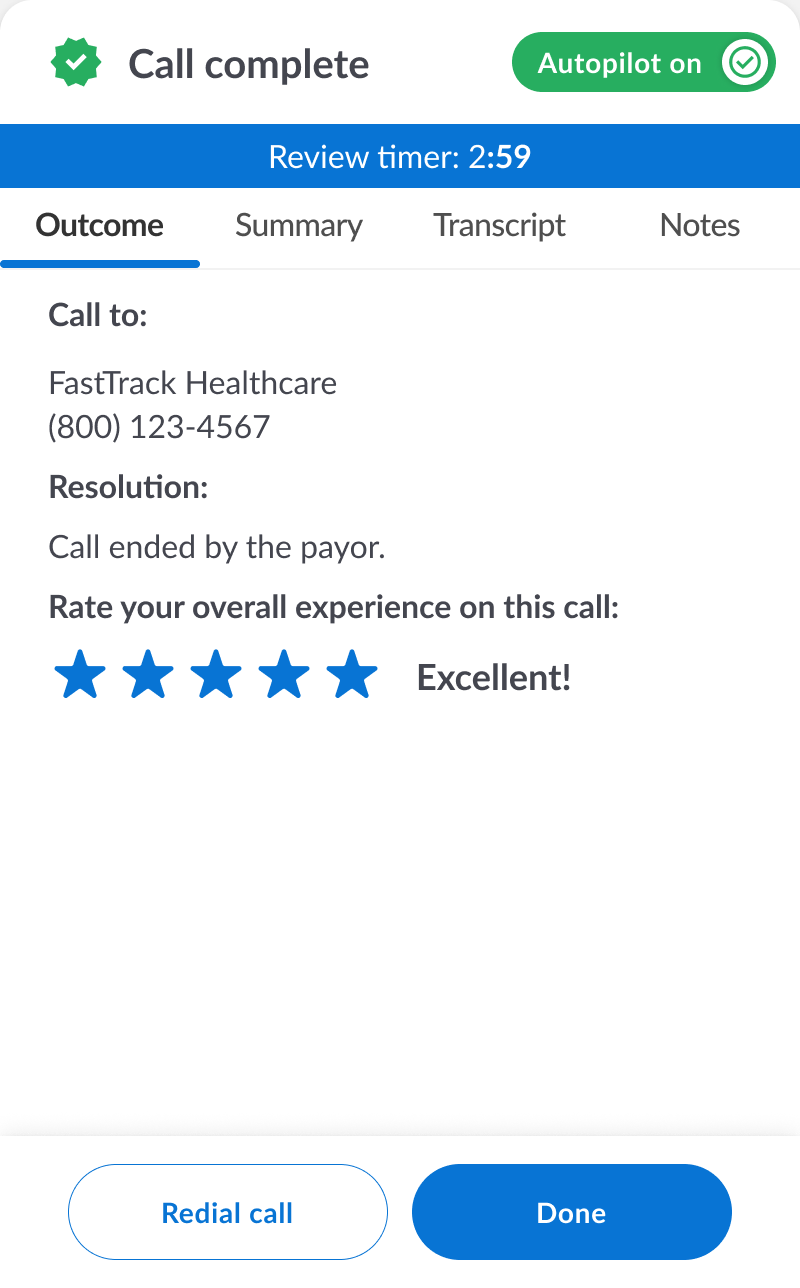
After a call you will have a review timer start. You can finish closing out the call and click “Done” to get sent back to the waiting room.
What if I need to redial a call after my call ends?
What if I need to redial a call after my call ends?
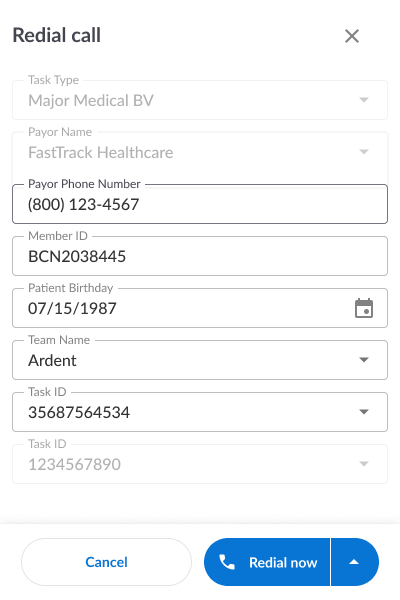
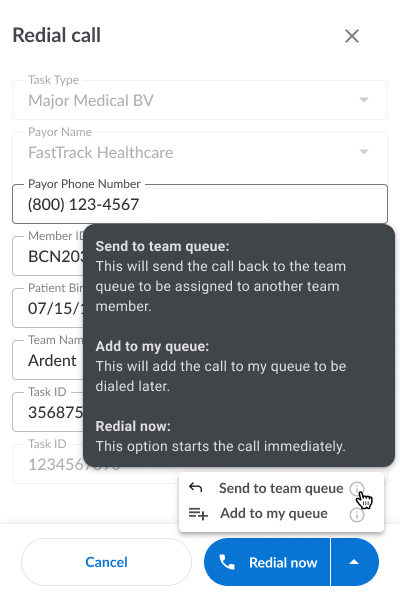
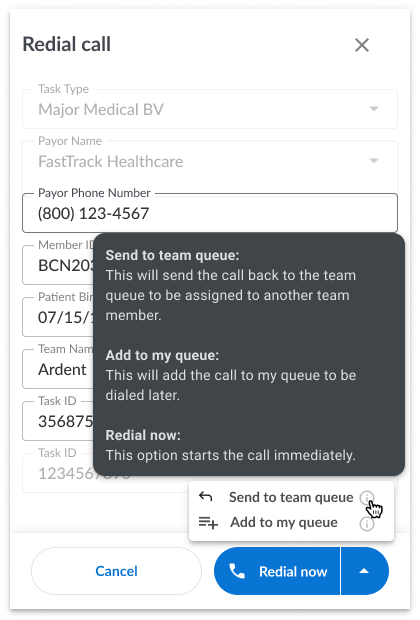
If you need to redial the call you can click redial and choose whether to redial now or send back to the team queue.
What if I get transferred during a call?
What if I get transferred during a call?
If you get transferred during a call and put back on hold you have the option to send the call back to hold and send back to team queue.
NOTE: Do not send an active call back to the team queue if you have already completed a task on the call. Instead, just hangup and redial the tasks you did not complete.
NOTE: Do not send an active call back to the team queue if you have already completed a task on the call. Instead, just hangup and redial the tasks you did not complete.
What if I do not complete all of the tasks on the call?
What if I do not complete all of the tasks on the call?
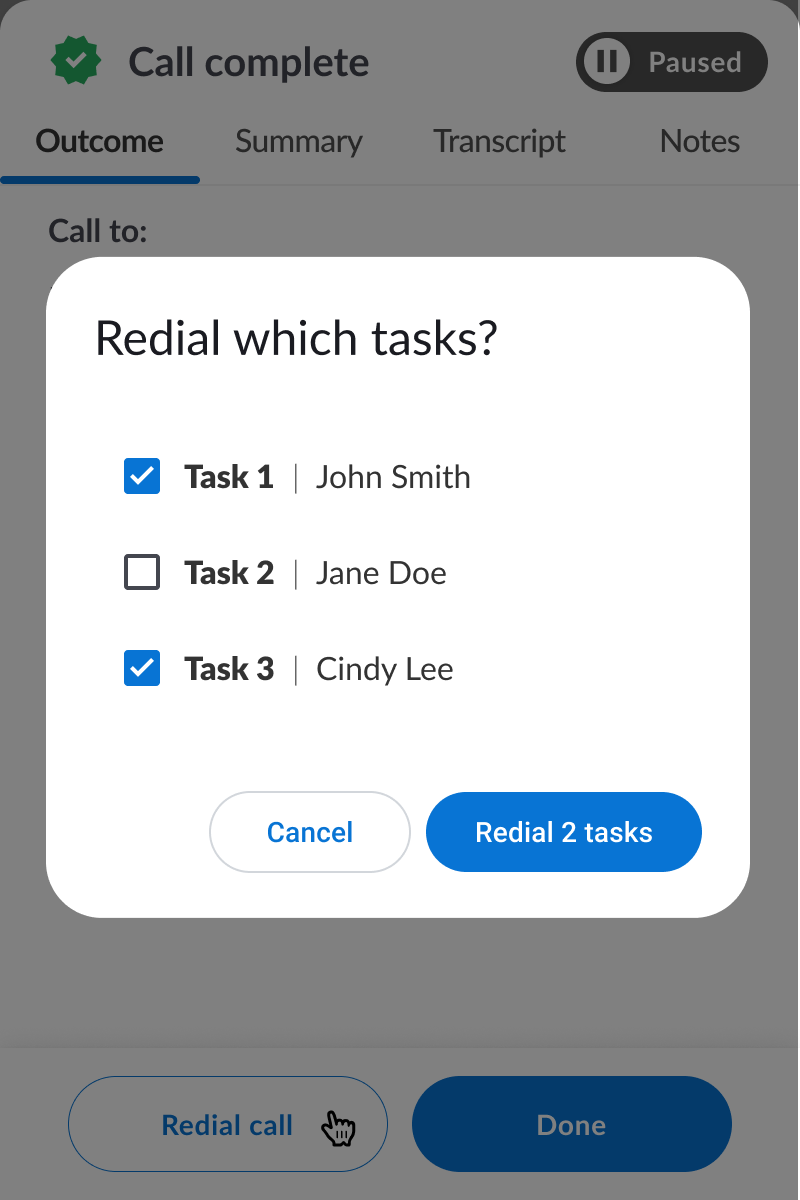
If you do not complete all of the tasks on the call, you can redial the tasks you did not complete after the call ends.
How do I edit AI summaries before they get sent to the external system?
How do I edit AI summaries before they get sent to the external system?
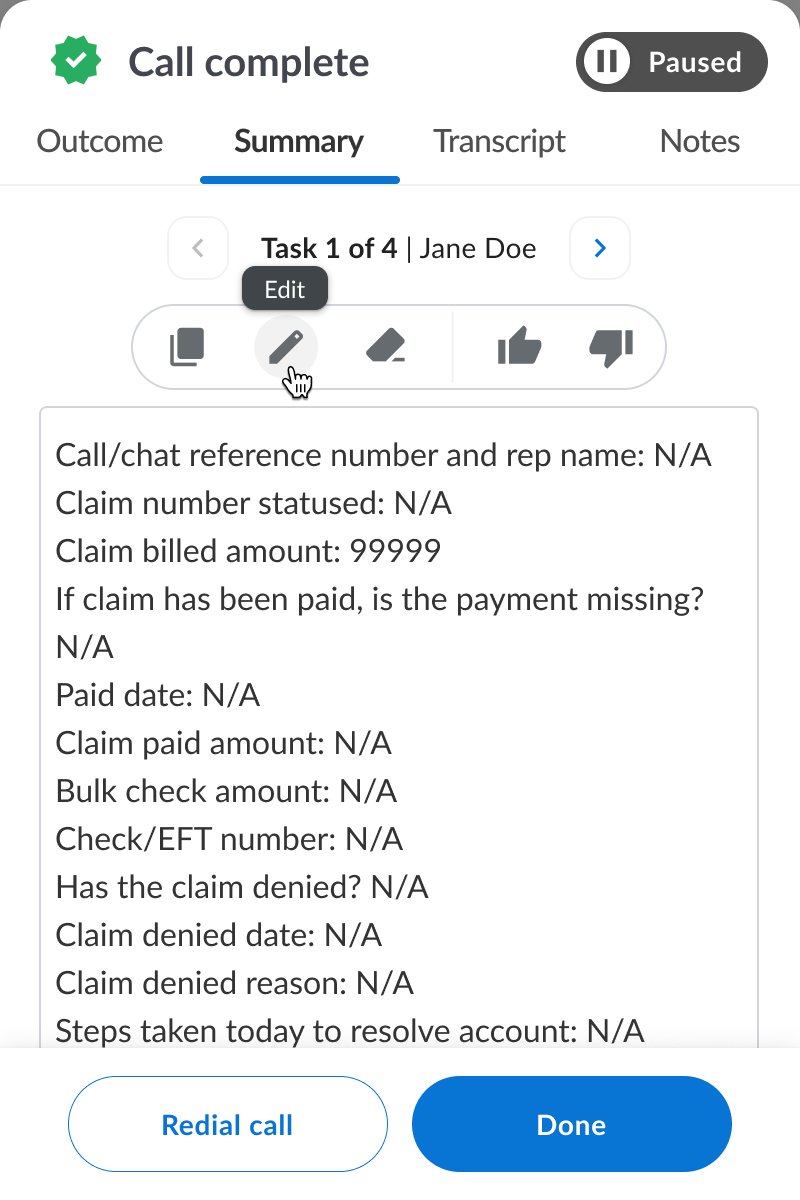
If you need to edit AI summaries you can do so right after a call by clicking the “Edit” button on the summary in question.
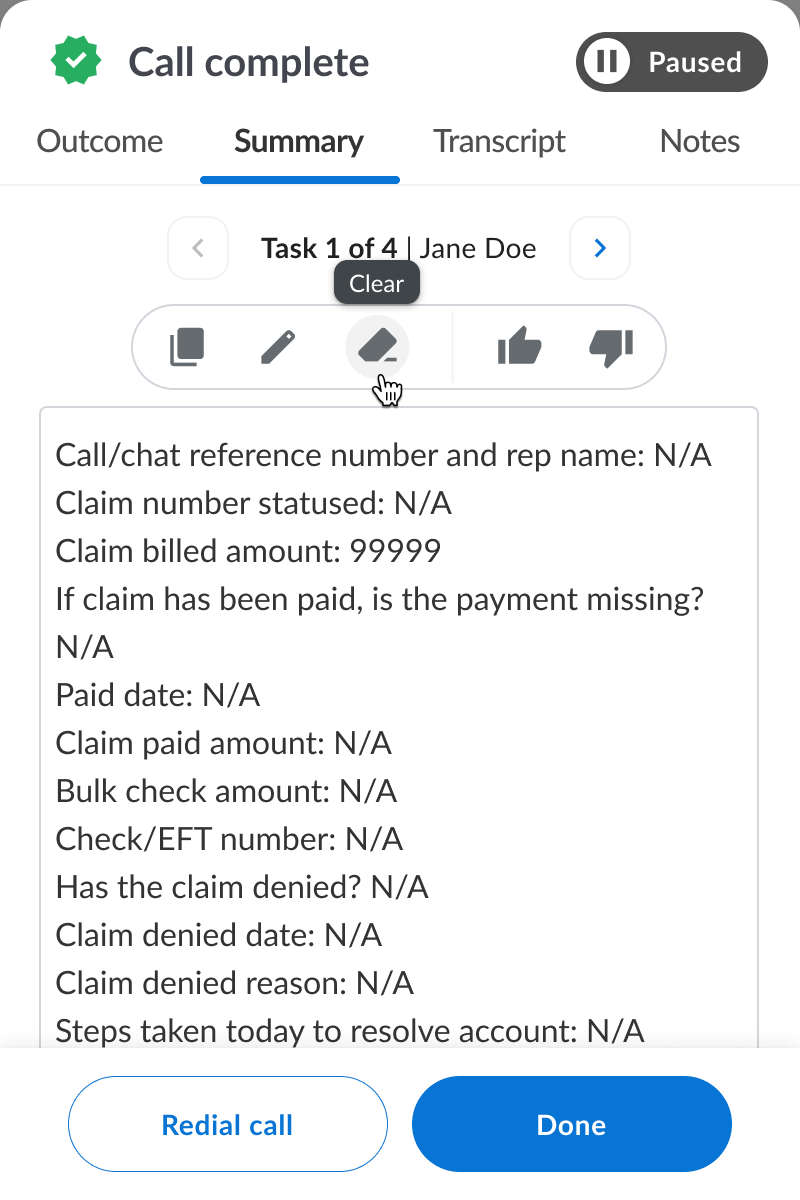
If you do not want a summary to go into your external system you will need to click the “Clear” button on the summary. This will remove the summary and prevent it from posting in your external system.
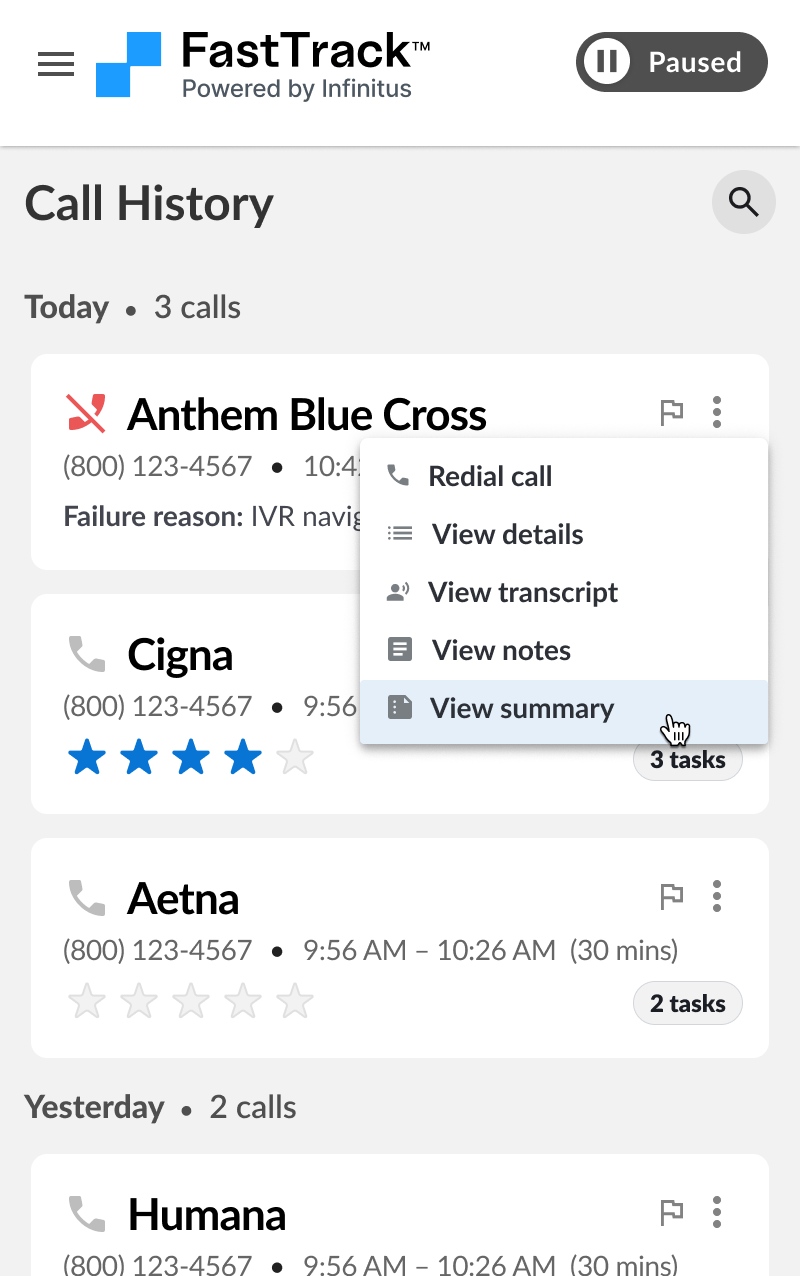
If you need to make additional changes to the summary later you can do so from the call history.
How do I send calls back to the team queue if I am dropped into a call that is still on IVR?
How do I send calls back to the team queue if I am dropped into a call that is still on IVR?
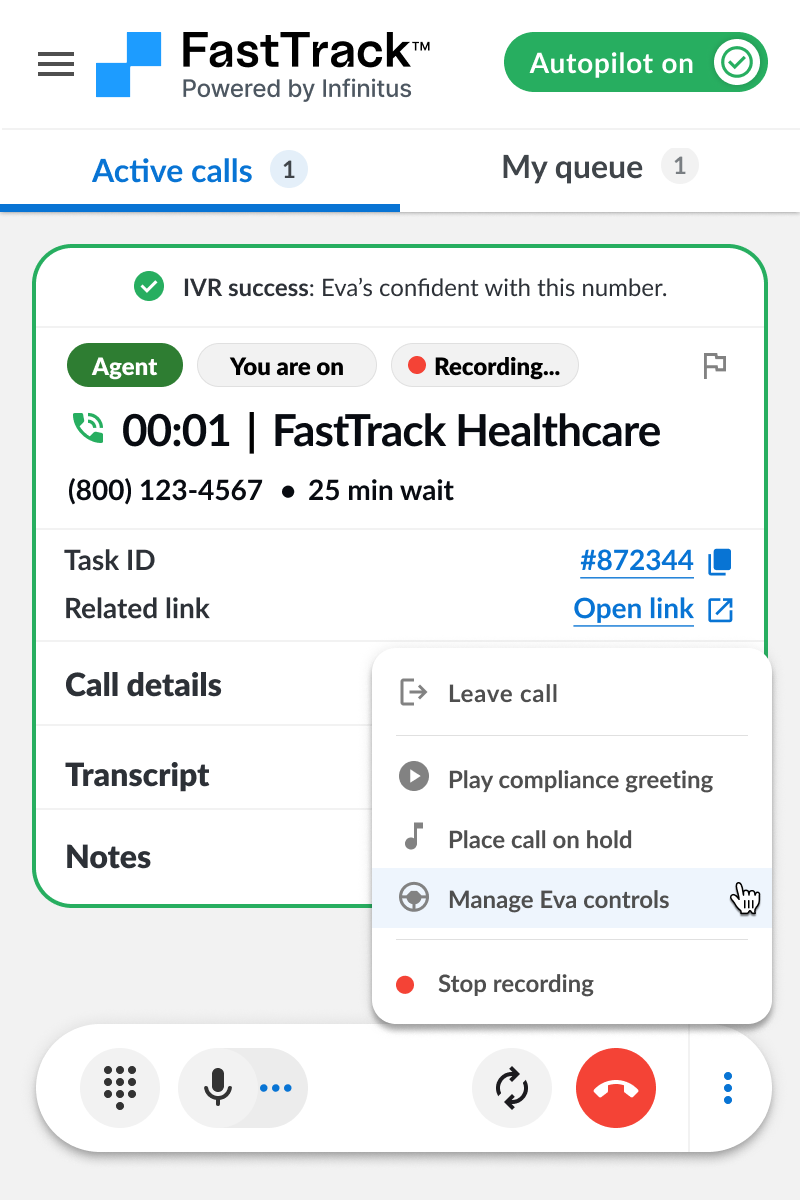
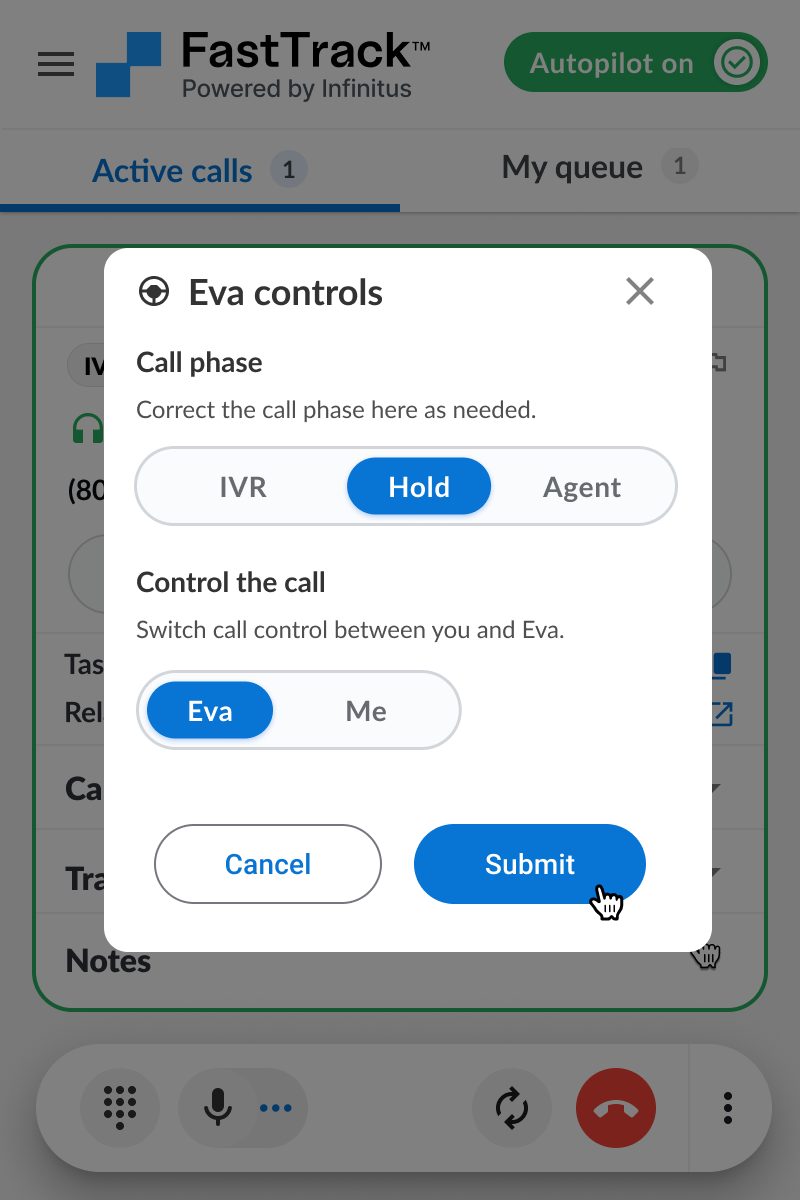
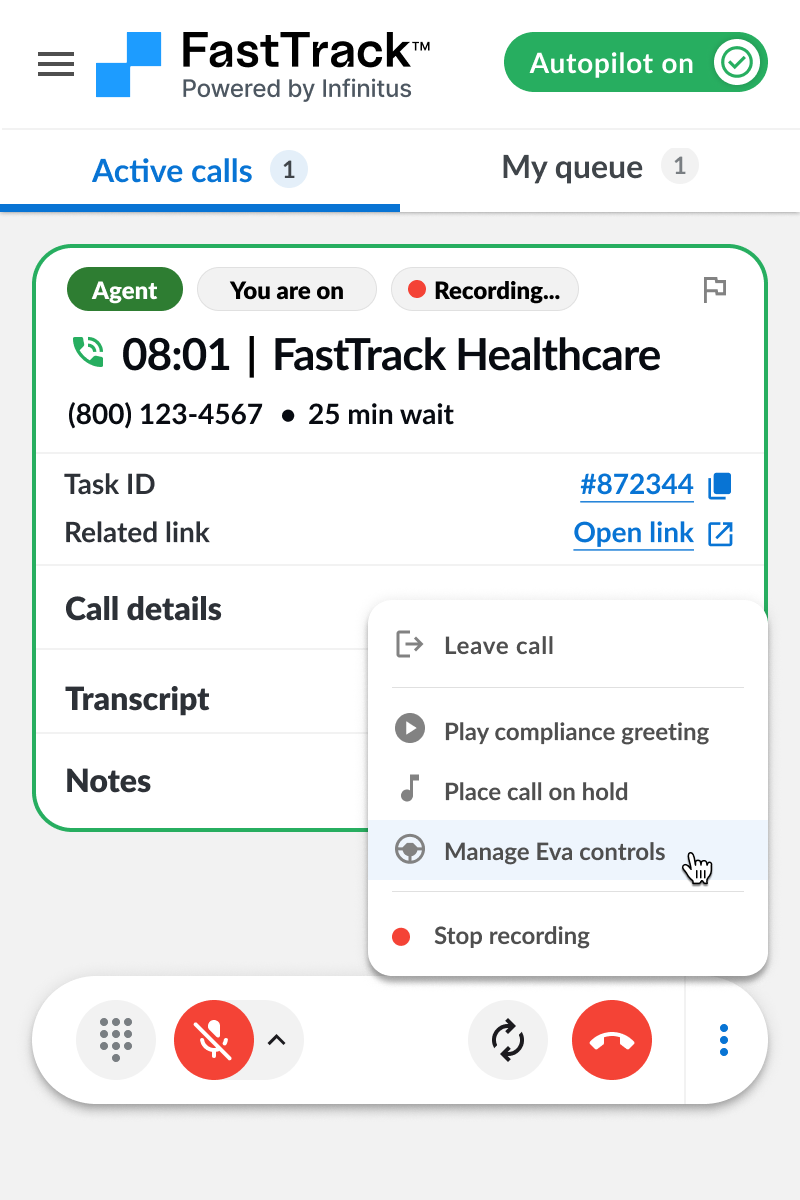
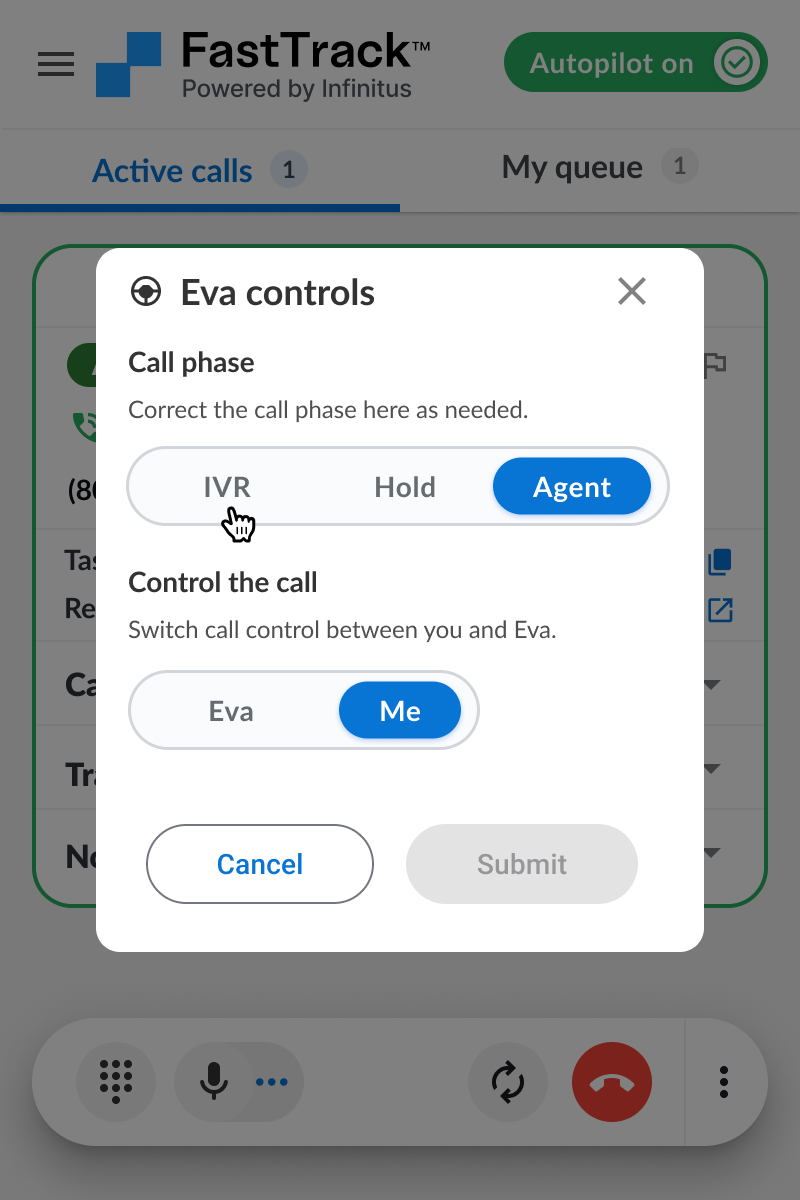
If you are dropped into a call that say s “Agent ready” but the call is still on IVR first change the call phase by going to “Eva controls”
Select the IVR phase
You will then see an option to “Send back to team queue”
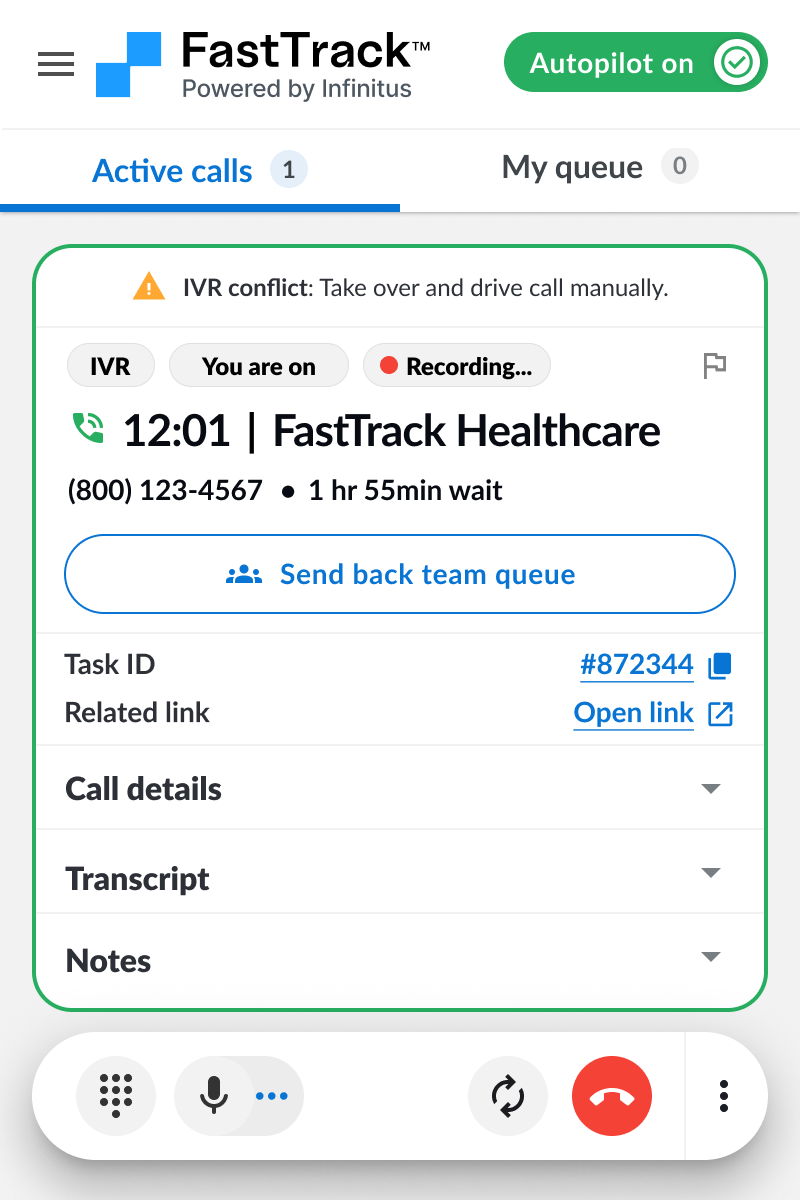
You must be joined on the call and driving the call in order to send a call back to team queue.
How do I change phone numbers after a call?
How do I change phone numbers after a call?
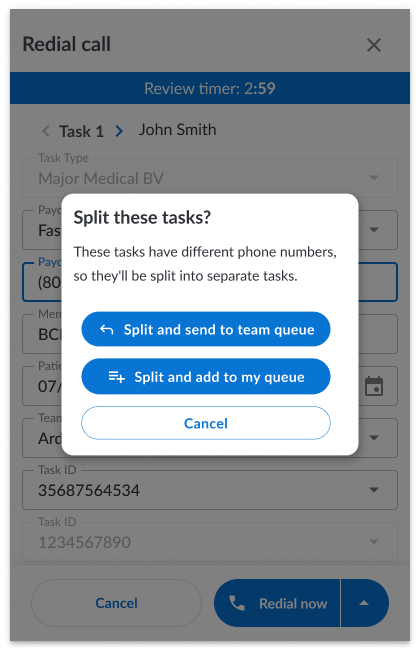
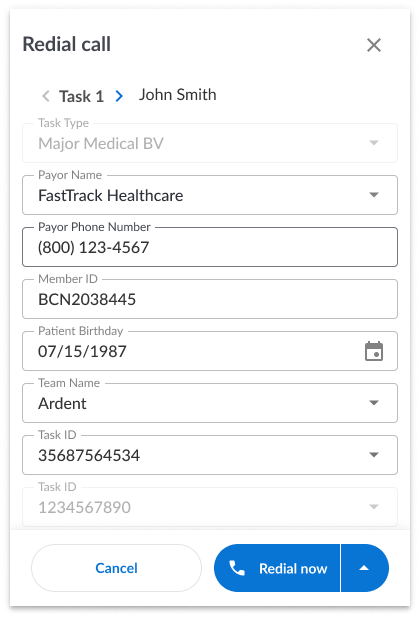
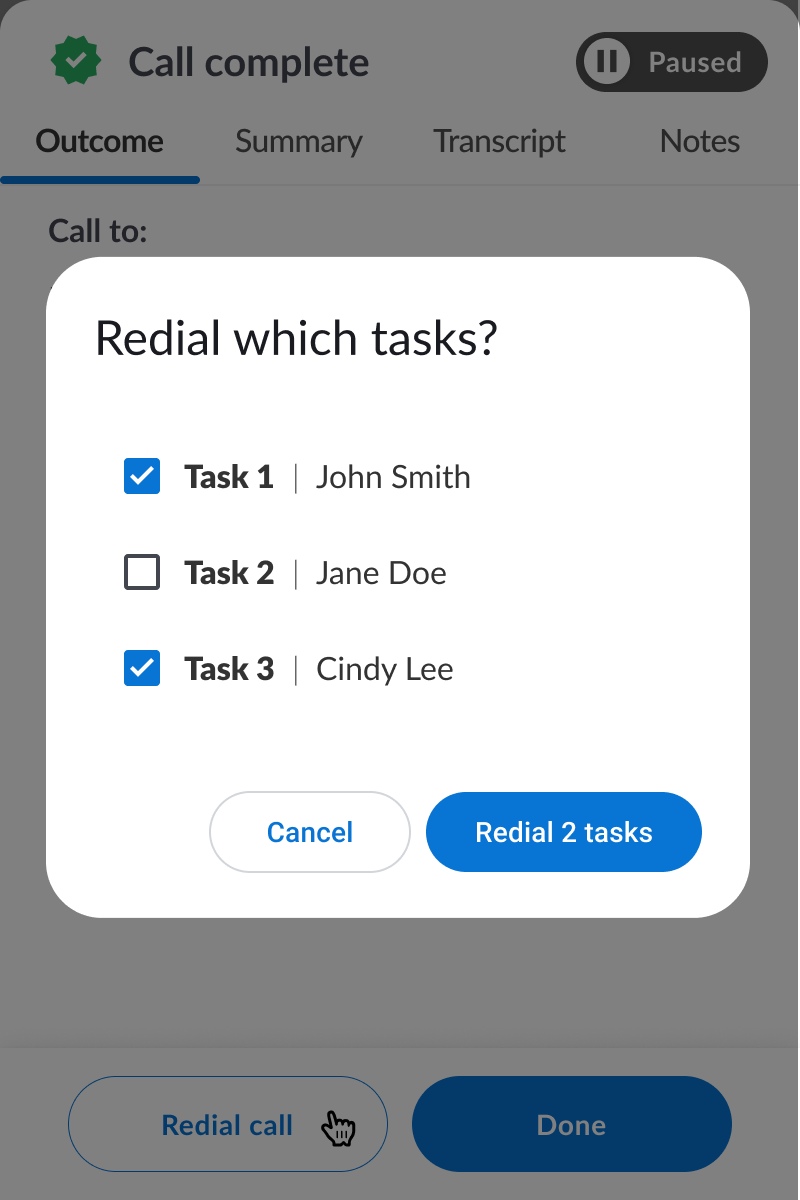
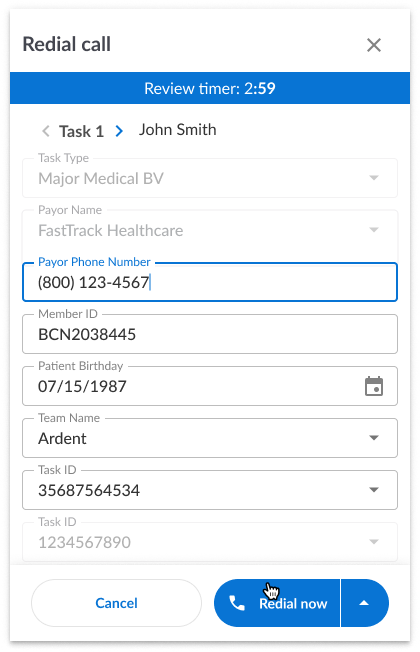
If you need to change phone numbers you can do so after a call by clicking “Redial” on the post call review screen.
Select which tasks require redial and phone number changes.
Change the phone numbers for each task that requires a change.
When you go to redial you will be prompted to either send to team queue or add to your own queue.