Use this guide to get your network settings setup for AI Agent.
Network Setup
Infinitus requires the following traffic whitelisted in your network setup in order to use our AI Agent. This will ensure you can access our web portal and backend services to access your data on our platform.
|
Type of traffic |
Values |
Reason |
|
Web portal urls |
Used to access our customer portal and backend api services. |
|
|
Web portal ports |
TCP port 443 |
Used for data traffic to and from our portal and our backend services. |
Authentication Providers
Infinitus AI Agent provides the following authentication options for signing in.
|
Option |
Details |
|
Sign in with Google |
OAuth/SSO option to let users sign in with their corporate Google Workspace account. |
|
Sign in with Microsoft |
OAuth/SSO option to let users sign in with their corporate Microsoft Azure AD account. |
|
Sign in with SAML |
SSO option to sign in with SAML. Note: we currently only support SP (service provider) initiated flow. |
|
Sign in with magic link |
Passwordless option to let users have a magic sign in link sent to their email which they can click to sign in. |
Sessions
When users sign into our web portal, we will issue an ID token (JWT) which expires after 1 hour and a refresh token to automatically update the ID token. Each new tab/window will require users to re-authenticate. After 15 min of inactivity we will automatically sign the user out.
Roles and Permissions
Infinitus AI Agent uses an RBAC (role based access control) system to manage permissions in our web portal. When users are invited to your org in the portal, they are assigned one or more roles which determine the level of access they have. Org admins can create and assign roles to members of their org within the portal to configure the level of access users should have in your org.
Browser Requirements
Infinitus AI Agent is currently compatible with Chrome and Edge browsers only.
Configuring Sign-In with Google
In order to setup Sign-In with Google for authentication, permissions for customer.infinitusai.com must be granted beforehand by an administrator. If these permissions are unable to be granted, then setting up SAML is recommended.
Method
-
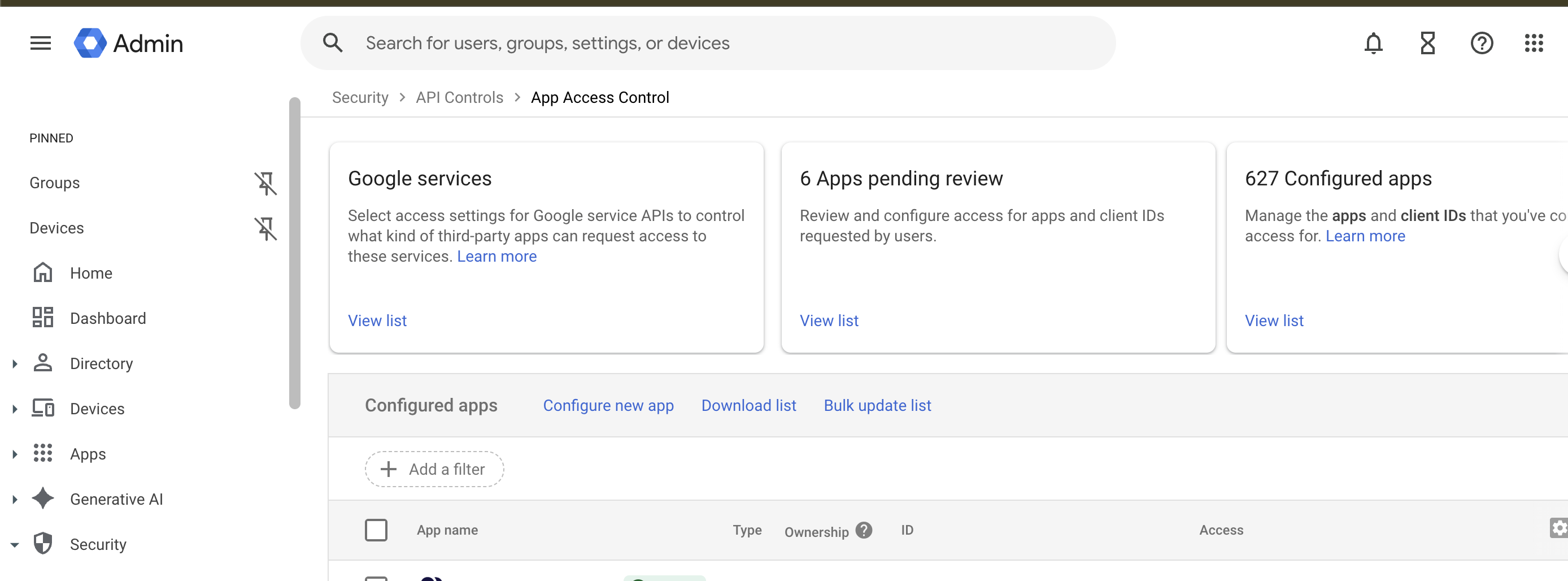
Have an administrator with the appropriate permissions navigate to admin.google.com > Security > API Controls > App Access Control and click ‘Configure new app’:
-
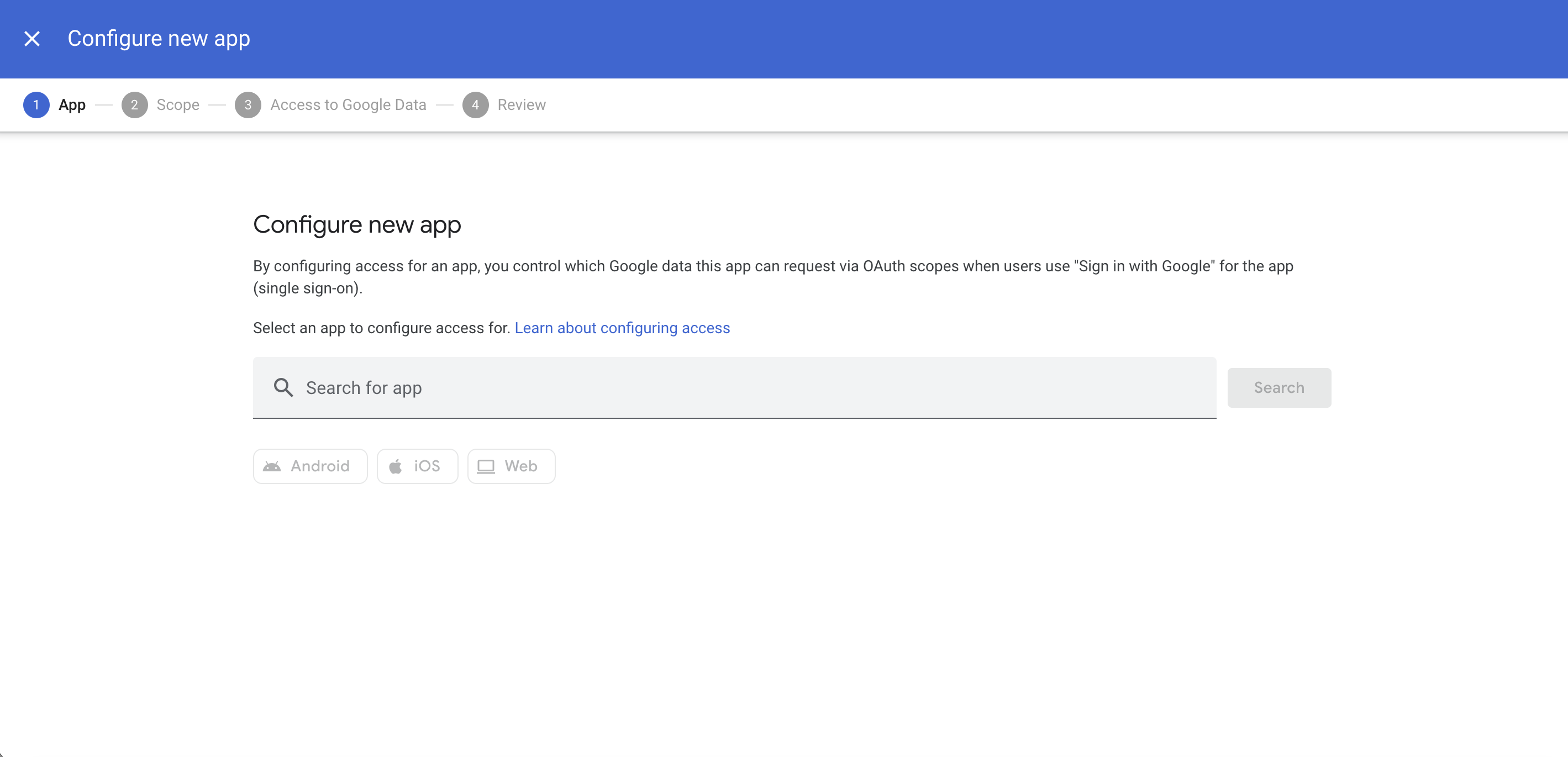
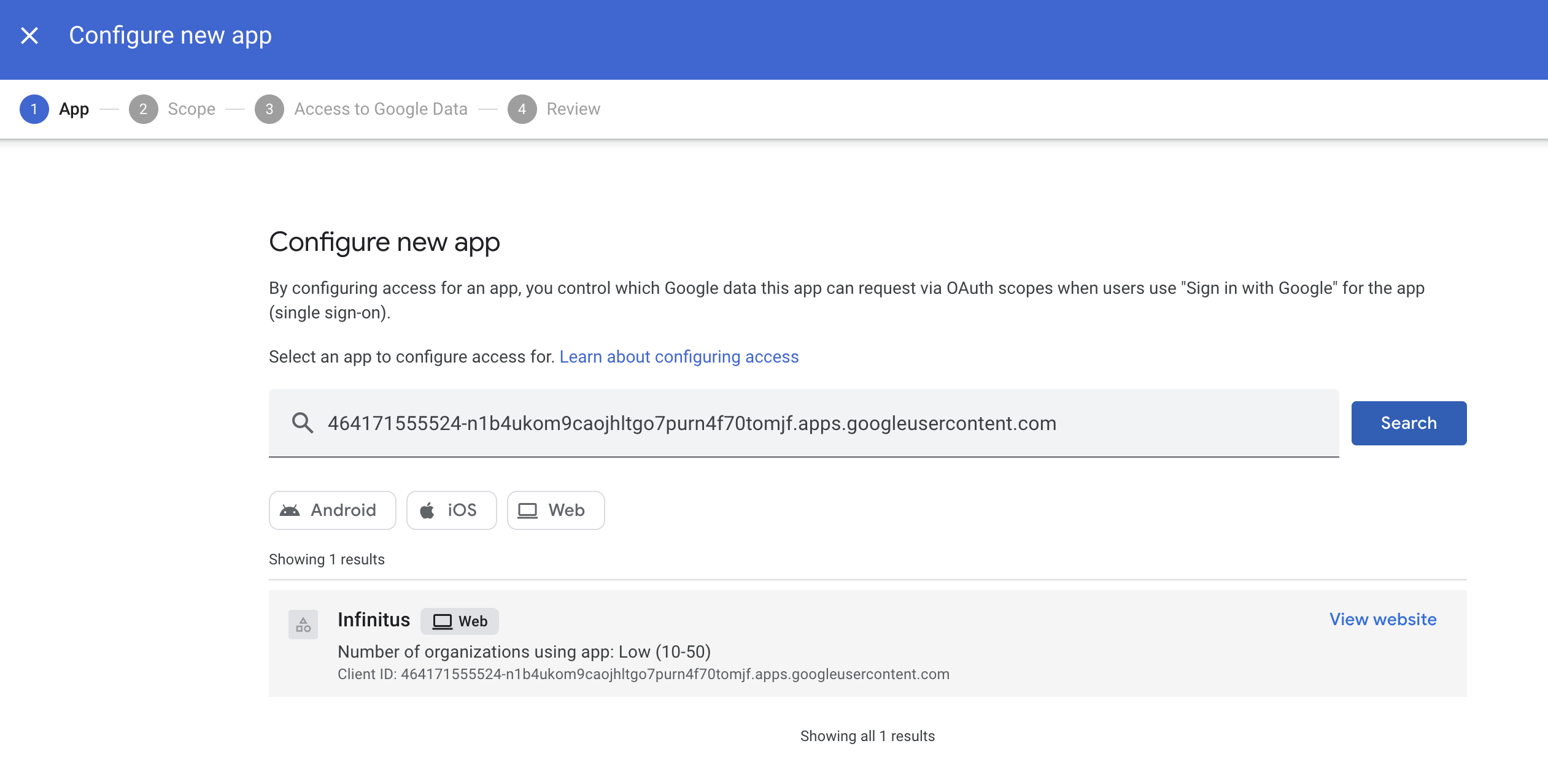
Configure new app:
-
Enter the following into ‘Search for app’ and click ‘Search’: 464171555524-n1b4ukom9caojhltgo7purn4f70tomjf.apps.googleusercontent.com
-
Select ‘Infinitus’ as shown below:
-
-
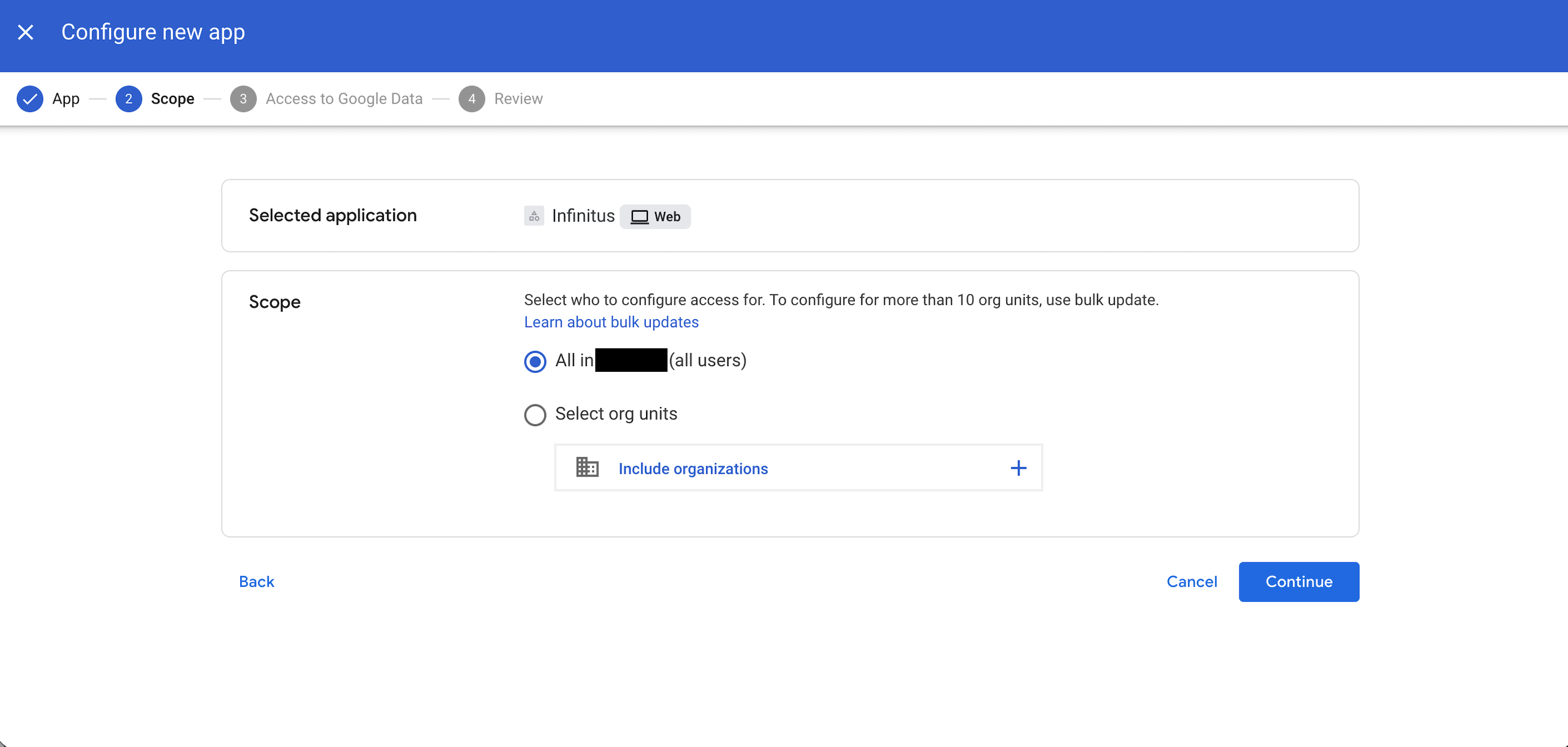
Scope:
-
Select either your entire organization (all users) or the specific organizational unit that will need to be able to access the Infinitus Portal and then click ‘Continue.'
-
-
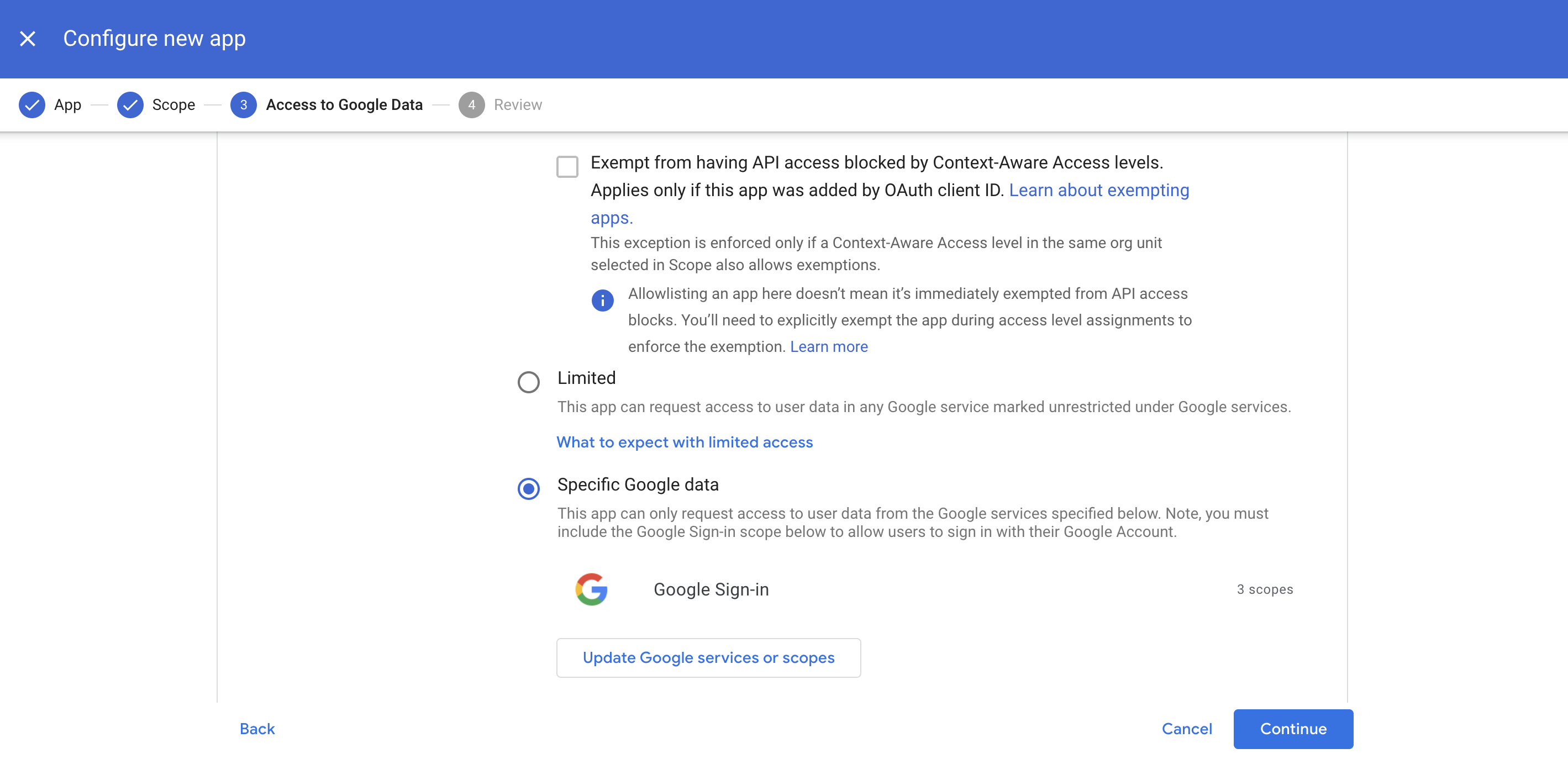
Access to Google Data:
-
At a minimum, ‘Specific Google data’ will need to be selected with ‘Google Sign-in’ as the access granted.
-
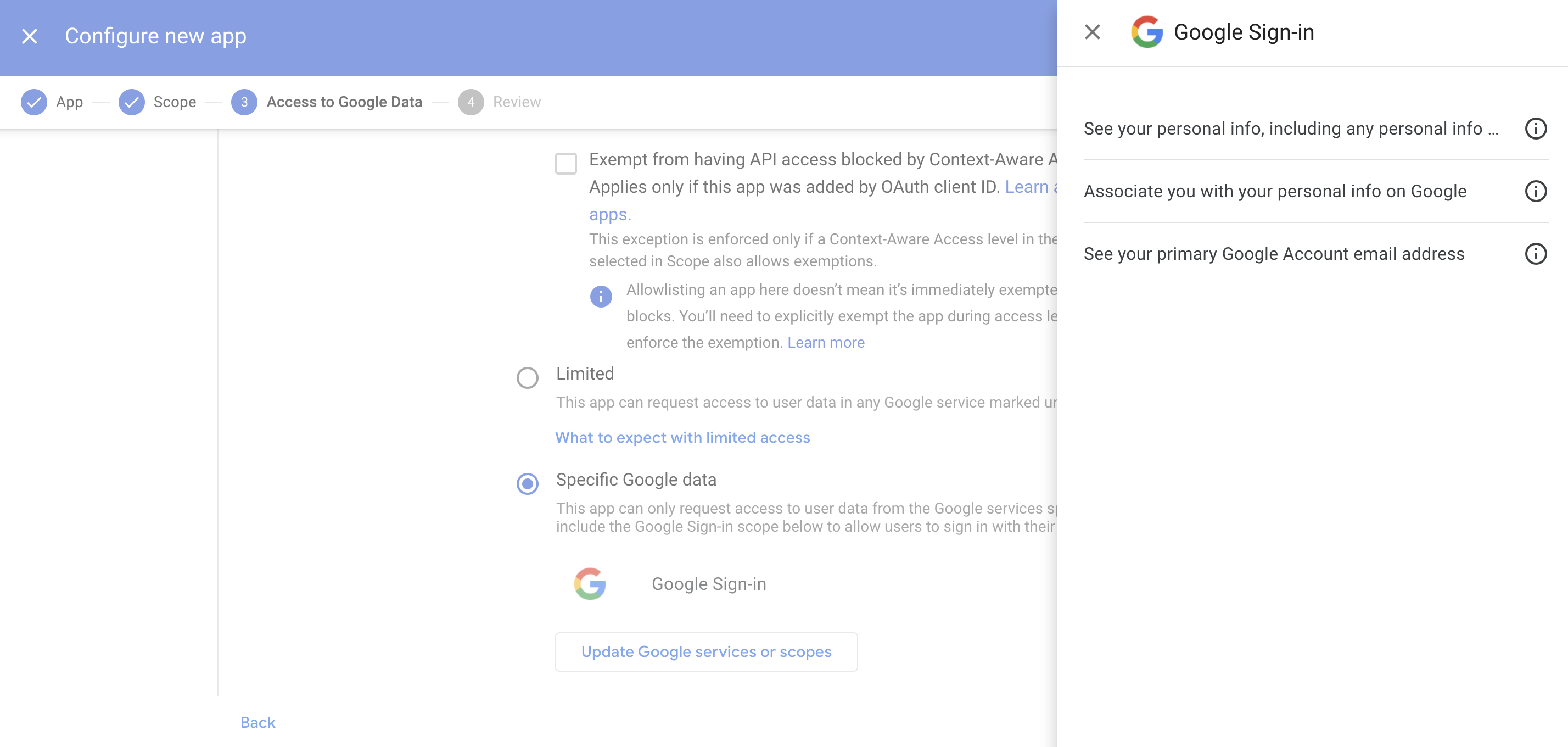
The following API Scopes will be required to leverage Sign-in with Google (Also shown in the image below):
-
API Scope: openid
-
-
Once selected, click ‘Continue.’
-
-
Review:
-
Click ‘Finish.’
-
-
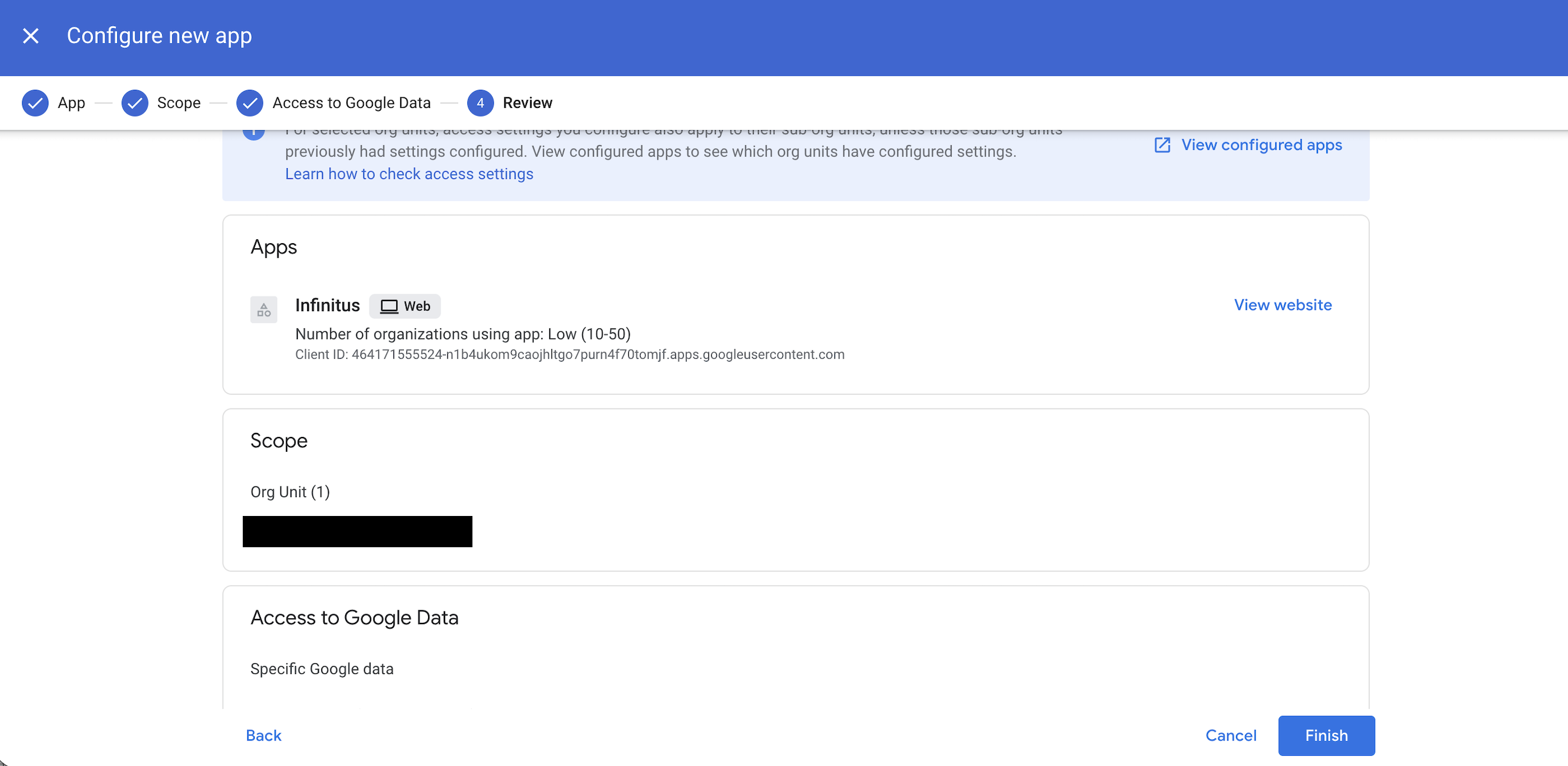
-
After accepting this permission grant, users should now be able to authenticate into the Infinitus Portal using their Google Workspace credentials.
Configuring Sign-In with Microsoft
In order to setup Sign-In with Microsoft for authentication, permissions for http://customer.infinitusai.com must be granted beforehand by an administrator. If these permissions are unable to be granted, then setting up SAML is recommended.
Method
-
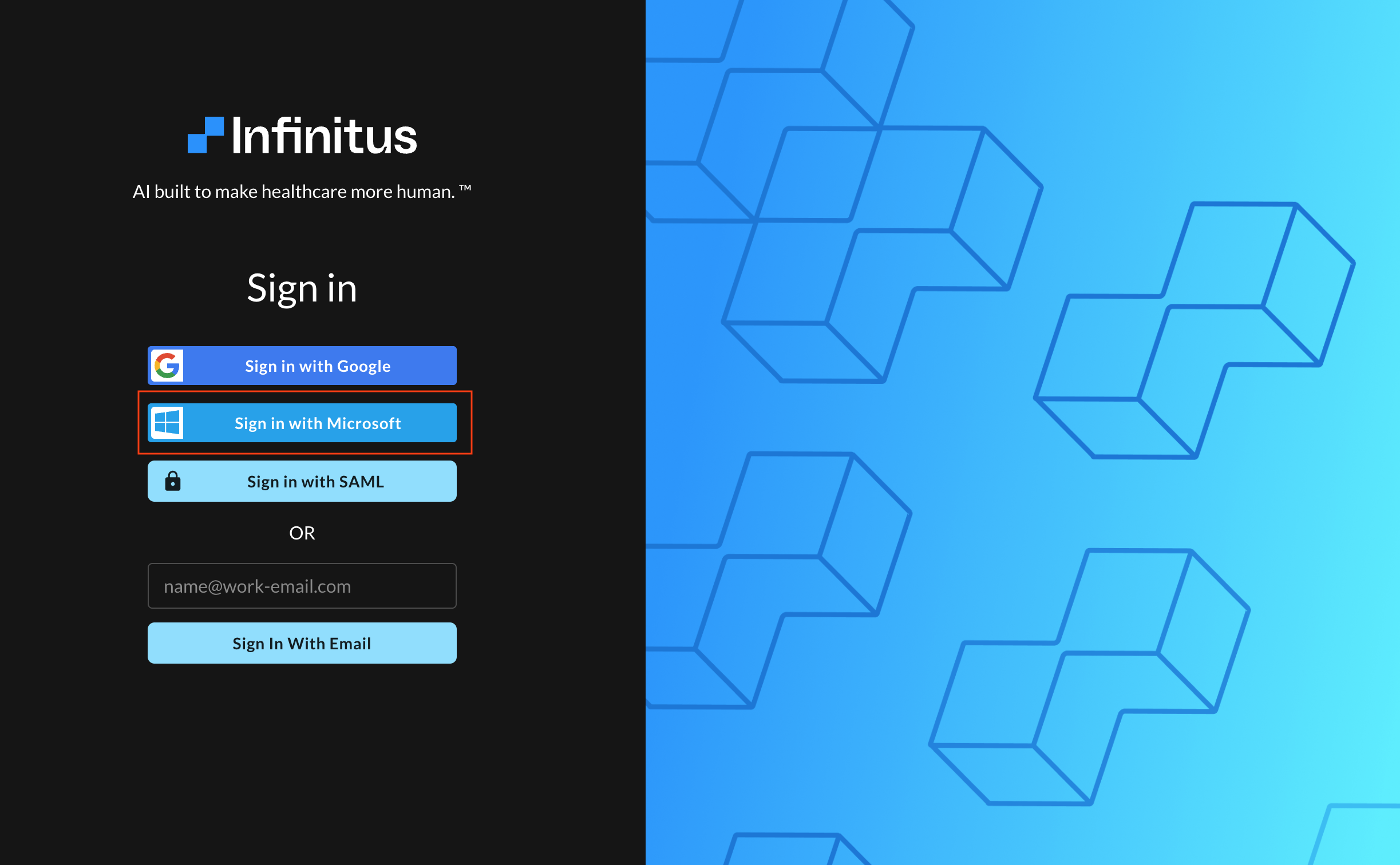
Have an administrator with the appropriate permissions navigate to https://customer.infinitusai.com/ and select ‘Sign in with Microsoft’:
-
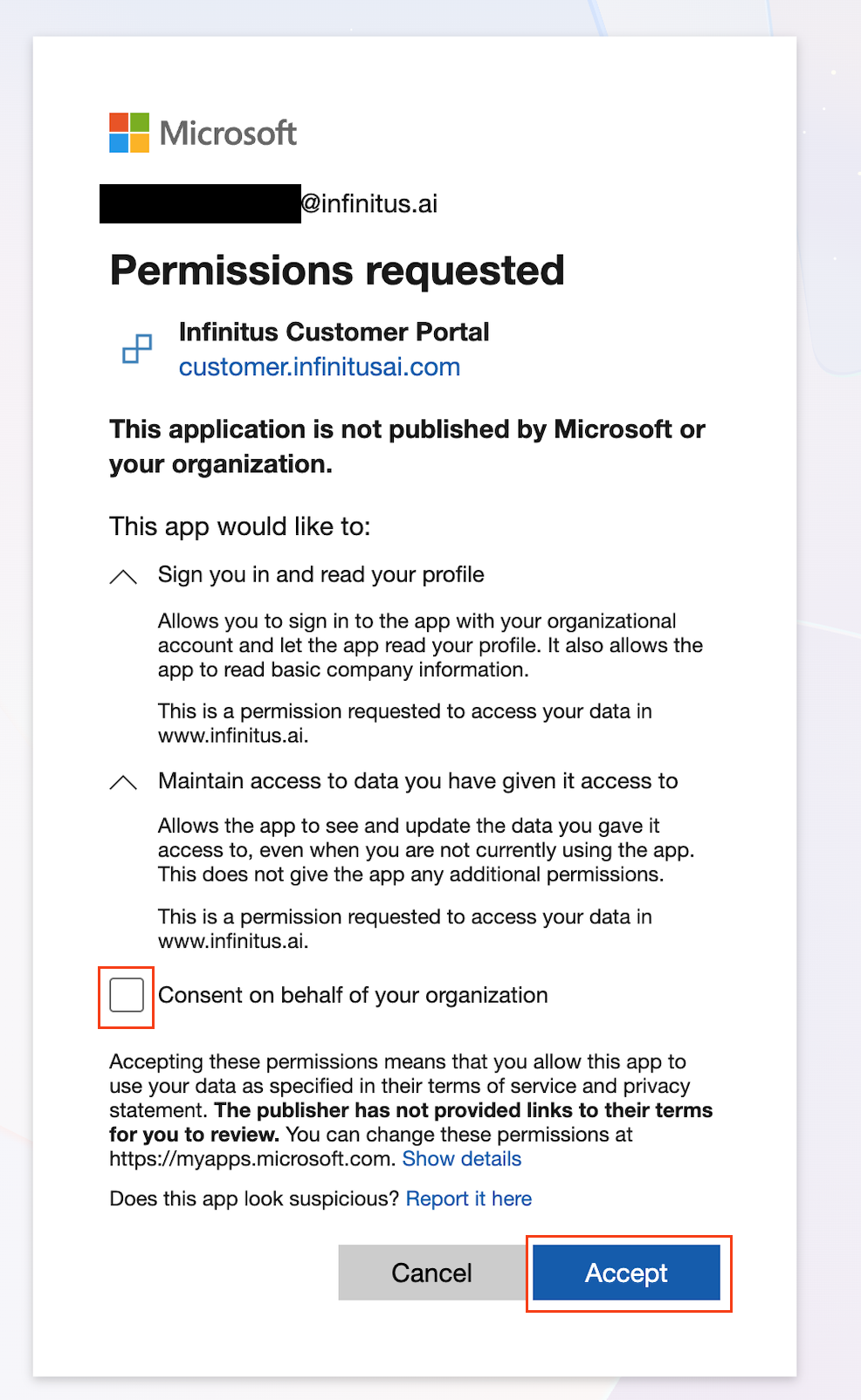
After entering the administrator’s credentials, they should be presented with the window shown below requesting the following permissions. Check ‘Consent on behalf of your organization’ and then click ‘Accept.’
-
After accepting this permission grant, users should now be able to authenticate into the Infinitus Portal using their Microsoft credentials.
-
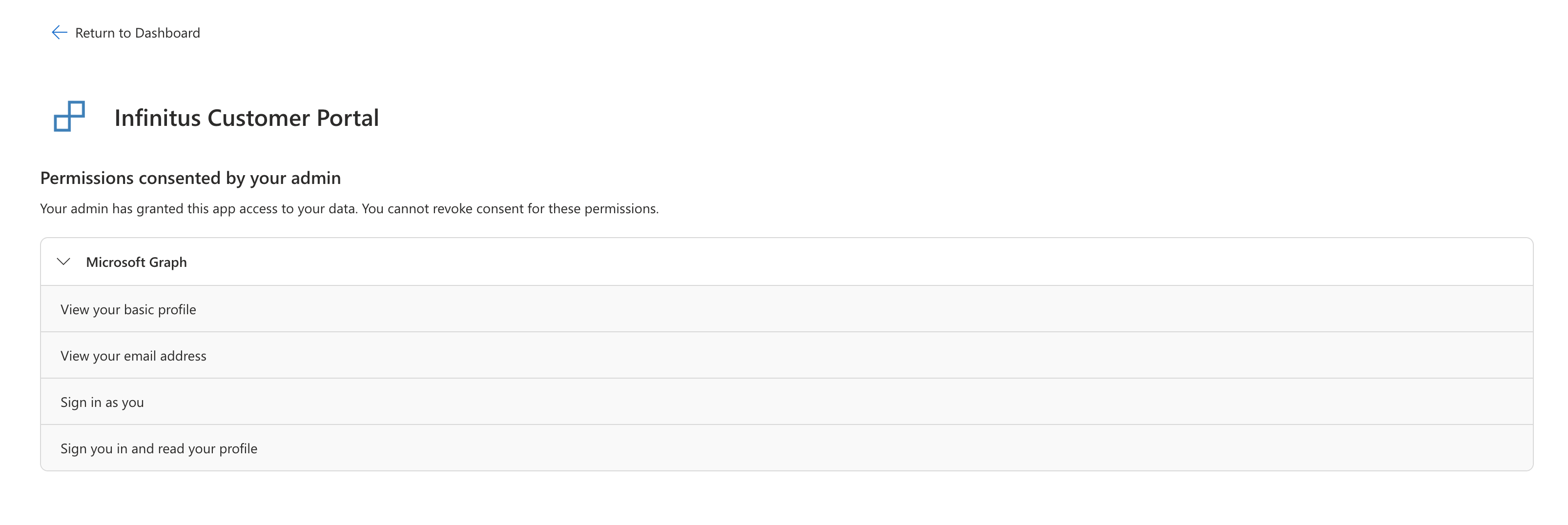
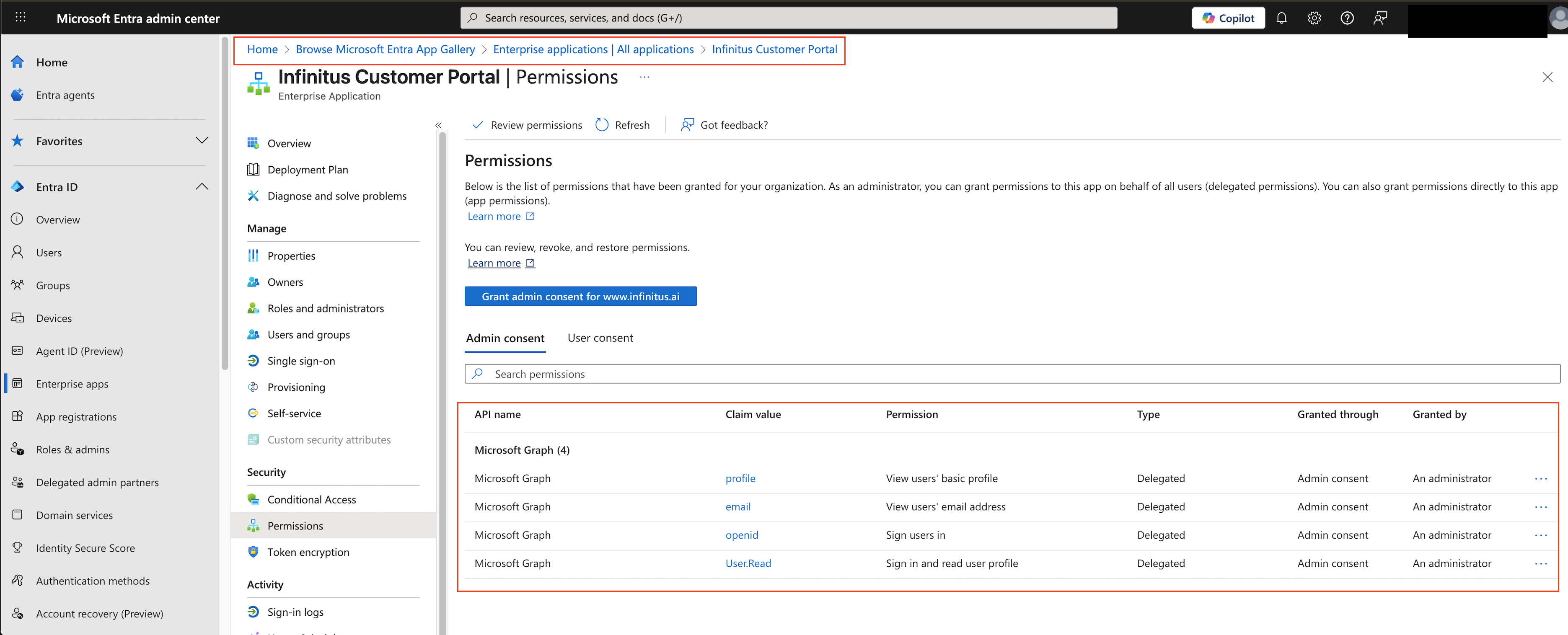
Additionally, Infinitus Customer Portal should be found at (A) https://myapps.microsoft.com/ and in (B) Microsoft Entra admin center (Home > Browse Microsoft Entra App Gallery > Enterprise applications | All applications > Infinitus Customer Portal) with the following permissions as shown below:
-
View your basic profile
-
View your email address
-
Sign in as you
-
Sign you in and read your profile
-
-
A. https://myapps.microsoft.com/
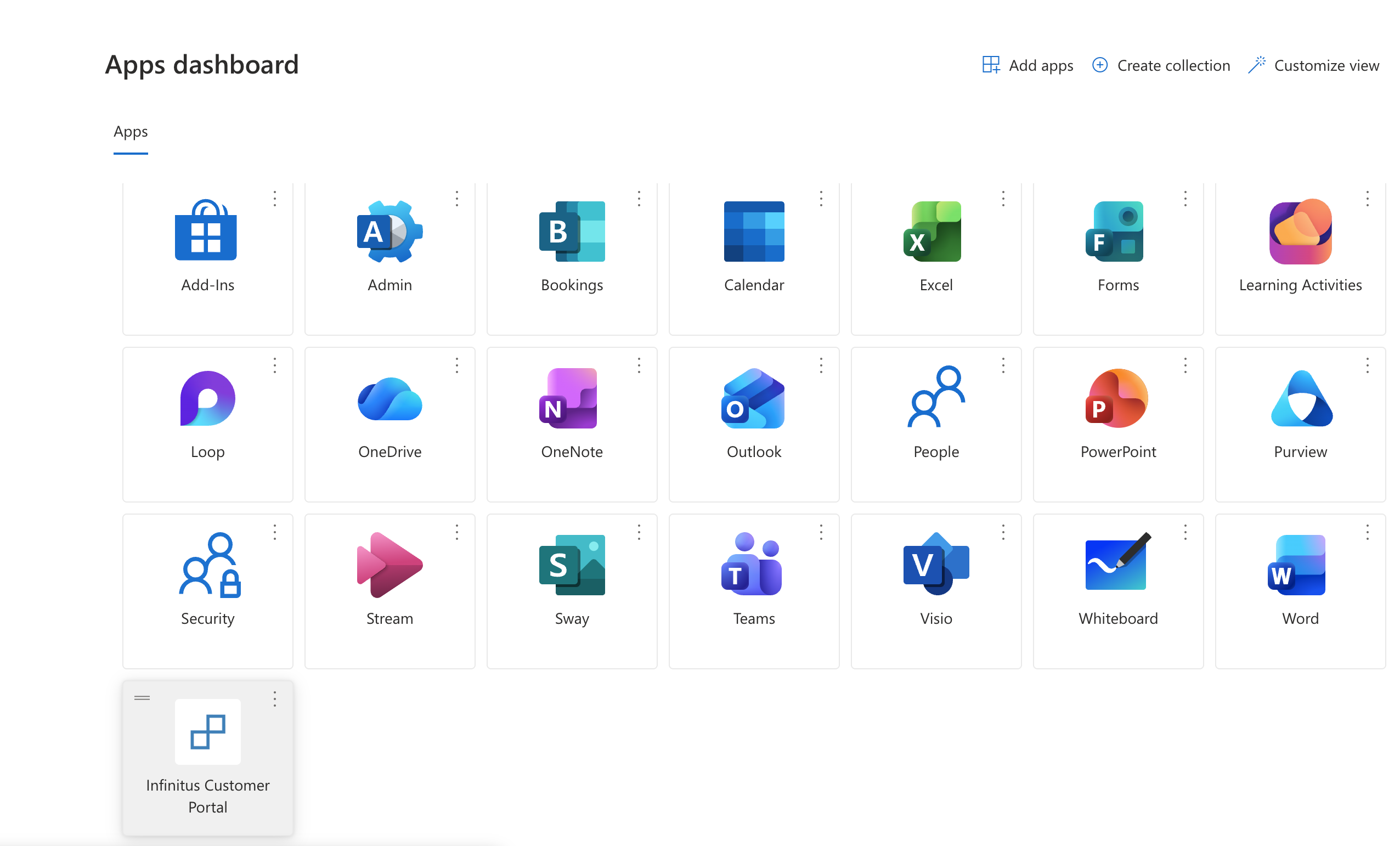
B. Microsoft Entra admin center (Home > Browse Microsoft Entra App Gallery > Enterprise applications | All applications > Infinitus Customer Portal) > Permissions
Configuring SAML
We currently only support a service-provider initiated SAML flow.
In order to setup SAML for authentication we will need the following information:
-
List of email domain(s) for logins (e.g. http://company.com )
-
Certificate (Must start with "-----BEGIN CERTIFICATE-----", and end with "-----END CERTIFICATE-----".)
-
Entity id (usually a url)
-
SSO URL
You will likely need to configure the following in your system:
-
Our entity ID: https://customer.infinitusai.com
-
Our callback URL: https://customer.infinitusai.com/__/auth/handler
Once the SAML connection is setup you can sign in at https://customer.infinitusai.com/login/saml