
After a call FastTrack will generate a custom AI summary. You have the ability to edit this AI summary inline in FastTrack if there are issues with the summary.
Editing summary
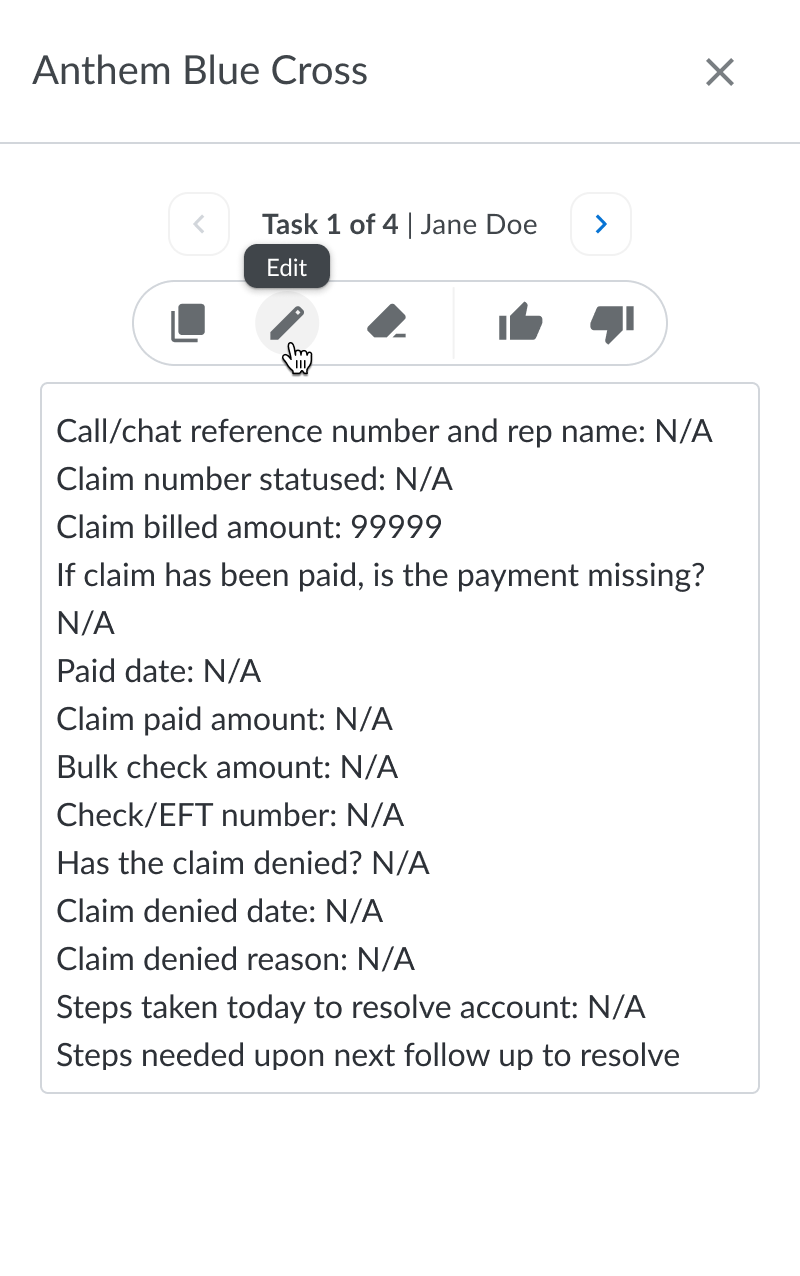
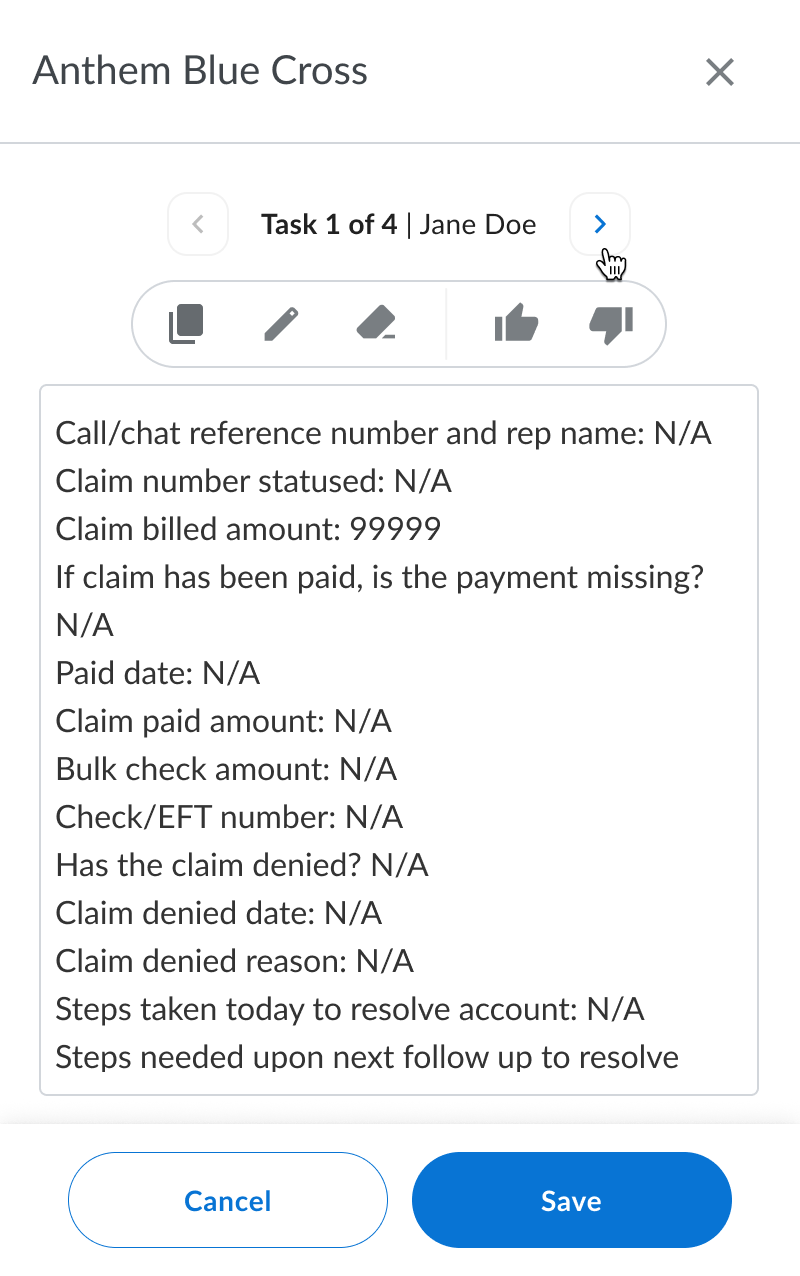
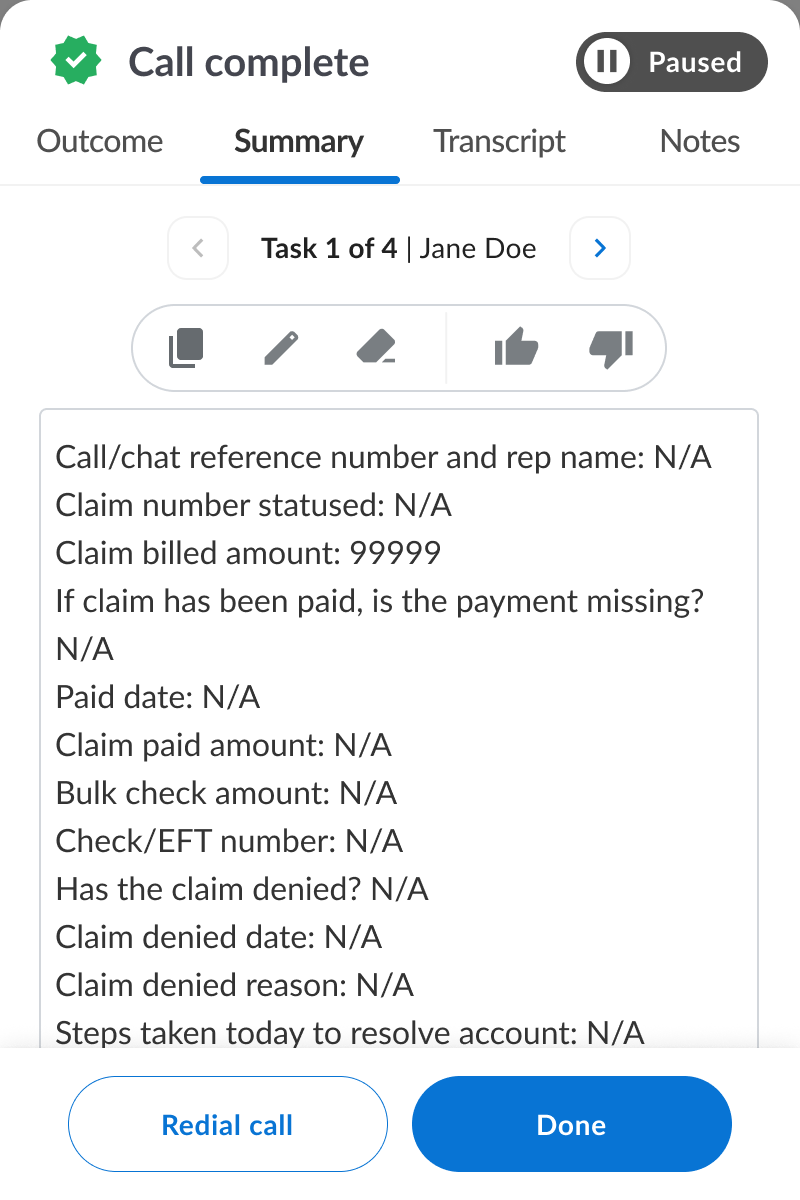
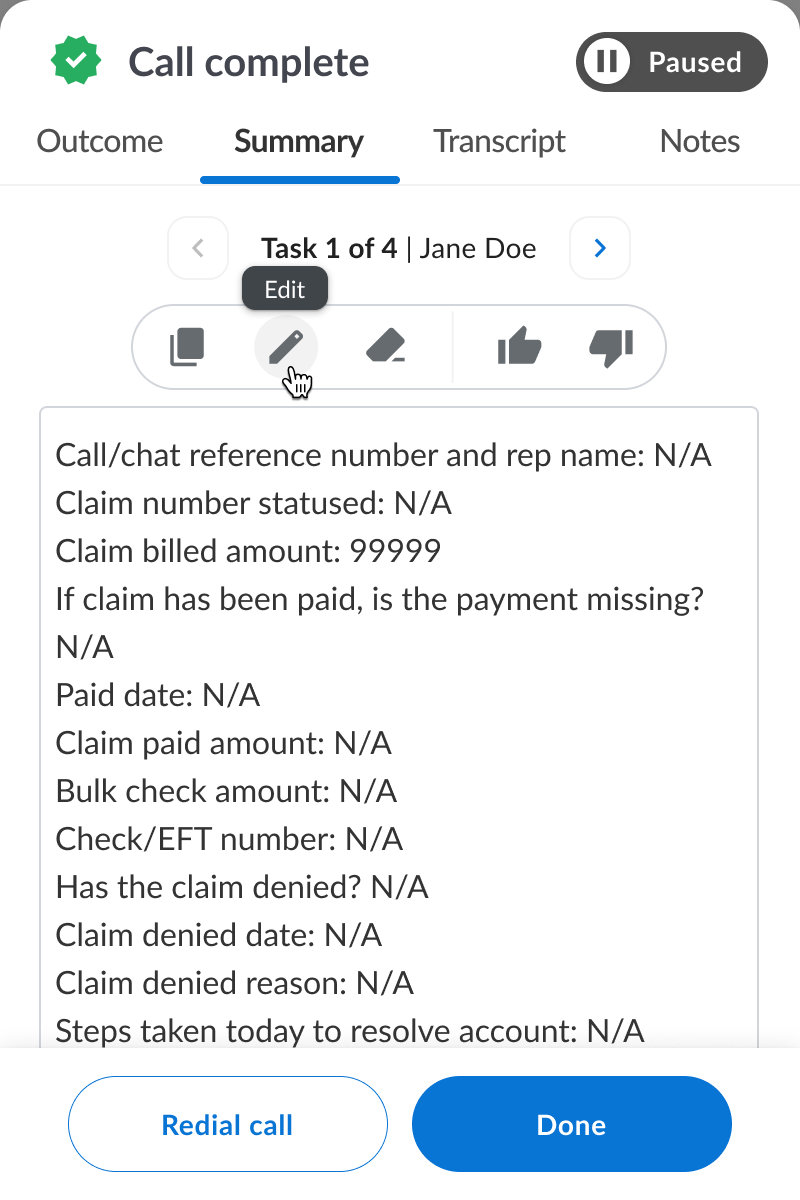
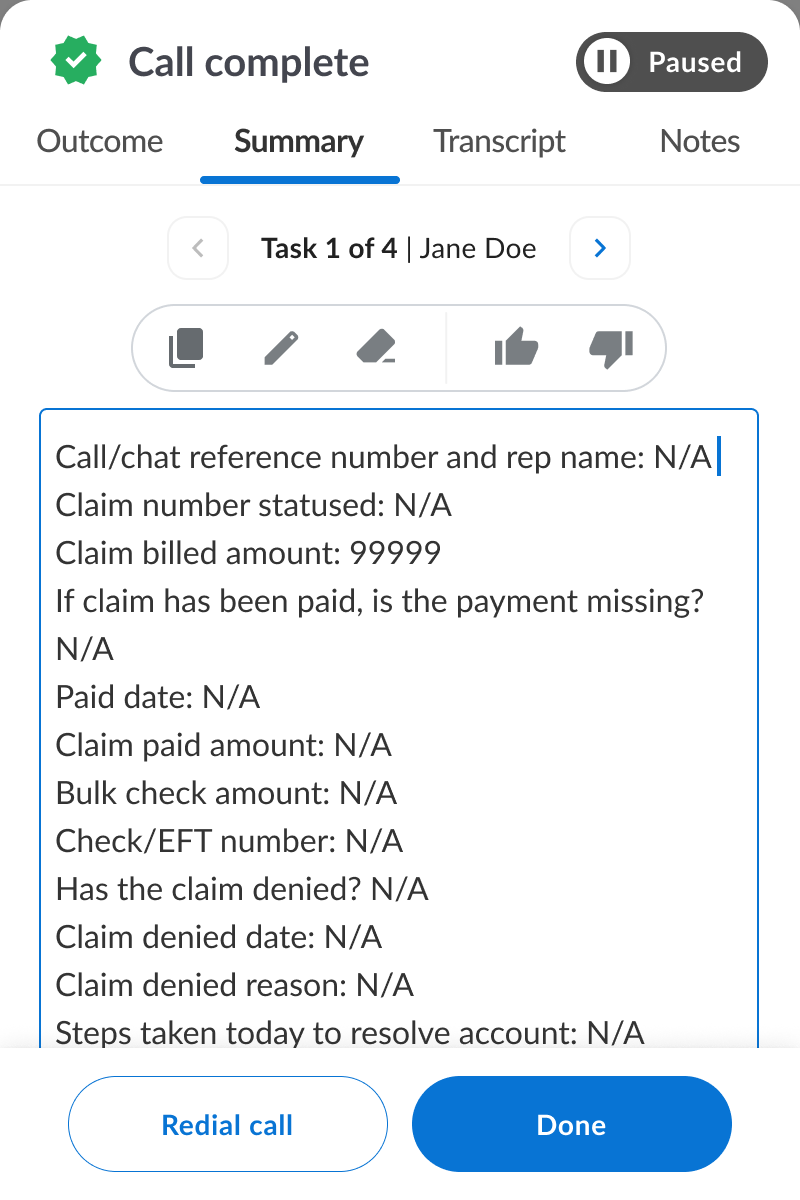
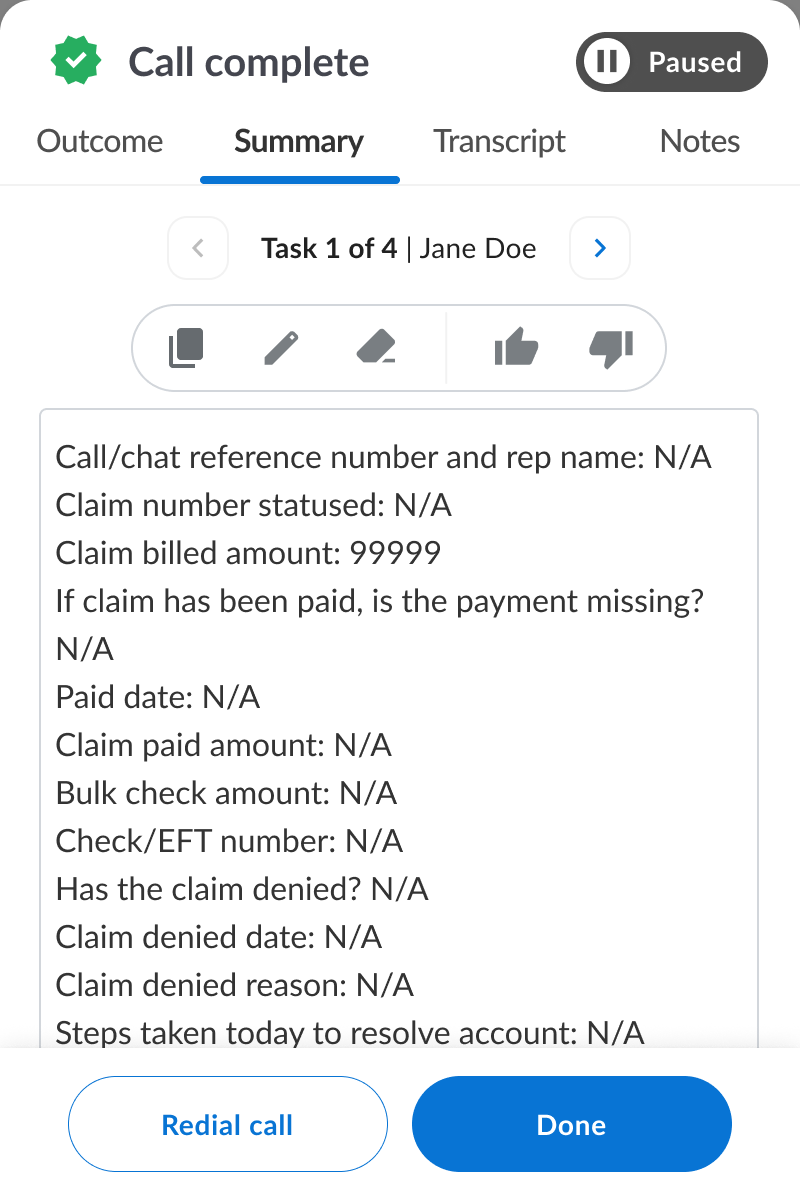
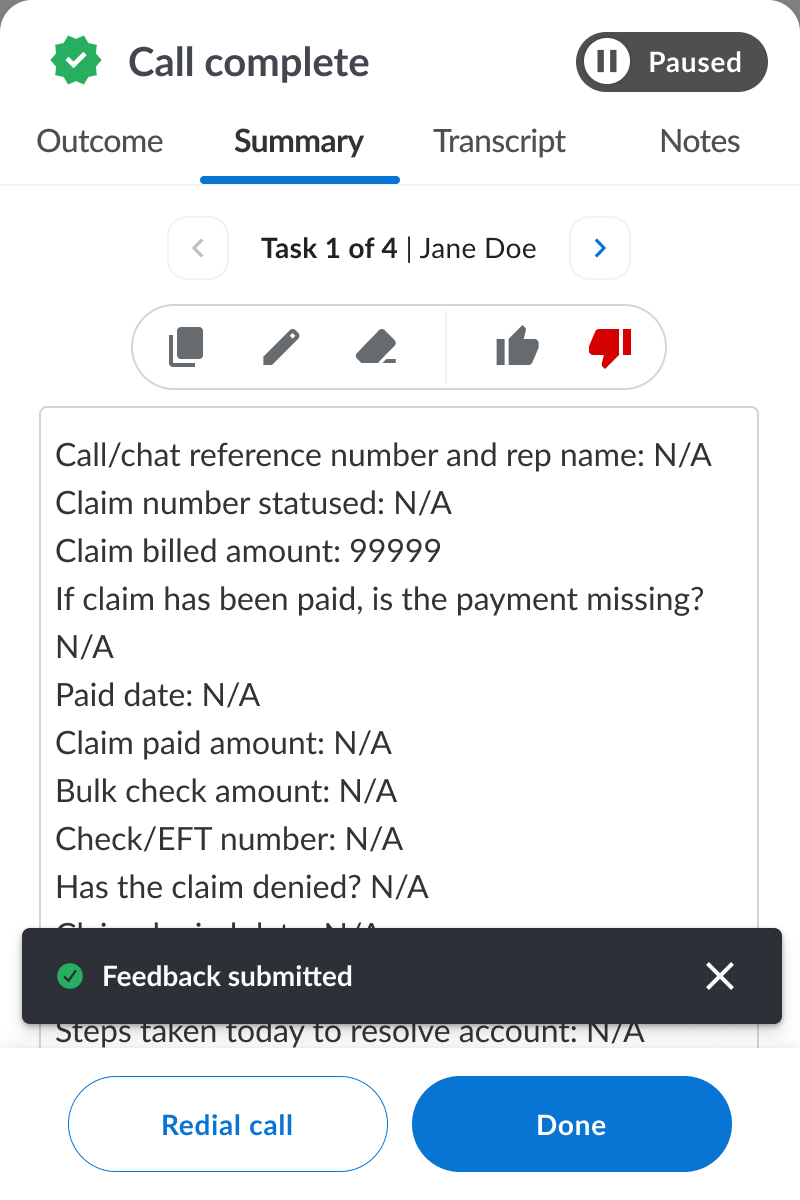
New controls allow you to edit the summary in line, and by pressing the pencil icon. Note: The summary will auto-save as you are editing. Only press “done” or “redial call” when you are ready for the summary to be sent.
You can still click in-line the text box to edit and make changes. There are two ways to initiate an edit.
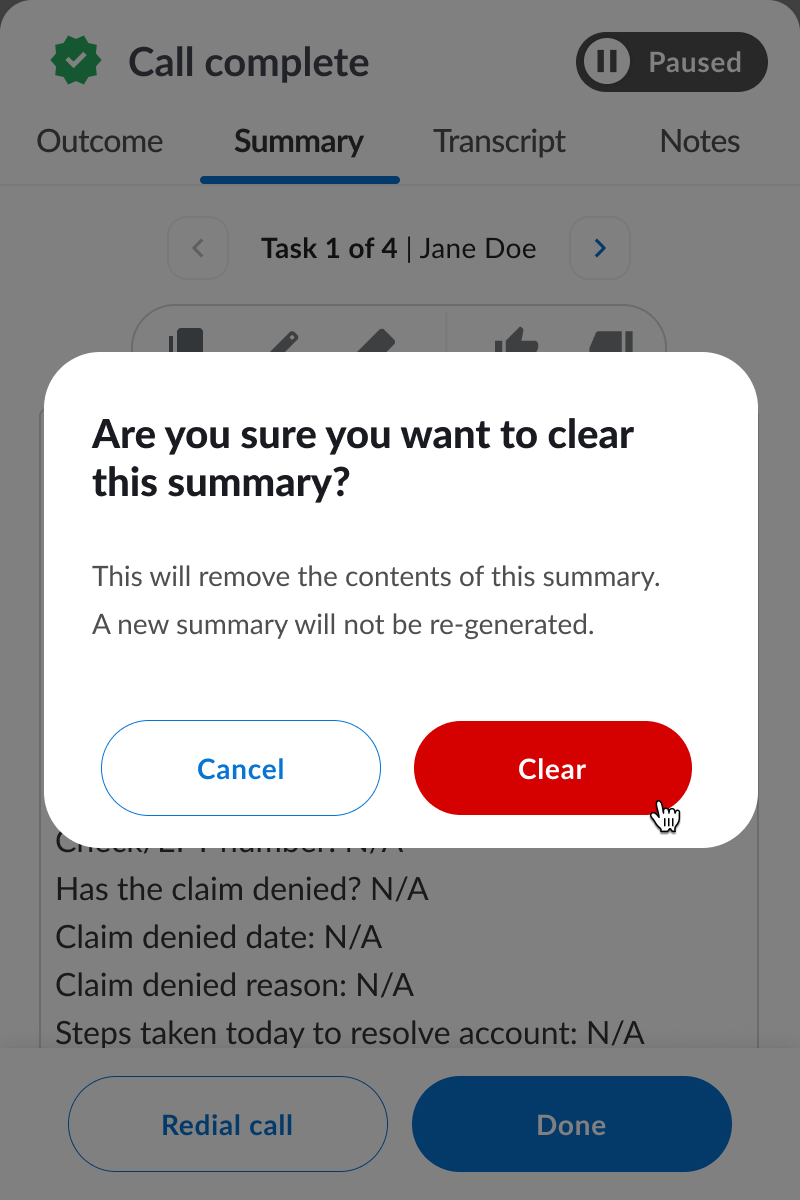
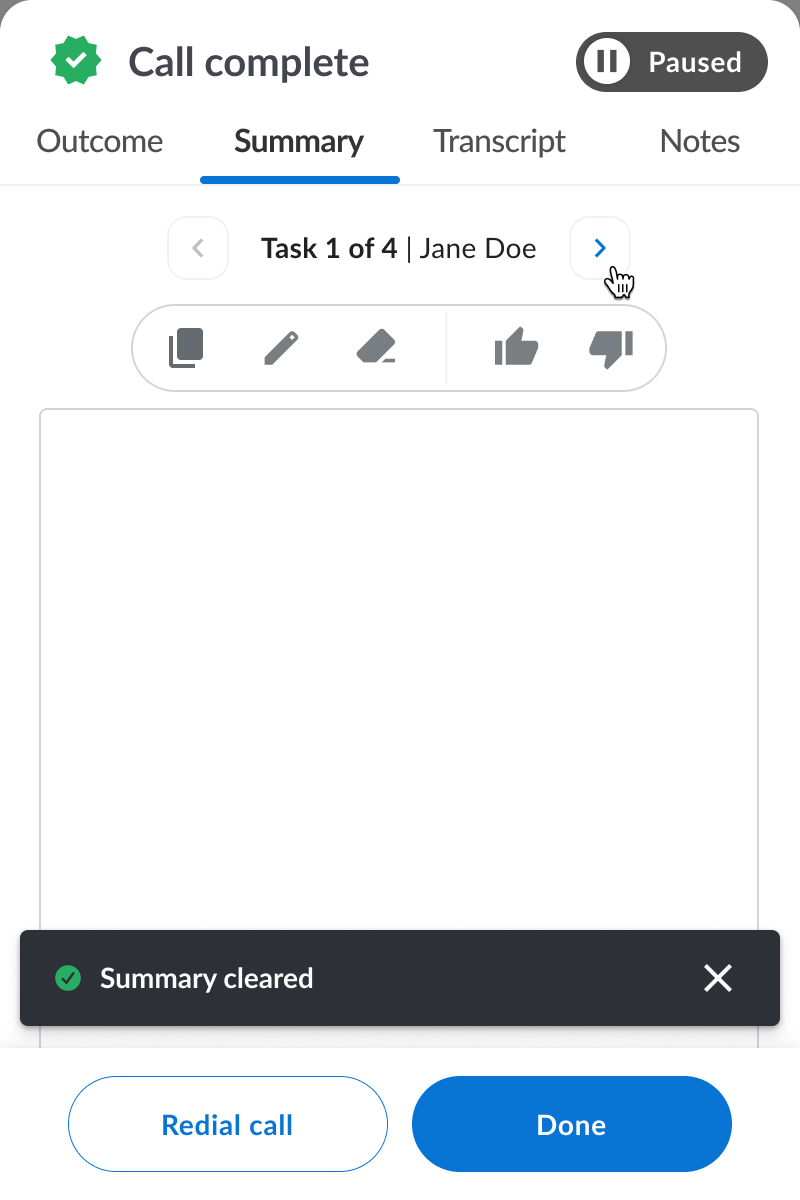
Clearing summary
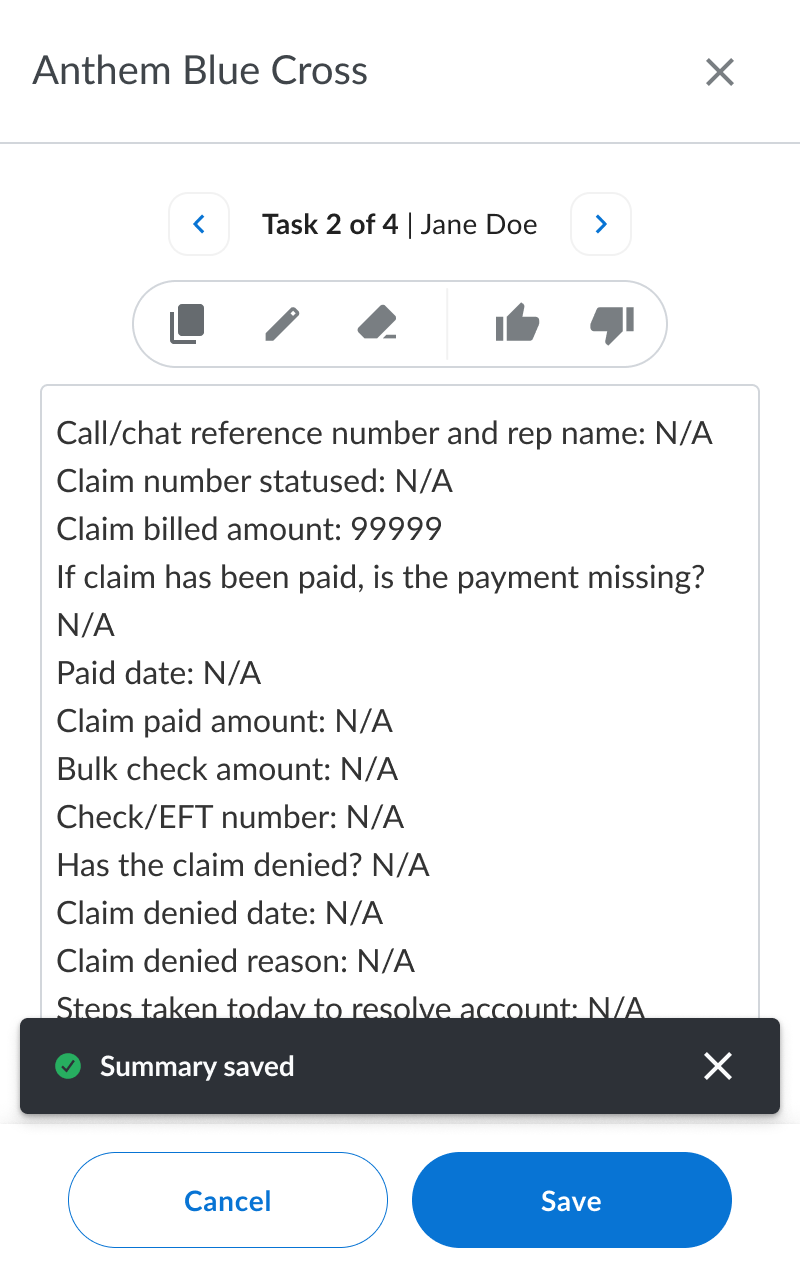
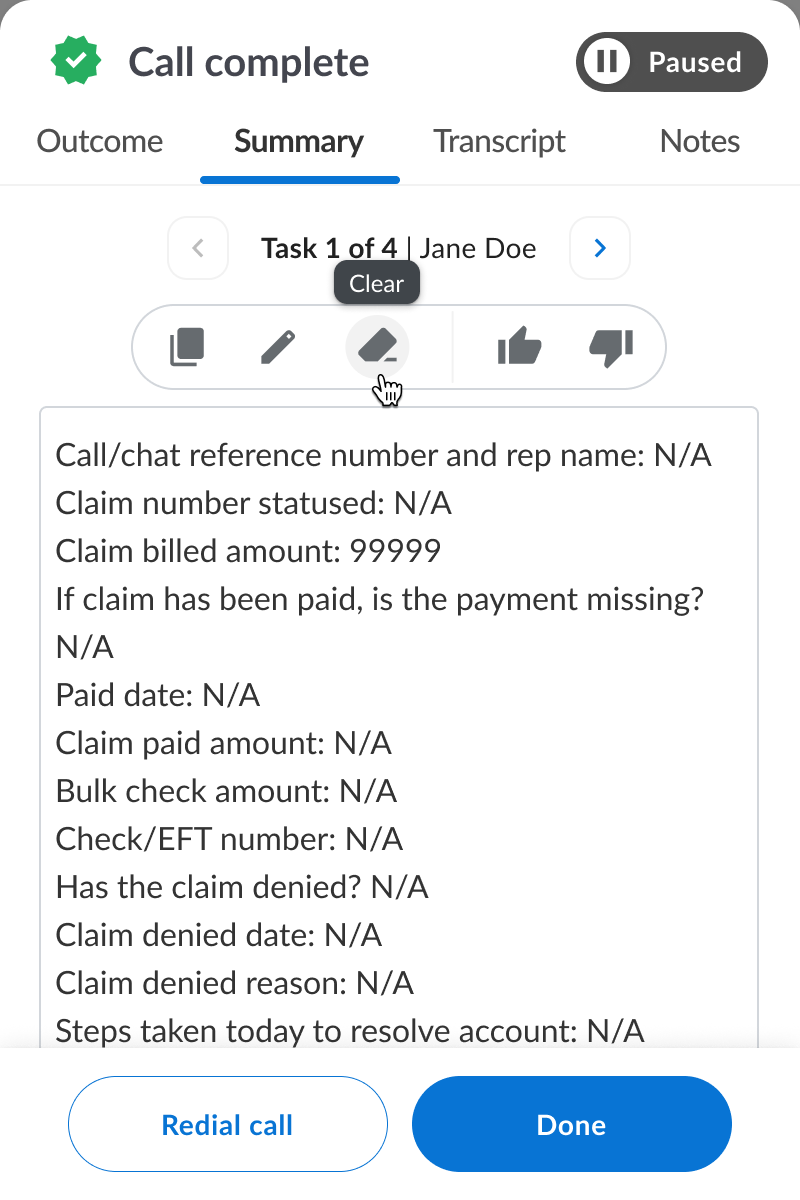
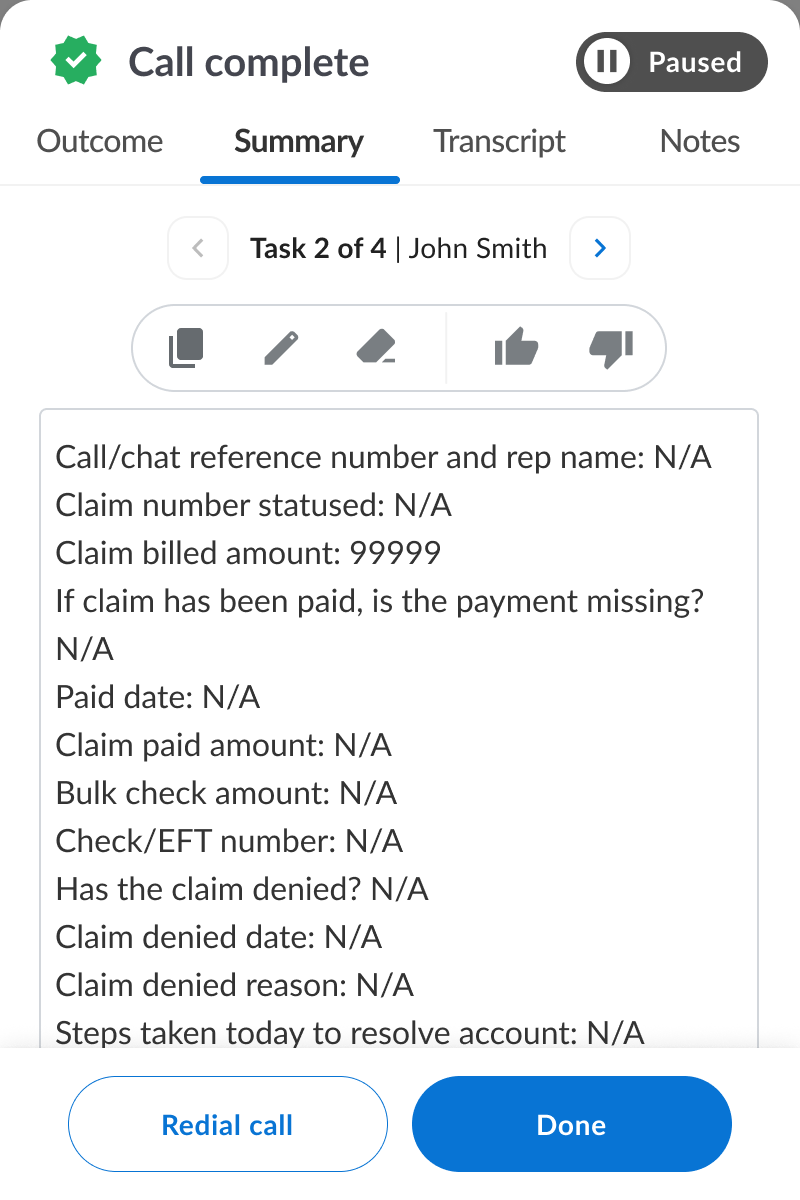
If a case or task has not been worked on call, clearing the summary will ensure it won’t be sent to EIQ. Use the task switcher to toggle between the different tasks and clear the correct one. There is no “clear all” functionality.
Referencing the transcript
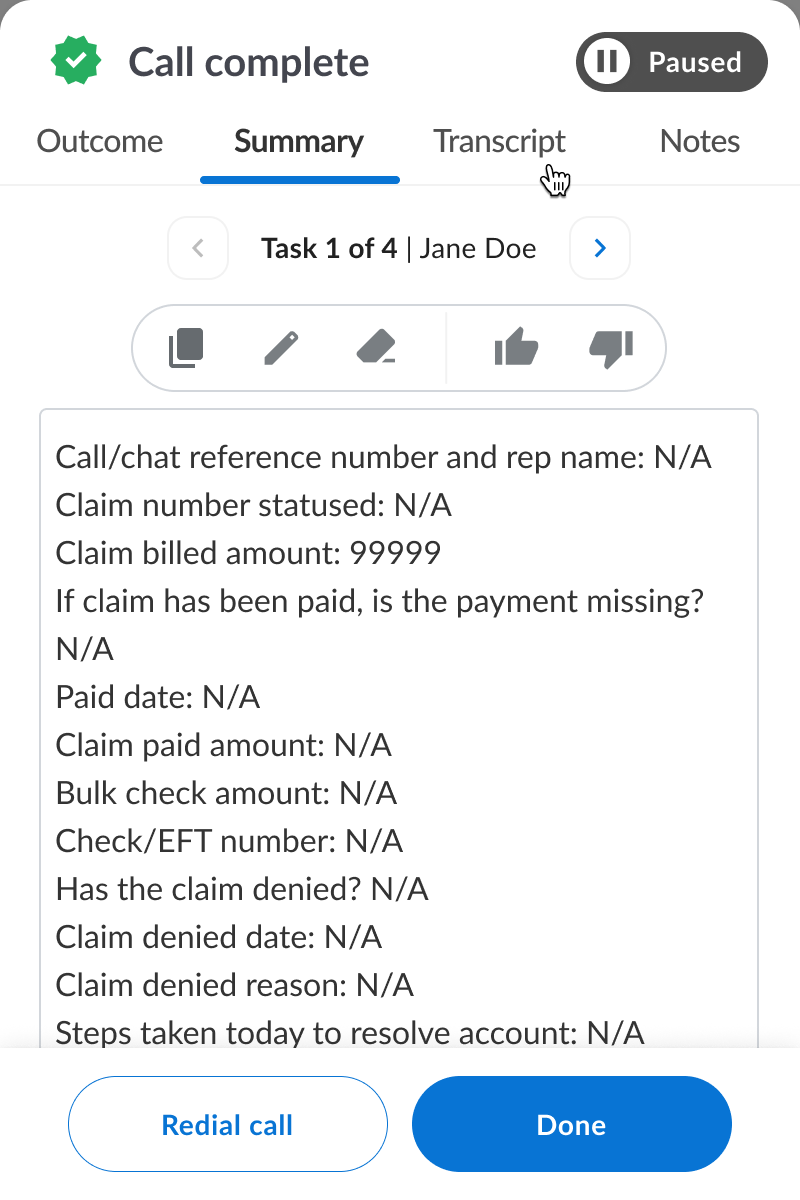
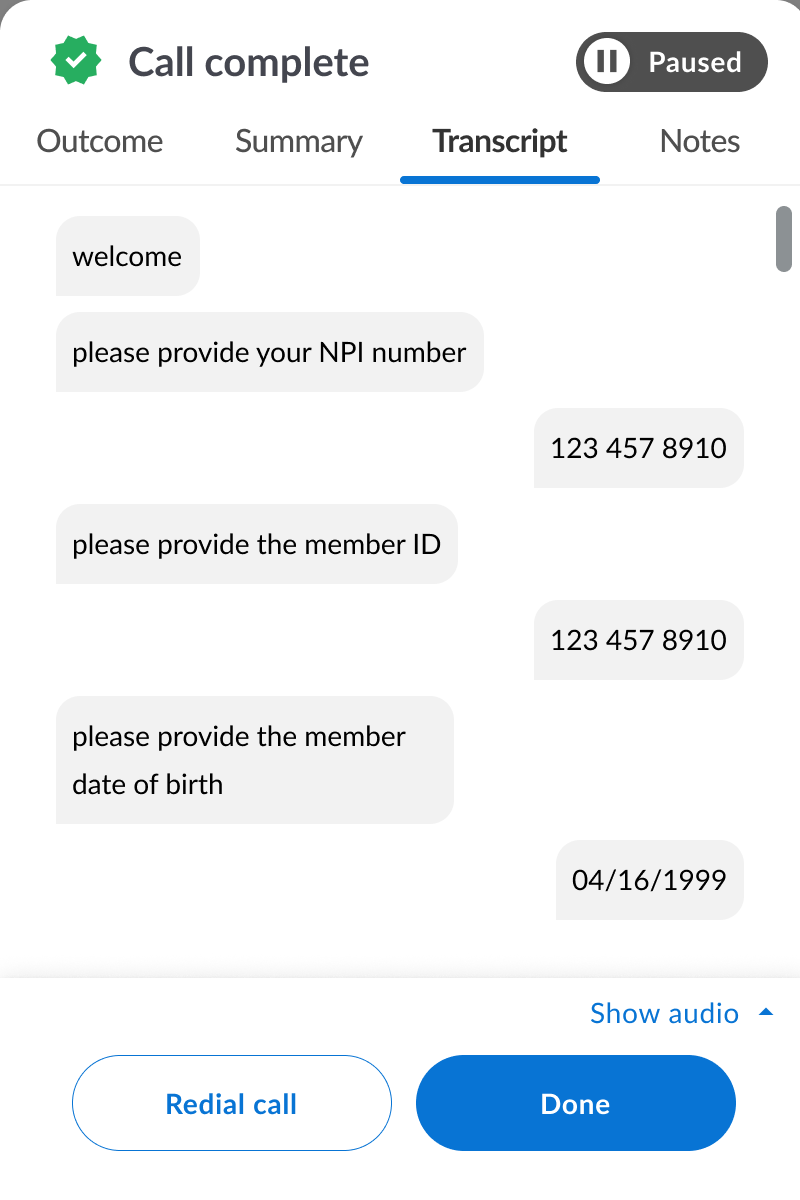
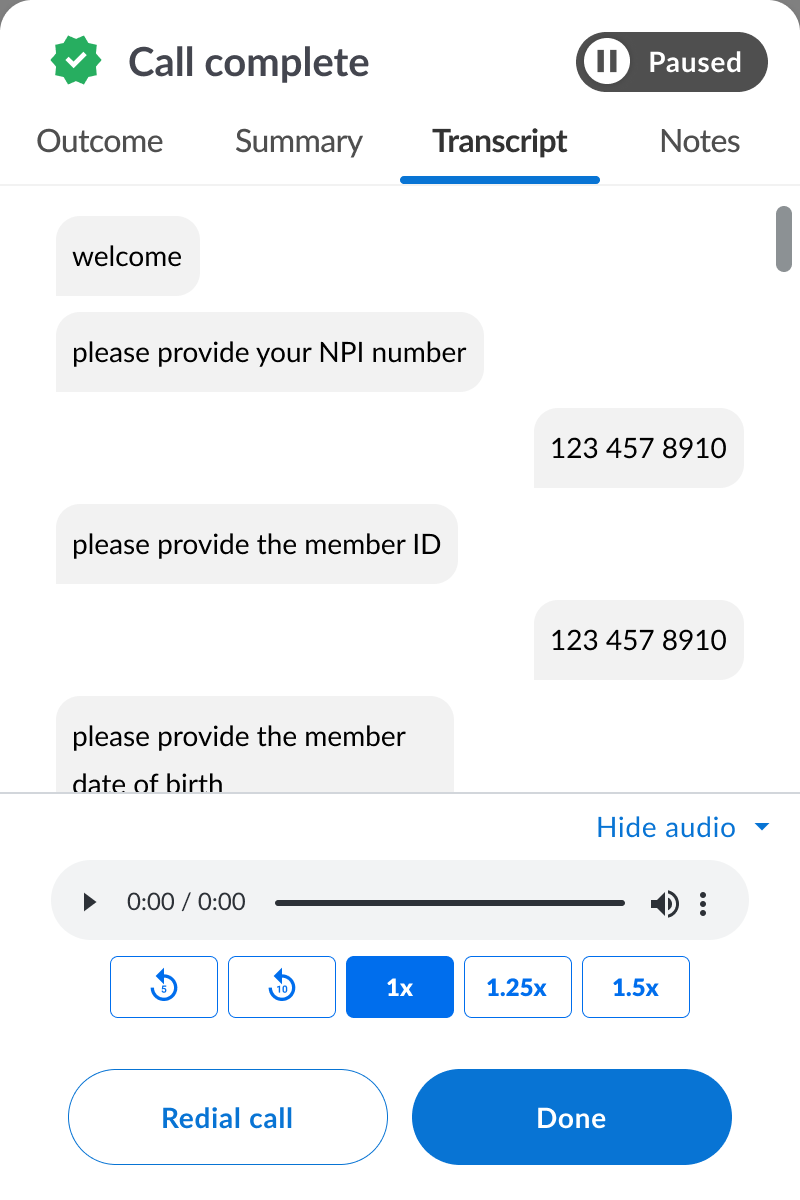
If there is something missing from the call summary, you can also reference the transcript and call recording by clicking the “Transcript” tab.
Copying the summary
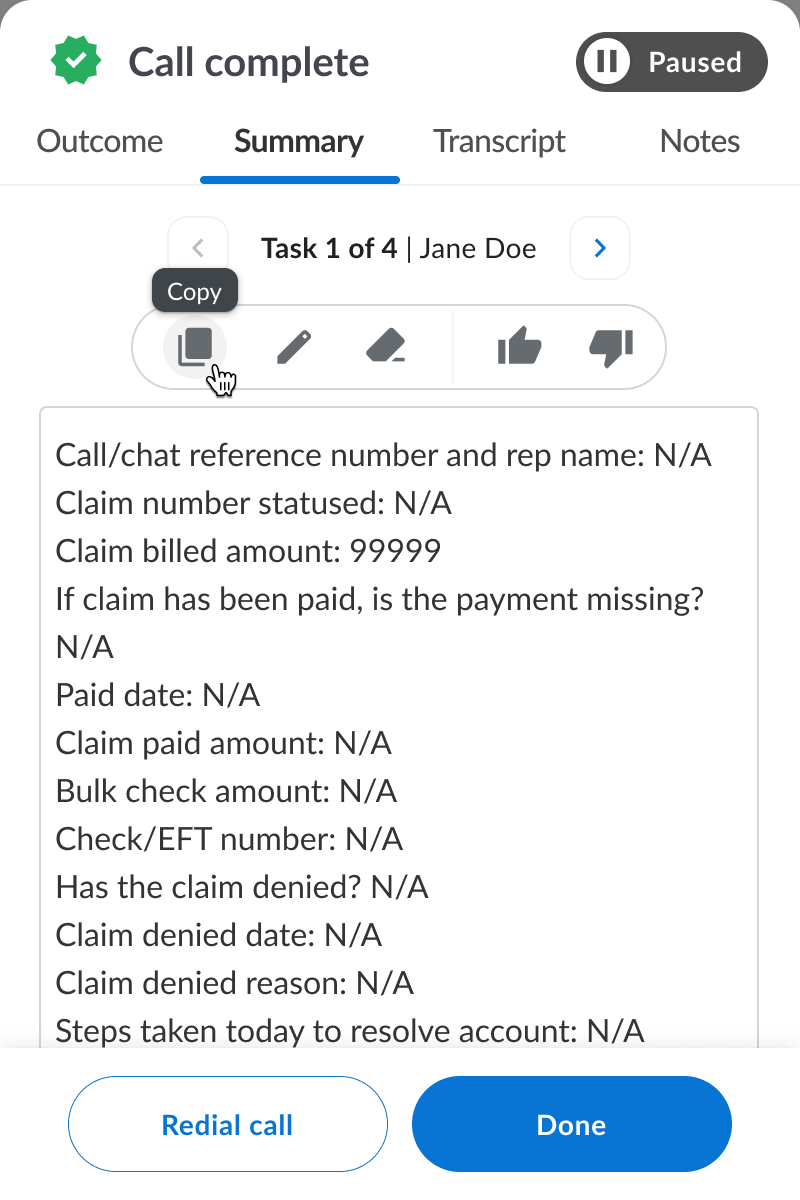
If you need to copy the summary for reference, the far left icon will allow you to copy the individual summary for each task.
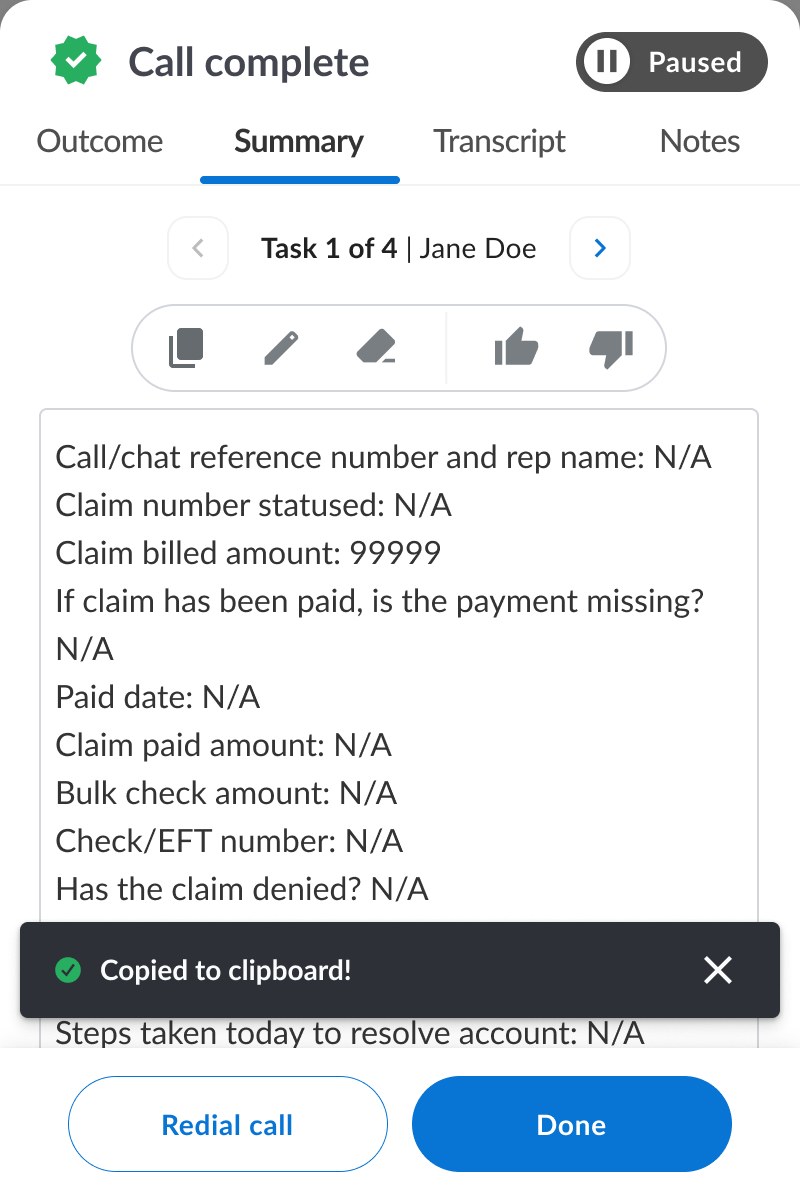
Rating the summary
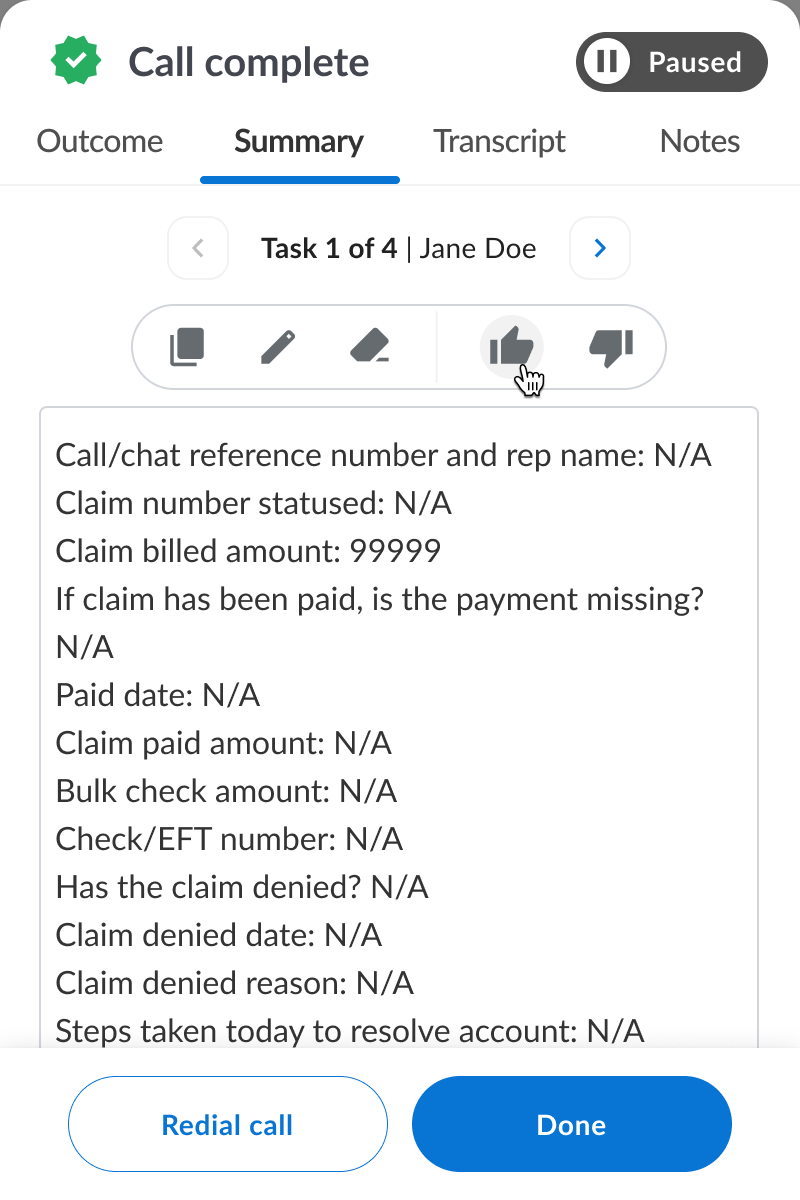
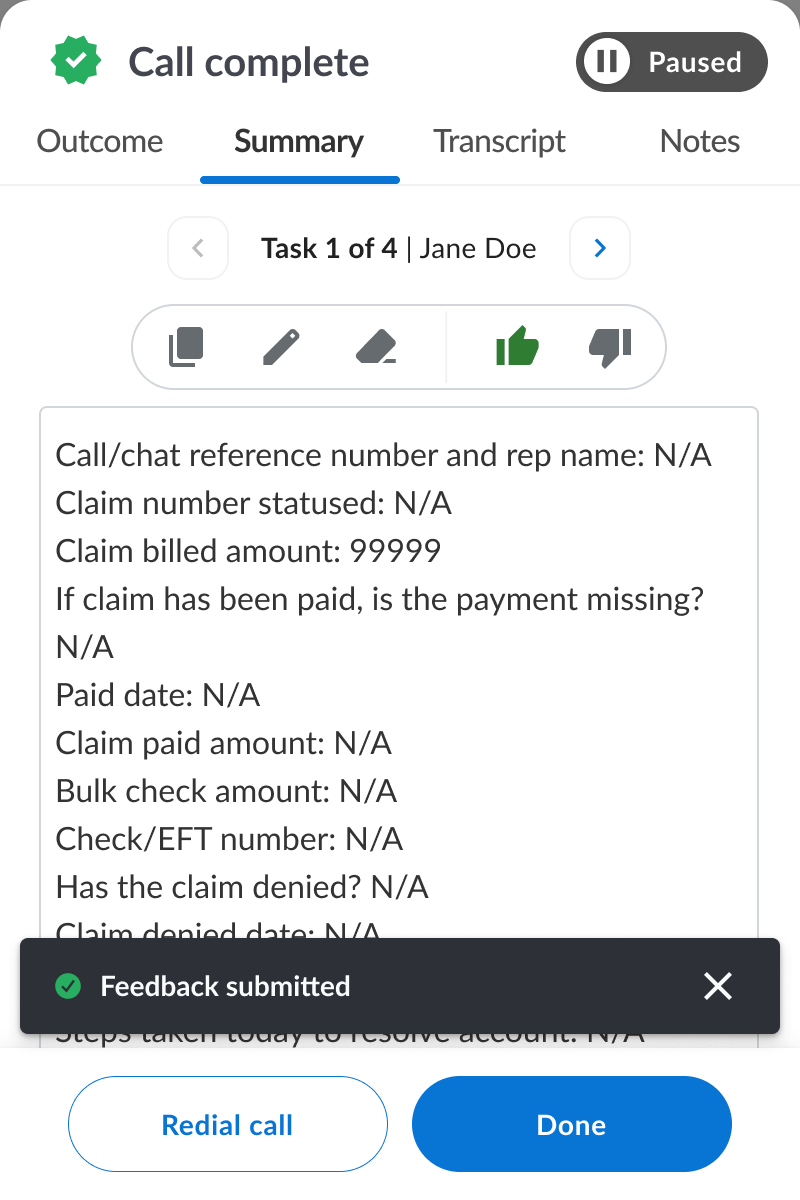
Thumbs up
For strong and well captured summaries, please rate with a thumbs up. This helps us improve the accuracy of future call summaries.
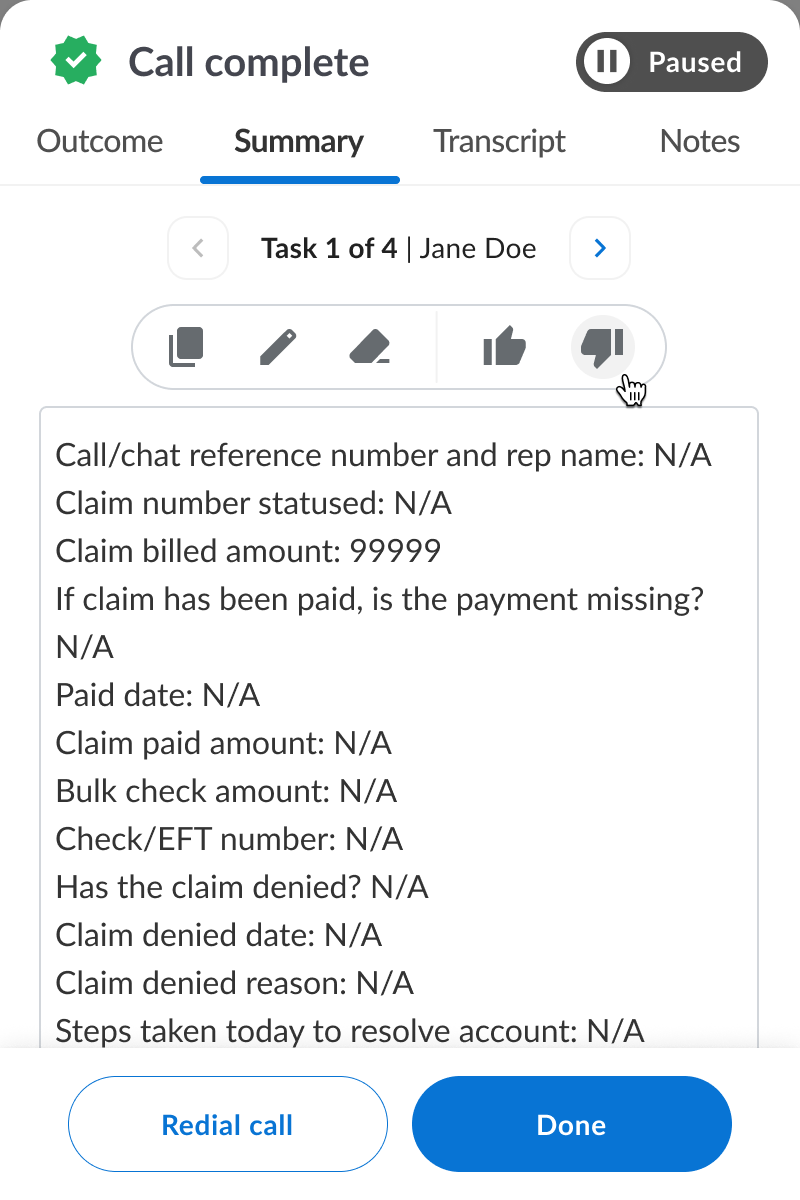
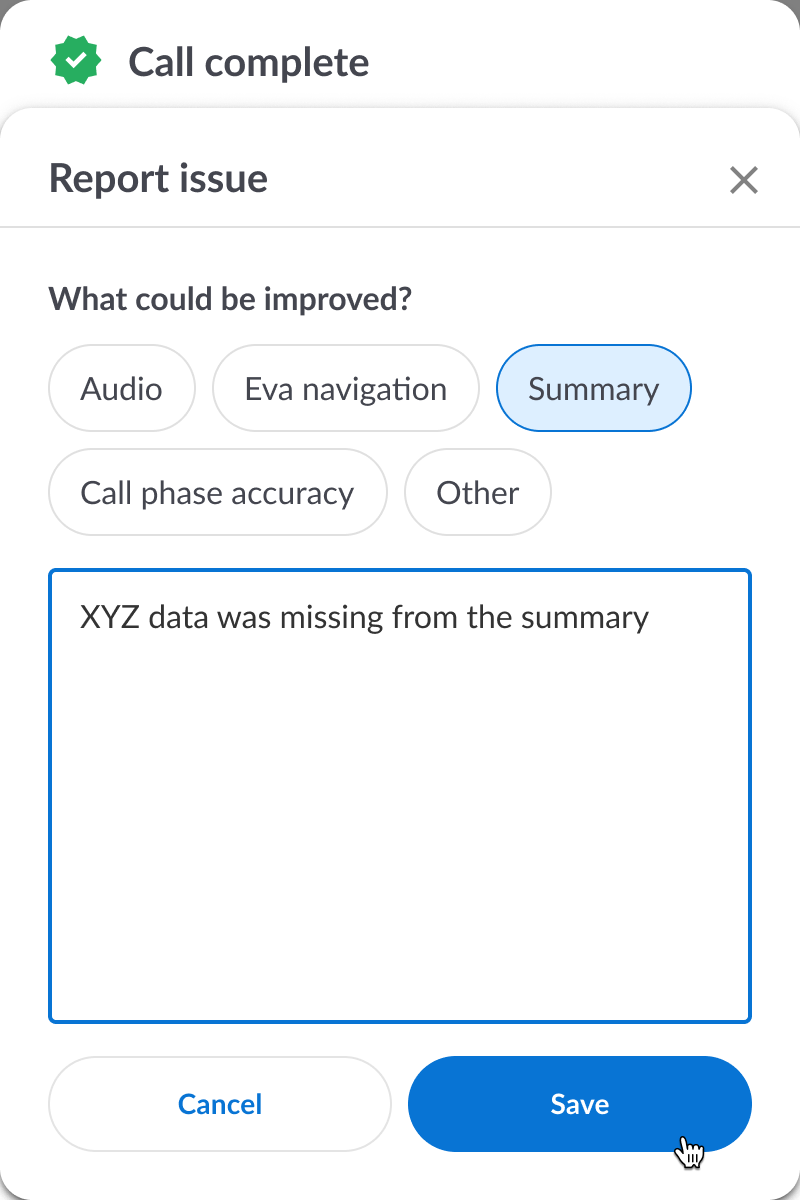
Thumbs down
For summaries that need improvements, please rate with a thumbs down. We will be able to see the before and after edits that were made to see where the summary was not accurate.
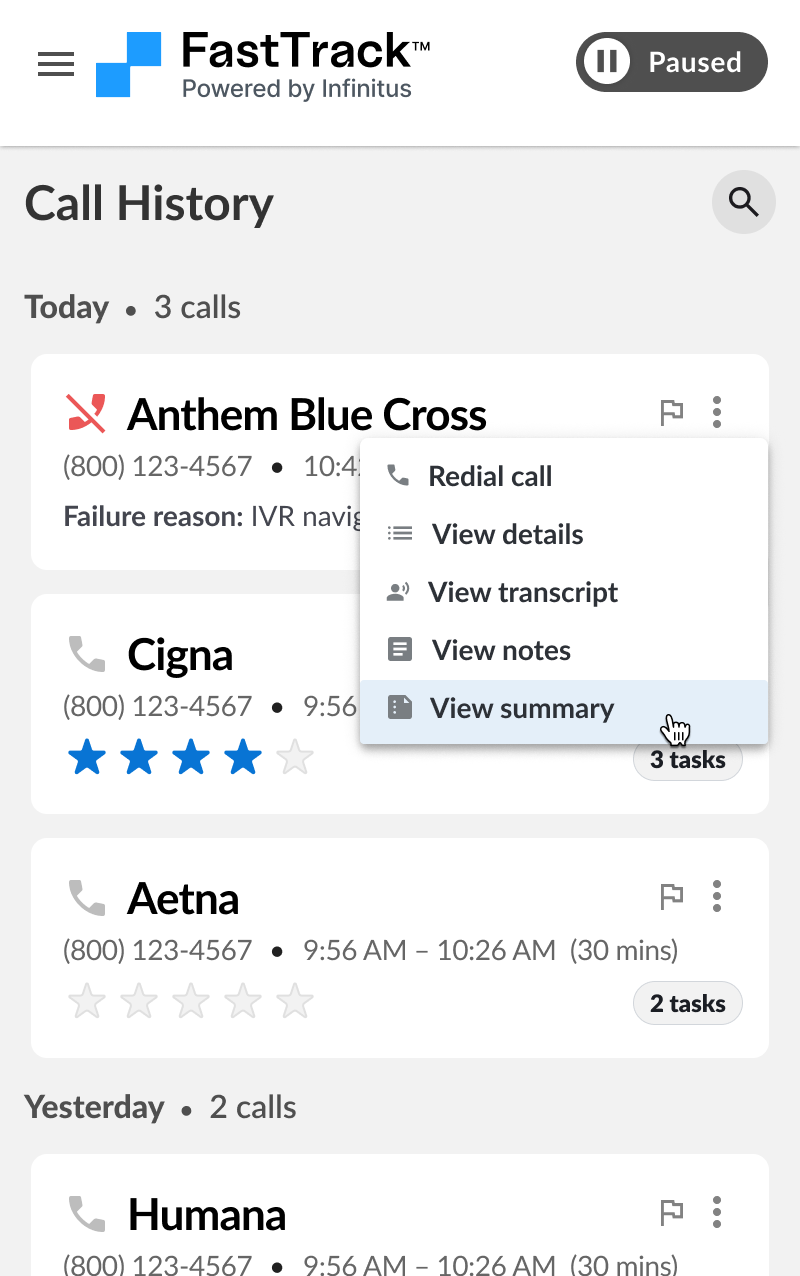
Editing summaries in call history
If you need to make an edit to the summary after it has already been submitted, you can edit in the call history page. Any edits that are done in call history will send a corrected summary. Toggling between the tasks will automatically save any edits. Note: pressing save will send the updated AI summary to EIQ.