When you first sign in you will be prompted to enabled desktop notifications. Desktop notifications are used to alert you when a payer agent comes on the call. A notification will appear in addition to audible “ding” to ensure you can take over the call from Eva quickly.
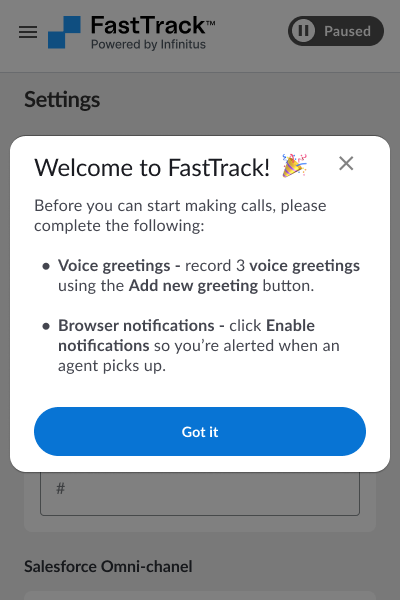
Desktop notifications are optional and can be disabled at any time. You will need to click the “Enable notifications” button from FastTrack settings page. Once enabled you can turn off the notifications at anytime from your settings under the “Notifications” section.
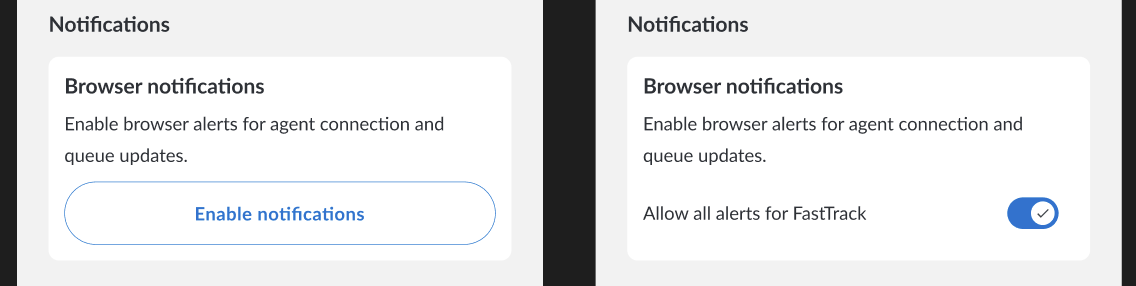
Once notifications are enabled you will get a notification anytime a payer agent joins an active call indicating its time for you to take over the call.
Depending on the browser you may also need to make sure your browser is authorized to send notifications. Check your system settings on Mac or Windows settings on windows devices to ensure your browser is authorized to send notifications.
For Mac you can go to Settings → Notifications → {Chrome | Edge} to confirm that notifications are enabled.
For Windows you can go to Settings → Notifications → Engage notifications to enable desktop notifications.